
A knowledge gap is a question a visitor asked that your assistant could not answer. Holp records them for you, which means you never have to guess what to write next — your customers are telling you, in their own words, week after week.
Working through them is the single highest-return habit in Holp. Twenty minutes a month will do more for your assistant than any amount of tinkering with settings.
Where to find them
Knowledge gaps appear on the Insights screen, in their own panel alongside latest queries and top clicked links.
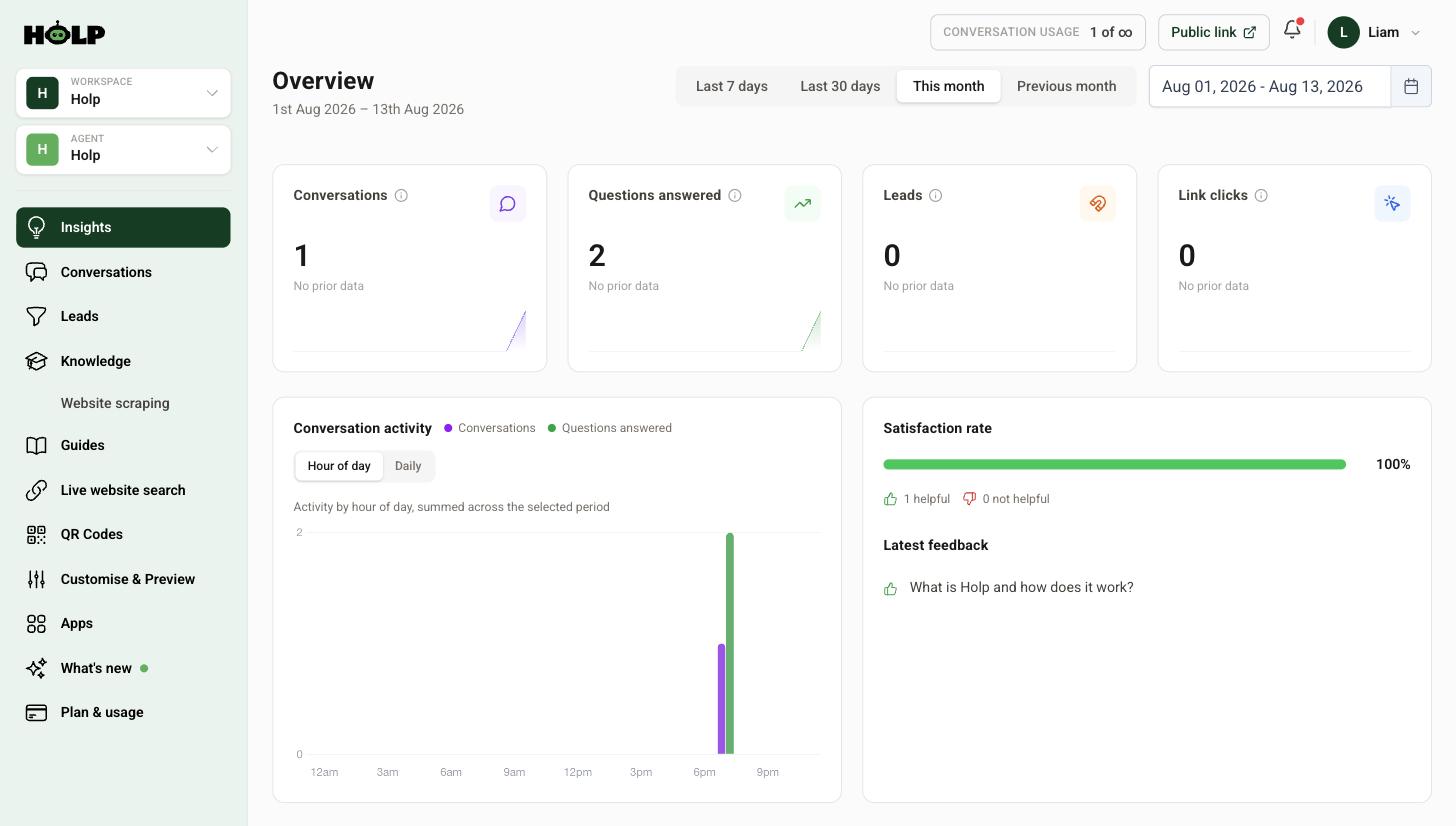
Check the date range in the top right first. It defaults to the current month, so if the panel looks empty early in the month, widen it to the last 30 days or the previous month.
What a gap actually means
It means someone asked something and your assistant had nothing relevant to draw on. There are three usual causes, and they need different fixes:
- You never wrote it down. The most common. Write a knowledge entry.
- You did write it down, but in different words. The information exists; the assistant did not match the question to it. Add keywords.
- It is not something you do. Someone asked about a service you do not offer. Worth knowing, and worth a short entry saying so plainly.
That third category is quietly valuable. If a lot of people ask whether you do something you do not do, that is market research arriving free of charge.
Step 1: Read them, do not just count them
Look at the exact wording. The way people phrase a question tells you as much as the question itself — the words they use for your products, the assumptions they arrive with, the thing they think you are.
Group them as you read. Ten gaps often turn out to be three topics.
Step 2: Fix the ones that repeat
Work in order of frequency, not order of arrival. One person asking an unusual question is not worth an entry; five people asking the same thing is.
For each topic, write a knowledge entry:
- Title it as the question, in the visitor’s words
- Answer in the first sentence
- Add the variations people used as keywords
- Save and index
Step 3: Check the fix worked
Ask the question yourself, in the same words the visitor used. If you get a good answer, you are done. If not, look at Knowledge used in Conversations to see what it drew on instead, and make your new entry more distinct from that one.
Step 4: Get told about them
You do not have to remember to check. In Customise & Preview, open the Notifications tab and switch on A knowledge gap is detected.
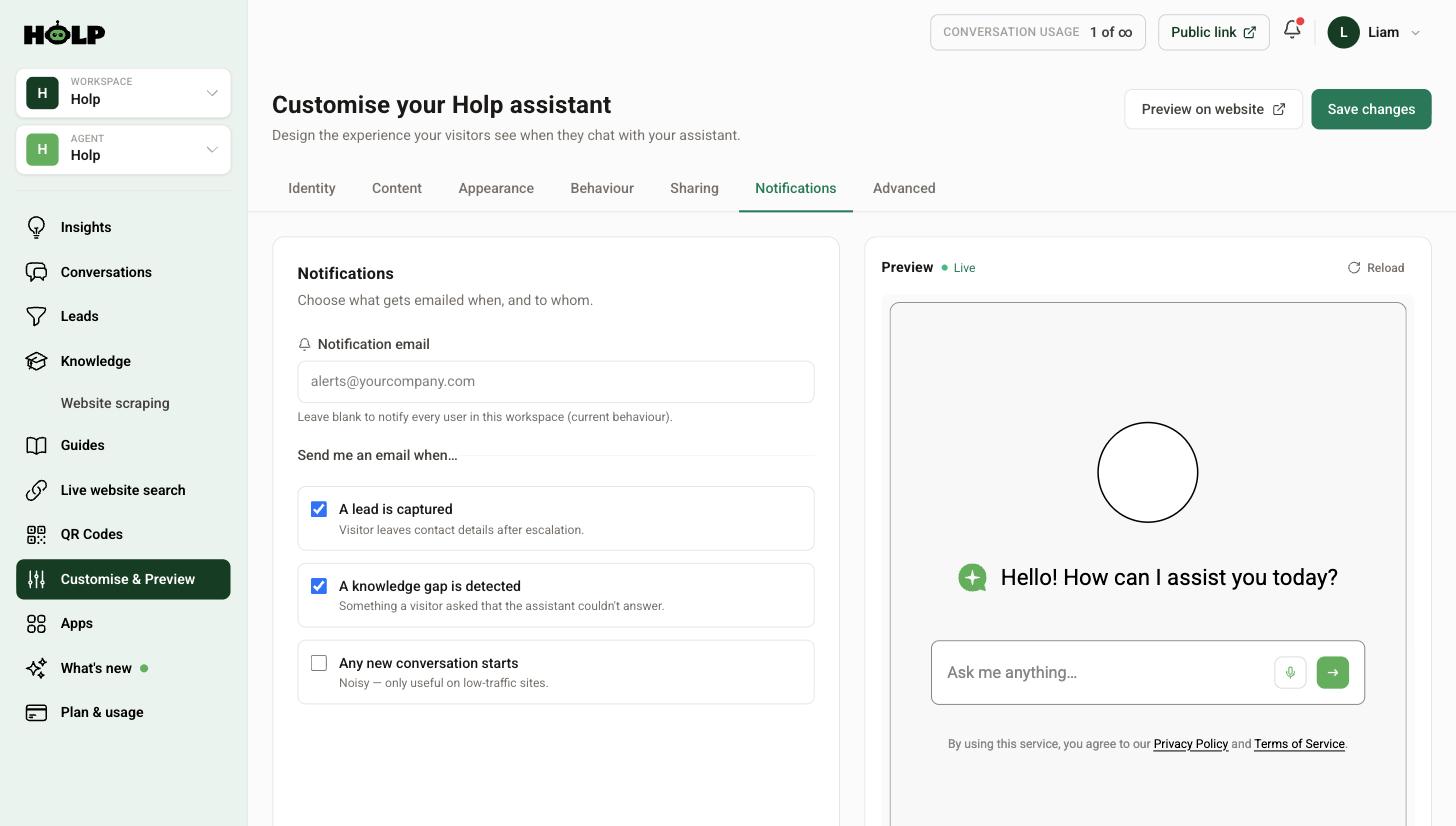
Send them to a shared inbox rather than one person, so the habit survives holidays and staff changes. See how to set up email notifications.
When there are no gaps at all
Suspiciously good news, and usually one of three things:
- Your date range is too narrow. Widen it.
- Nobody is using the assistant. Check the conversation count. If it is near zero, the problem is visibility, not knowledge — see why the Holp widget is not showing.
- Your knowledge is genuinely good. It happens. Enjoy it, and keep checking monthly.
When there are far too many
A long list on a new assistant is normal, not a failure. Do not try to clear it in one sitting. Take the five most common topics, write those entries, and come back next month. The list shrinks quickly once the big topics are covered.
Make it a routine
Monthly, thirty minutes:
- Open Insights and set the range to the last 30 days
- Read the knowledge gaps and group them
- Write entries for the top three to five topics
- Test each one
- Update your suggested prompts if a new topic has become common
Do that for three months and the difference is obvious in the satisfaction rate.
A worked example: one month of gaps
A leisure centre opens Insights at the end of the month and finds eleven knowledge gaps. Read individually they look like eleven separate problems. Grouped, they are three.
Five are about swimming lessons — when they run, what age they start, whether there is a waiting list, how to pay, what to bring. The centre has this information, but only on a PDF timetable nobody had added. One good entry fixes all five.
Four are about parking, all phrased differently: parking, car park, where do I park, is parking free. The information exists in an entry called “Facilities”. It is a keyword problem, not a content problem. Adding those four phrasings as keywords fixes it in two minutes.
Two are about a sauna the centre does not have. Nothing to fix, but worth an entry saying so plainly — and worth mentioning to management that people keep asking.
Eleven gaps, three actions, about forty minutes of work. Next month the list is much shorter, and the gaps that remain are genuinely new.
Prioritising when there are more than you can fix
If the list is long, work down it in this order:
- Things asked repeatedly. Frequency beats everything else.
- Things blocking a sale or a booking. A gap about pricing costs you more than a gap about history.
- Things that are easy. If you can answer it in two sentences, do it now rather than adding it to a list.
- Things that need a decision from someone else. Flag these and move on; they will still be there next month.
Ignore the temptation to fix the interesting ones first. The dull, repeated question about parking is worth ten times the unusual one.
Gaps that are really a different problem
Not every gap wants a new entry:
- The information exists but in your words, not theirs. Add keywords rather than writing a second entry, or you end up with two overlapping entries and inconsistent answers.
- The information exists in a draft. Check the entry status is Indexed.
- The page exists on your website but was never imported. Import it, or add the page to live website search.
- The question is unanswerable. “Will it rain on Saturday?” is not your job. Ignore it.
Tracking whether it is working
Keep a simple note each month of how many gaps there were and how many you fixed. Over three or four months you should see the count fall and the character change — from basic questions you should always have answered, to genuinely unusual ones.
If the count is not falling, the usual cause is fixing the interesting gaps rather than the frequent ones.
Frequently asked questions
What counts as a knowledge gap?
A question a visitor asked that your assistant had nothing relevant to answer with. Holp records it so you can decide whether it needs an entry.
Why is my knowledge gaps panel empty?
Usually the date range. It defaults to the current month — widen it to the last 30 days or the previous month. If your conversation count is also near zero, nobody is finding the assistant.
Do I need to fix every gap?
No. Fix the ones that repeat. A single unusual question rarely justifies an entry, but five people asking the same thing does.
A gap is about something we do not offer. What should I do?
Write a short, honest entry saying you do not offer it, and what you do instead. Visitors prefer a clear no to a vague non-answer, and it stops the question recurring.
How do I know my fix worked?
Ask the question yourself using the visitor’s wording. If the answer is still wrong, check Knowledge used in Conversations to see which entry it chose instead.
Can I be emailed when a gap appears?
Yes. Switch on knowledge gap notifications in the Notifications tab and point them at a shared inbox.
Should I worry about a long list of gaps?
Not on a new assistant. Work through the most common topics a few at a time and the list shrinks fast.
Where to go next
- How to add knowledge to your Holp assistant
- How to use the Insights dashboard
- How to improve your assistant’s answers
More from Holp
- Sitemap extractor — check a crawler can find the pages Holp needs to read
- Answerability check — see which customer questions your site cannot answer yet
- All resources — tools, comparisons and platform guides in one place