You have pasted the snippet, you have refreshed the page, and there is no chat button. Frustrating, and almost always one of a small number of causes. Work down this list in order and you will find it.
Start with the obvious three
1. Did the change actually publish?
Some website builders save and publish separately. Squarespace, Wix, Webflow and others all have a publish step after saving. Check you pressed it.
2. Are you looking at a cached page?
Caching plugins, hosting caches and CDNs all serve older copies of your pages. Clear your site cache, then open the page in a private or incognito window, which sidesteps your browser cache too.
This one accounts for a surprising share of cases where the widget appeared twenty minutes later on its own.
3. Is the snippet on the page you are looking at?
Right-click the page, choose View page source, and search for holp. If it is not there, the snippet has not landed on this page — usually because it went into a page-level field rather than a site-wide header. Move it to your header or global custom code area.
If the snippet is there but nothing shows
4. Are operating hours hiding it?
Open Customise & Preview, then Behaviour. If Only show the chat widget during set hours is ticked and you are outside those hours, the widget is hidden and behaving exactly as instructed.
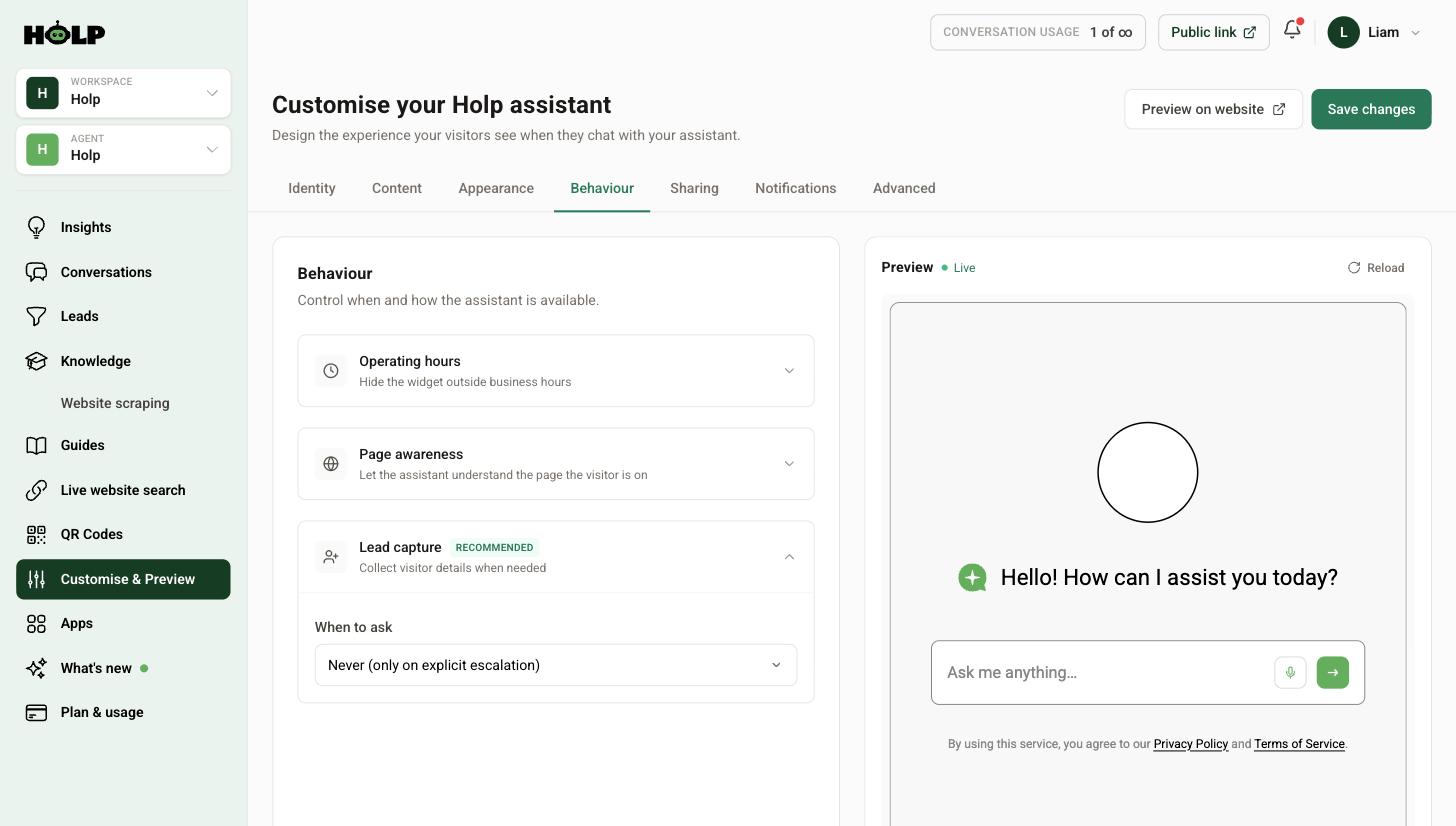
See how to control when your assistant appears.
5. Is it hidden behind something else?
Cookie banners, sticky footers, back-to-top buttons and floating baskets all like the same corner. Scroll to the bottom of the page and look carefully — the button may be there, underneath something.
Fix it by moving the launcher in the Appearance tab. Desktop and mobile positions are set separately, which is useful because the collision is usually only on one of them.
6. Is the chat widget format switched on?
In Sharing, then Add Holp to your website, check that Chat widget is ticked. If you generated your snippet with only the search bar or inline formats selected, there is no floating button to find — and those formats need a placeholder on the page, which is a different problem. See the search bar and inline guide.
7. Did your platform strip the code?
Some website builders remove custom code on lower plans, and some content editors strip it when you paste into a text field rather than a code field. View source again — if the snippet is missing or mangled, that is what happened.
Use a proper custom code or header field, not a rich text block. If your plan does not allow custom code at all, use a public Holp link instead.
8. Is something blocking it in your browser?
Ad blockers and privacy extensions occasionally block third-party widgets. Try a different browser, or a private window with extensions disabled, before concluding it is broken for everyone.
If it works for you but not for a colleague
Almost always caching or a browser extension at their end. Ask them to try a private window. If it still does not appear, ask what device and browser they are on — and check the mobile launcher position if they are on a phone.
If it appears and then vanishes later
Usually a theme or plugin update overwrote the file the snippet was in. Where possible, put the snippet somewhere updates do not touch — a theme settings field, a header and footer plugin, or a child theme — rather than editing a theme file directly.
If it shows but does not answer
That is a different problem, and a better one to have — the installation is fine. Check that your knowledge entries show as Indexed on the Knowledge screen, and see how to improve your assistant’s answers.
A quick checklist
- Published, not just saved
- Cache cleared, tested in a private window
- Snippet visible in page source
- Operating hours not hiding it
- Not sitting underneath a cookie banner or sticky element
- Chat widget format ticked
- Snippet in a code field, not a text block
- Tested without ad blockers
A worked example: WordPress, twenty minutes
Someone pastes the snippet into their WordPress theme options, saves, refreshes, and sees nothing. Here is what actually happened, in the order they found it.
They viewed the page source and searched for holp. It was there, so the snippet had saved correctly — ruling out half the possible causes immediately.
They opened the page in a private window. Still nothing, so it was not their browser cache.
They checked the Behaviour tab. Operating hours were off, so it was not that.
They scrolled to the bottom of the page and looked carefully — and there it was, sitting underneath a cookie consent banner that occupied the whole bottom-right corner until dismissed. Dismissing the banner revealed the chat button.
The fix took thirty seconds: change the desktop launcher position in the Appearance tab. Twenty minutes of diagnosis, one setting.
The order matters. Checking the page source first tells you whether you have an installation problem or a display problem, and those have completely different causes.
How to view page source
If you have not done it before: right-click anywhere on the page that is not an image or a link, and choose View page source or View source. A page of code opens. Press Ctrl+F, or Cmd+F on a Mac, and search for holp.
Finding it means the snippet is on the page and your problem is display or configuration. Not finding it means the snippet never arrived, and your problem is installation.
This one check saves more time than anything else on this page.
Testing on mobile properly
Making your browser window narrow is not the same as looking at a phone. Real phones have different sticky elements, different address bar behaviour and different touch targets.
Open your site on an actual phone and check three things: that the launcher is visible without scrolling, that it does not sit on top of anything important, and that tapping it opens the widget rather than whatever is underneath it. If your site has a sticky basket, call button or cookie bar, this is where you will find the collision.
When to ask for help
Work through the checklist first — it resolves the large majority of cases. If you get to the end and the snippet is verifiably in the page source, operating hours are off, nothing is covering it, and it still does not appear in a private window with no extensions, then the useful things to have ready are: which platform your site is built on, where exactly you pasted the snippet, whether it appears in page source, and what you have already ruled out.
That turns a vague problem into a specific one, and specific problems get fixed quickly.
Frequently asked questions
I pasted the code but nothing appears. What is the most likely cause?
Caching or an unpublished change. Clear your site cache and check the page in a private window before anything else.
How do I check the snippet is actually on my page?
View the page source and search for holp. If it is not there, the snippet has not been added to that page.
The widget shows on my homepage but not other pages. Why?
The snippet has gone into a page-level field. Move it to your site-wide header or custom code area so it appears on every page.
My widget disappeared after a website update. What happened?
An update most likely overwrote the file it was in. Move it to a theme settings field or a header and footer plugin so future updates leave it alone.
Why can I not see it in the evening?
Check whether operating hours are switched on in the Behaviour tab. Outside those hours the widget is deliberately hidden.
It works on desktop but not on my phone. Why?
Usually the mobile launcher position colliding with something sticky. Set a different mobile position in the Appearance tab.
My website builder does not allow custom code. What can I do?
Use a public Holp link, and a QR code for anything printed. Neither needs access to your website.
Where to go next
- How to add the Holp chat widget to your website
- How to brand the Holp widget
- How to improve your assistant’s answers
More from Holp
- How to add live chat to a website — the install on every platform, and the decisions to make first
- AI chatbot for WordPress — plugin or snippet, and what it can actually read
- All resources — tools, comparisons and platform guides in one place