
Knowledge is what your Holp assistant knows. Every answer a visitor gets comes from it, so the difference between an assistant people love and one they give up on is almost always the quality of what you have written here.
This guide covers adding knowledge by hand — the most reliable method, and the one you will keep coming back to. It takes about ten minutes to learn and you will use it every week.
When to write an entry by hand
Importing your website is the quickest way to fill an empty assistant, but hand-written entries are better whenever:
- The question comes up constantly and the answer must be exactly right
- The answer is not written down anywhere on your site
- The information on your site is buried, out of date or spread across several pages
- You want to control the wording — refunds, complaints, safeguarding, prices
Step 1: Open the Knowledge screen
In the left-hand menu, click Knowledge. This lists everything your assistant currently knows, with the source, type, when it was last updated, whether it is indexed, and how many times it has actually been used to answer someone.
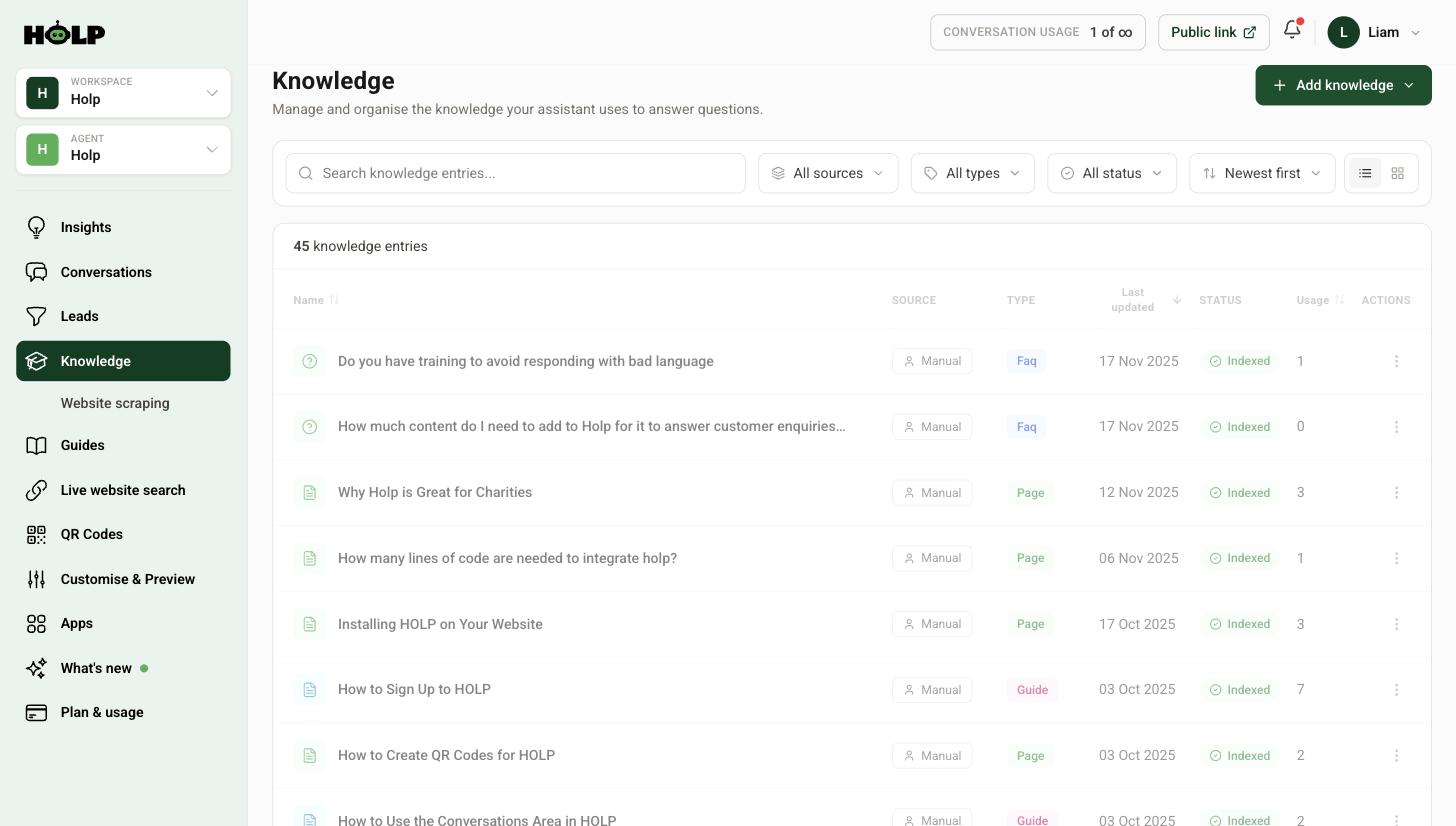
That usage column is worth a look every so often. Entries with high usage are the ones to keep polished. Entries sitting on zero either cover something nobody asks, or are worded in a way the assistant is not matching.
Step 2: Add a new entry
Click Add knowledge in the top right and choose Manual entry. You will get a short form.
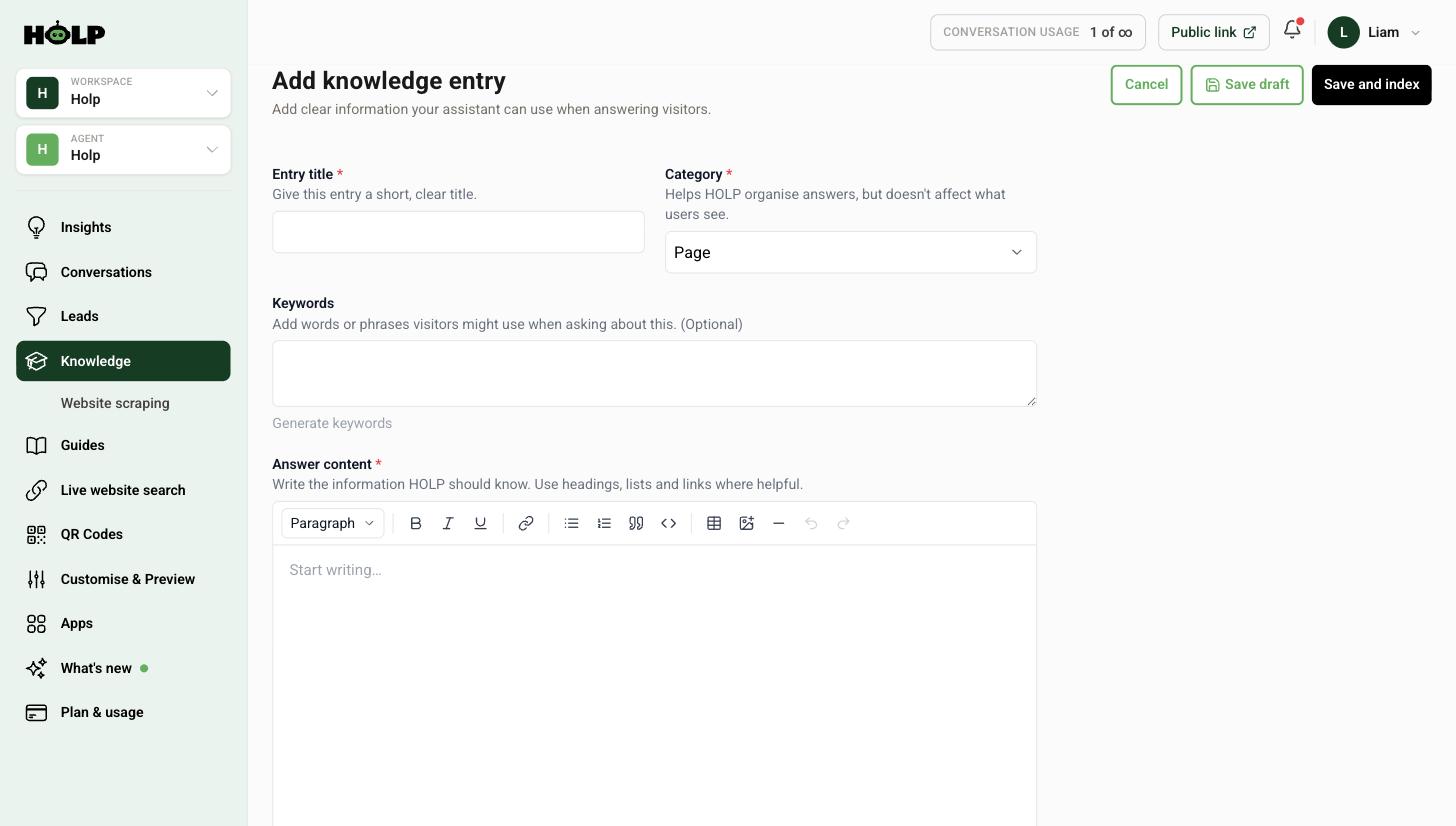
Entry title
Write it as the question a customer would actually ask. “Can I bring my dog?” works far better than “Animal policy”. The title is one of the strongest signals the assistant uses to find the right entry.
Category
Choose from Article, Course, Event, FAQ, Guide, Job, Page, Product or Service. This helps you organise and filter your own knowledge base. It does not change what visitors see, so do not agonise over it.
Keywords
Optional, but genuinely useful. Add the other words people use for the same thing — the slang, the abbreviations, the common misspellings. If your customers say “parking”, “car park” and “where do I leave the car”, put all three in.
There is a Generate keywords link that will suggest a set for you based on what you have written. It is a good starting point — then add the words only you would know.
Answer content
This is the answer itself. You get a simple editor with headings, bold, italics, links, bullet and numbered lists, quotes, tables and images.
Some things that consistently work well:
- Answer in the first sentence. Do not build up to it.
- Keep paragraphs short. Two or three sentences.
- Use bullet points for lists of prices, steps, options or requirements.
- Write in full sentences. The assistant rewrites your answer to suit the question, and it does that better when your source reads like prose than when it reads like notes.
- Include the exceptions. “Open 9 to 5, except bank holidays” saves a complaint later.
Reference link
Optional. Link to the page on your site this answer came from, and the assistant can point visitors there for the full detail.
Step 3: Save and index
Two buttons: Save draft keeps the entry without making it live, which is useful if you are half way through writing. Save and index makes it available to the assistant.
Indexing takes a moment. Once the entry shows as Indexed on the Knowledge screen, your assistant can use it.
Step 4: Test it
Do not skip this. Open your assistant and ask the question in a few different ways — the way you would ask, the way a hurried customer would ask, and the way someone unfamiliar with your jargon would ask.
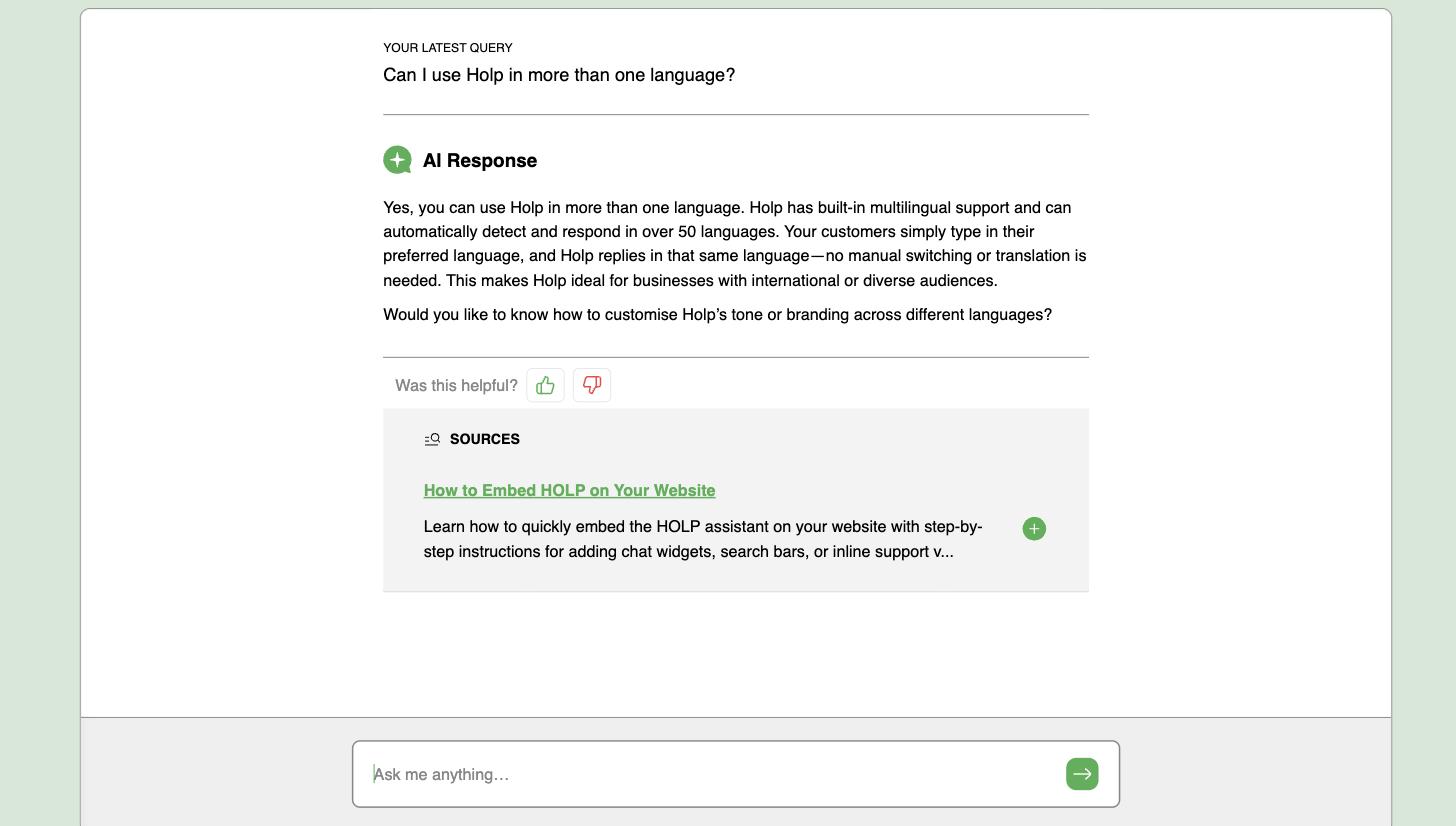
If the assistant uses the wrong entry, the usual fix is to make the two entries more distinct from each other — sharper titles, different keywords.
Editing and deleting entries
Click any entry on the Knowledge screen to open it. You will see its status, when it was last updated and where it came from.
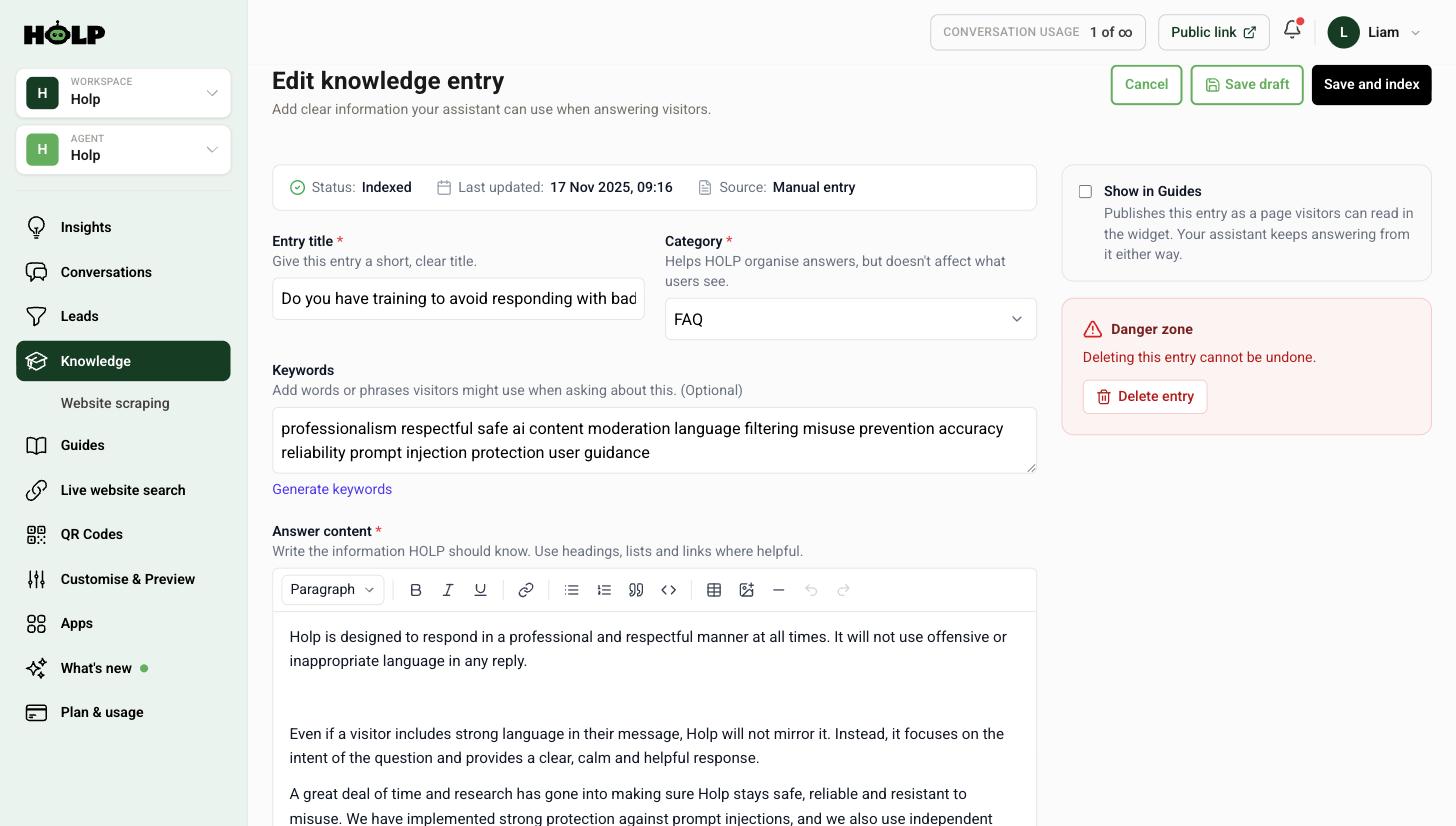
Edit the content and press Save and index to update it. Deleting sits under Danger zone and cannot be undone, so if you are unsure, edit rather than delete.
You will also see a Show in Guides option. Turning it on publishes the entry as a page visitors can read for themselves inside the widget, on top of the assistant answering from it as normal. See how to publish guides in your Holp widget.
How much knowledge do you need?
Fewer, better entries beat a large pile of thin ones. Twenty to thirty solid entries covering your most common questions will handle the large majority of what visitors ask. After that, let real conversations decide: knowledge gaps tell you exactly what to write next, and you are never guessing.
Common mistakes
- Writing one giant entry for everything. Split it up. One topic per entry means the assistant can find the right answer.
- Copying marketing copy. It reads well on a landing page and answers nothing. Write the facts.
- Leaving out the awkward answers. If you have no parking, say so. Visitors would rather have a clear no than a vague maybe.
- Forgetting to press Save and index. A draft entry will not be used.
- Never revisiting. Prices change, hours change. Sort by last updated occasionally and check the oldest entries.
Frequently asked questions
What is the difference between a knowledge entry and a guide?
They are the same thing viewed two ways. A guide is simply a knowledge entry you have chosen to publish so visitors can read it directly in the widget. The assistant answers from the entry either way — publishing just adds a readable page on top.
Does the category I choose change the answers?
No. Categories help you organise and filter your own knowledge base. Visitors never see them and they do not affect how the assistant answers.
How long should an entry be?
As long as the answer needs and no longer. Most good entries are between fifty and three hundred words. If yours is running past that, it is usually two topics that want splitting.
Do I need to add keywords?
Not strictly, but they help — especially where your customers use different words than you do. The Generate keywords link gives you a starting set to build on.
What happens if two entries cover the same thing?
The assistant picks whichever it judges most relevant, which can make answers inconsistent. If you spot overlapping entries, merge them into one clear entry and delete the other.
Can my colleagues add knowledge too?
Yes. Invite them to your workspace and they can add and edit entries alongside you. See how to invite your team.
Can I add an entry without making it live yet?
Yes. Use Save draft. The entry is stored but not indexed, so the assistant will not use it until you come back and choose Save and index.
Where to go next
- How to import your website into Holp
- How to upload PDFs and documents
- How to find and fix knowledge gaps
- How to improve your assistant’s answers
More from Holp
- Sitemap extractor — check a crawler can find the pages Holp needs to read
- Answerability check — see which customer questions your site cannot answer yet
- All resources — tools, comparisons and platform guides in one place