An assistant that quietly collects enquiries nobody reads is worse than no assistant at all. Notifications are what stop that happening — they bring the things that need a human out of Holp and into someone’s inbox.
There are two places to set them: per assistant, and per user account. This guide covers both.
Assistant notifications
Go to Customise & Preview and open the Notifications tab.
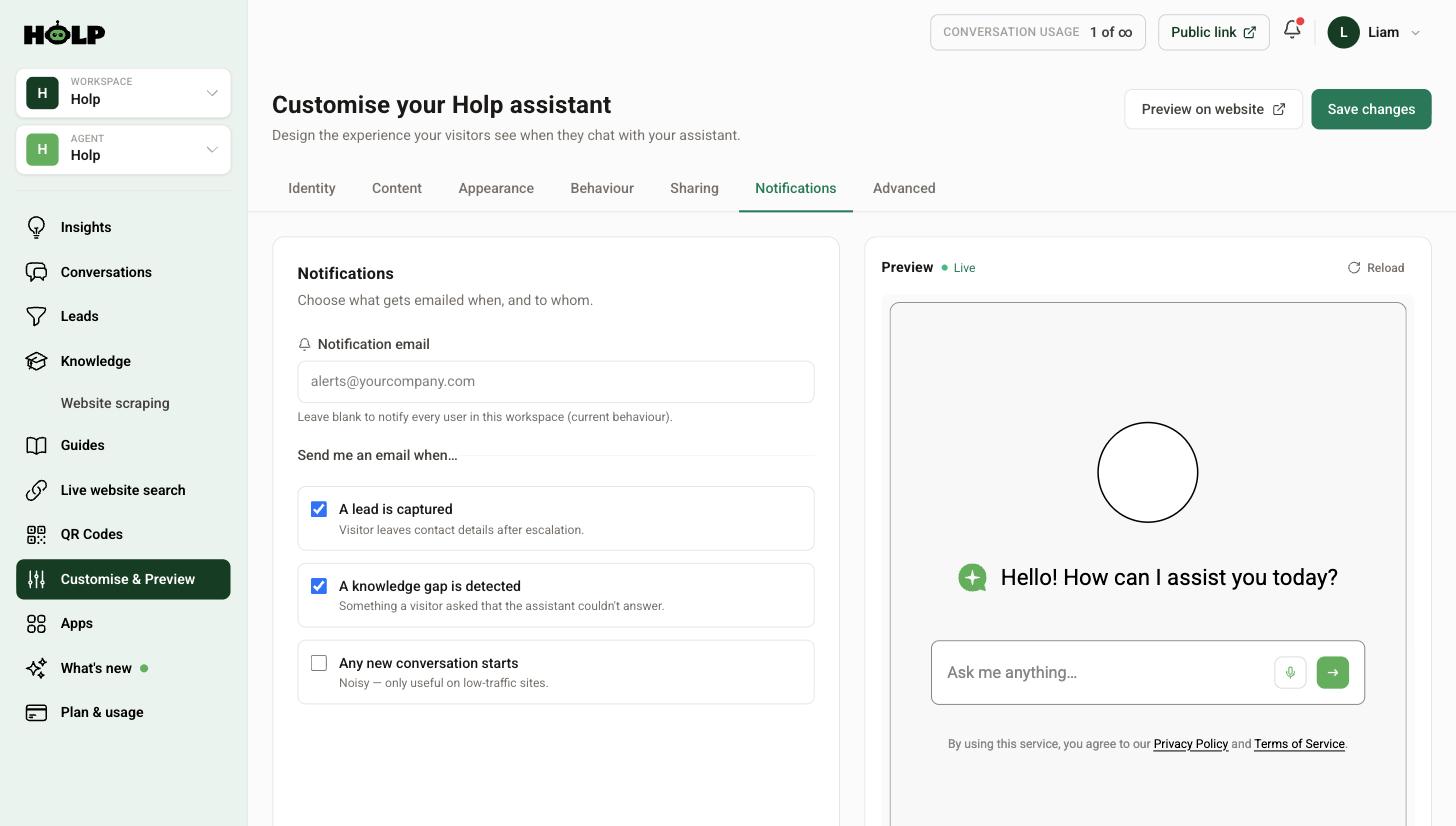
Notification email
Leave it blank and every user in the workspace gets notified. Fill it in and notifications go to that address instead.
Use a shared inbox — support@, hello@, enquiries@. A personal address means the loop breaks the first time that person is on holiday, and breaks permanently the day they leave. This single field is the difference between a system that survives staff changes and one that does not.
A lead is captured
Switch this on. A visitor has left their contact details after escalating, which means they want to hear from you. Every hour that email sits unread makes them colder.
A knowledge gap is detected
Switch this on too. Something a visitor asked that your assistant could not answer. It turns improving your assistant from a task you have to remember into one that arrives on its own.
See how to find and fix knowledge gaps for what to do with them.
Any new conversation starts
Leave this off unless your site is very quiet. Holp describes it as noisy and only useful on low-traffic sites, which is exactly right. On a site with any real traffic it produces so many emails that people set up a filter, and once there is a filter they stop reading the important ones too.
It can be worth switching on for a week or two at the very start, while you want to see everything happening. Turn it off once you have got the feel of it.
Account notifications
Separately, your own user account has email preferences. Open the account menu in the top right and choose Settings. Under email notifications you will find:
- Insights reports — periodic summaries of your assistant’s activity and trends. Useful if you are the person who cares about the numbers, and a good prompt to do your monthly review.
- Escalation emails — get notified by email when a visitor is escalated to your team.
These are per person, so each of your colleagues can choose what they want.
A setup that works
For a small team:
- Notification email pointed at a shared inbox everyone can see
- Lead notifications on
- Knowledge gap notifications on
- New conversation notifications off
- Insights reports on for whoever owns the assistant
Then agree who checks the inbox and how often. Twice a day is plenty for most organisations, and it is a far better answer than everybody assuming somebody else is looking.
If notifications are not arriving
- Check the address. A typo in the notification email field is the most common cause.
- Check spam and quarantine. Automated email from a new sender often lands there the first few times. Mark it as safe.
- Check the switch is actually on and that you pressed Save changes.
- Check there is anything to notify you about. No leads means no lead emails — look at your lead capture setting, which by default only asks on explicit escalation.
- Check account-level preferences as well as assistant-level ones.
Do not rely on email alone
Email is a prompt, not a system. Whatever your notifications say, it is worth someone opening Conversations once a week and reading the escalated ones properly. Notifications tell you something happened; the conversation tells you what actually went wrong.
A worked example: what a week looks like
A visitor asks about wholesale pricing on Tuesday evening. The assistant does not have that information, offers to pass it on, and the visitor leaves their name and email.
Two emails follow. A lead notification lands in the shared inbox with the contact details and the conversation attached. A knowledge gap notification lands as well, because the assistant could not answer.
Wednesday morning, whoever is on the inbox does two things. They reply to the visitor with the wholesale prices — that is the sale. Then they add a knowledge entry for wholesale pricing — that is the fix. The next person asking gets an answer immediately and never becomes a lead at all.
That is the whole loop, and it takes about five minutes. The lead notification handles the person in front of you; the knowledge gap notification stops it happening again.
Deciding who reads what
The most common failure is not a technical one. It is three people all assuming somebody else is watching the inbox.
A simple split that works:
- Lead notifications go to whoever sells or handles enquiries. Checked at least twice a day.
- Knowledge gap notifications go to the same shared inbox, but are dealt with weekly rather than immediately — they are improvements, not emergencies.
- Insights reports go to whoever owns the assistant, as a monthly prompt to actually look at the numbers.
Write that down somewhere. An agreement nobody has written down is not an agreement.
Setting expectations with visitors
Notifications tell you when someone needs a human. They say nothing to the visitor about how long that will take, and visitors will assume the worst if you leave a gap.
Add a knowledge entry covering response times in plain terms — when your team works, how quickly you usually reply, and what to do if it is urgent. Your assistant will then say it out loud at exactly the moment the visitor is deciding whether to bother waiting or go elsewhere.
A five-minute setup
- Open Customise & Preview, then Notifications
- Enter a shared inbox address
- Switch on lead notifications and knowledge gap notifications
- Leave new conversation notifications off
- Press Save changes
- Open your own Settings from the account menu and choose whether you want Insights reports and escalation emails
- Send yourself a test by escalating in the widget, and confirm the email arrives
That last step is worth the two minutes. It is much better to find a typo now than to discover in a month that nothing has been arriving.
Frequently asked questions
Who gets notifications if I leave the email field blank?
Every user in the workspace. Filling in a single shared address is usually tidier.
Which notifications should I switch on?
Leads and knowledge gaps. Leave new conversation notifications off unless your site is very quiet.
Why should I use a shared inbox?
Because one person’s holiday should not stop enquiries being answered, and one person leaving should not break the process permanently.
What is the difference between assistant notifications and account settings?
Assistant notifications are set per assistant and go to the notification address. Account settings are your own personal email preferences, including Insights reports and escalation emails.
I am not getting any emails. What should I check?
The address for typos, your spam folder, that the switch is on and saved, and whether there is anything to notify you about — no leads means no lead emails.
Can different people get different notifications?
Yes. Account-level preferences are per person, so colleagues can choose their own.
Will I get an email for every message a visitor sends?
Only if you switch on new conversation notifications, which is not recommended on a busy site.
Where to go next
More from Holp
- What does a chatbot cost? — every pricing model, and the costs nobody lists
- Best AI agents for customer service in 2026 — how the options compare, honestly
- All resources — tools, comparisons and platform guides in one place