An empty chat box is an intimidating thing. Plenty of visitors open a chat widget, look at the blinking cursor, decide they cannot be bothered to phrase a question, and close it again.
The Content tab fixes that. A welcome bubble gets people to notice the widget, suggested prompts give them something to click instead of type, and a disclaimer covers you where you need it.
Where to find it
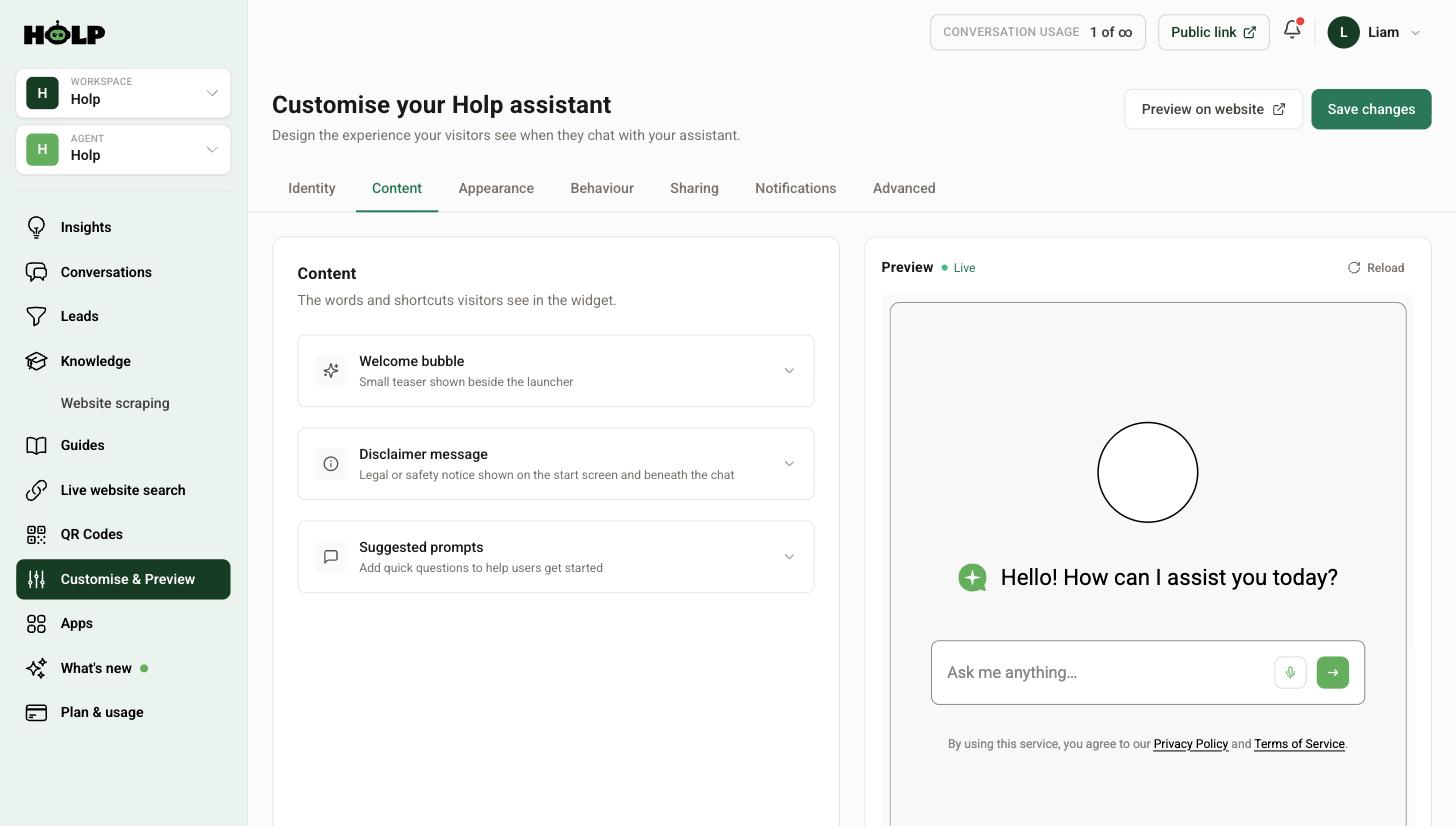
Go to Customise & Preview and open the Content tab. Three sections: welcome bubble, disclaimer message and suggested prompts.
The welcome bubble
A small teaser that appears beside the chat launcher, so the widget announces itself rather than sitting quietly in the corner. Tick Show a welcome bubble beside the chat launcher to turn it on.
You get 120 characters. Leave it blank and you get a sensible default in your chosen language, but writing your own is better.
What works:
- Offer something specific. “Need opening times or directions?” beats “Can I help?”
- Ask a question. Questions invite an answer in a way statements do not.
- Keep it short. It is a small bubble on a phone screen.
What does not: anything pushy, anything that reads like an advert, and anything so long it wraps to four lines on mobile.
Suggested prompts
These are the single highest-value thing on this tab. They appear on the start screen as questions visitors can tap, and they do two jobs at once: they tell people what the assistant knows, and they remove the effort of typing.
You can add up to nine. Type a question, press Add, and reorder them with the arrows. Each one shows how many times it has been used, so you can see at a glance which are earning their place.
Choosing good prompts
Do not guess. Use your actual data:
- The questions in Conversations that come up most
- The questions your team answers on the phone all day
- The things people email to ask because they could not find them on your site
Write them as a visitor would say them, in the first person where it reads naturally — “Where can I park?” not “Parking information”.
How many to use
Three to five is usually right. Nine is available but a wall of options is its own kind of paralysis, and on a phone the later ones are below the fold anyway. Put your best one first.
Steering people deliberately
Suggested prompts are the fastest way to point visitors at what you want them to find. If bookings matter more than anything else, make a booking question your first prompt. People genuinely do click the first one most.
The disclaimer message
A legal or safety notice shown on the start screen and beneath the chat. Off by default, and most organisations do not need it.
You probably do want one if:
- You are in a regulated sector and need to make clear this is not formal advice
- Visitors might otherwise assume they are talking to a qualified professional
- Your legal or compliance team has asked for wording
Keep it short and readable. A dense paragraph of legalese on the start screen puts people off before they have asked anything. One clear sentence does the job.
Privacy and terms links are separate, and live on the Sharing tab.
Test it as a visitor
Use the live preview, then look at your real site on a phone. Check that the welcome bubble does not cover anything important, that the prompts are readable at small size, and that tapping a prompt gives a good answer.
That last point matters. A suggested prompt that produces a weak answer is worse than no prompt at all, because you invited the question. If a prompt gives a poor answer, either fix the knowledge entry behind it or drop the prompt.
Keep them fresh
Suggested prompts are not a set-and-forget setting. Check the usage counts every month or two. Swap out anything sitting on zero, and add prompts for whatever is currently seasonal — a Christmas opening times question in December, an admissions question in the spring.
A worked example: choosing five prompts
A dental practice starts with the prompts they assumed people wanted: “Our treatments”, “About the practice”, “Meet the team”. After a month the usage counts show almost nobody clicking any of them.
They open Conversations and read what people actually asked. The real questions are: are you taking NHS patients, how much is a check-up, what do I do if I am in pain right now, do you see children, and where do I park.
They replace all three prompts with those five, worded exactly as visitors wrote them. Clicks go up sharply, and so does the number of conversations that end in a booking — because the prompts now match what brought people to the site in the first place.
The lesson is uncomfortable and reliable: your prompts should be written by your customers, not by your marketing team. The data to do it is already in your conversations.
Order matters more than you would think
The first prompt is clicked far more than the fifth, so treat position one as a decision rather than an accident. Two sensible ways to use it:
- Put the most common question first, if your goal is deflecting routine enquiries.
- Put the commercially important question first, if your goal is bookings or sales. “How do I book?” in position one performs very differently from “How do I book?” in position six.
You can change the order any time, so it is worth trying both for a month each and comparing the usage counts.
Seasonal prompts
Prompts are the cheapest seasonal content you have. Swapping one in for a few weeks costs a minute:
- “What are your Christmas opening times?” through December
- “Do I need to book for half term?” before school holidays
- “Is the event still going ahead?” during bad weather
- “How do I apply?” during an admissions or recruitment window
Set a reminder to review them at the start of each quarter, and remove anything that has stopped being relevant. A prompt about last summer’s festival in October makes the whole assistant look neglected.
A quick audit
- Open the Content tab and note the usage count against each prompt
- Remove anything on or near zero
- Open Conversations and list the five questions asked most
- Add any that are not already prompts, in the visitors’ own words
- Tap each prompt yourself and read the answer — fix the entry behind any that disappoint
- Put the most important one first
Frequently asked questions
How many suggested prompts can I add?
Up to nine, though three to five usually works better. They appear on the start screen and the first one gets clicked most.
What should my suggested prompts say?
Real questions in your visitors’ own words. Take them from your conversations, your phone enquiries and your inbox rather than guessing.
Can I see which prompts people use?
Yes. Each prompt shows a usage count in the Content tab, so you can drop the ones nobody clicks.
Do I have to write a welcome bubble message?
No. Leave it blank and Holp uses a sensible default in your chosen language. Writing your own usually performs better because you can be specific.
Does the welcome bubble show on mobile?
Yes. Keep it short so it does not take over a small screen or cover anything important.
When do I need a disclaimer?
Mainly in regulated sectors, or where visitors might mistake the assistant for professional advice. Most organisations do not need one.
Where do privacy and terms links go?
On the Sharing tab, not here. Leave them blank to use Holp’s own policies.
Where to go next
- How to set your assistant’s name, tone and greeting
- How to review conversations
- How to brand the Holp widget
More from Holp
- How to add live chat to a website — the install on every platform, and the decisions to make first
- AI chatbot for WordPress — plugin or snippet, and what it can actually read
- All resources — tools, comparisons and platform guides in one place