When somebody starts typing into your assistant, Holp offers a short list of questions underneath the box. Those are search suggestions, and every one of them is a question you have approved: nothing reaches a visitor because software decided it should. You add your own, and if you want help filling the list, you can let Holp read your published knowledge and propose questions for you to say yes or no to.
You'll find them under Search suggestions in the sidebar, beneath your assistant's other settings.
Why suggestions are questions
A visitor typing into an assistant is composing a question, so "How much does delivery cost?" is something they might actually pick, while "Delivery Information" is a navigation label rather than anything anyone would type into a chat box.
So Holp only proposes something when it genuinely reads as a question: it has to end in a question mark and open with a question word. Anything else is left for you to write yourself.
What you'll need
- A Holp workspace with an assistant, on an active plan or trial
- The new widget selected under Agent settings, since suggestions are part of it
- Ten minutes, if you're approving a list Holp has found for you
Step 1: Open the list
Search suggestions shows everything in your pool, whatever state it's in, with the counts along the top: how many are live, how many are switched off and waiting, and how many you've deleted.
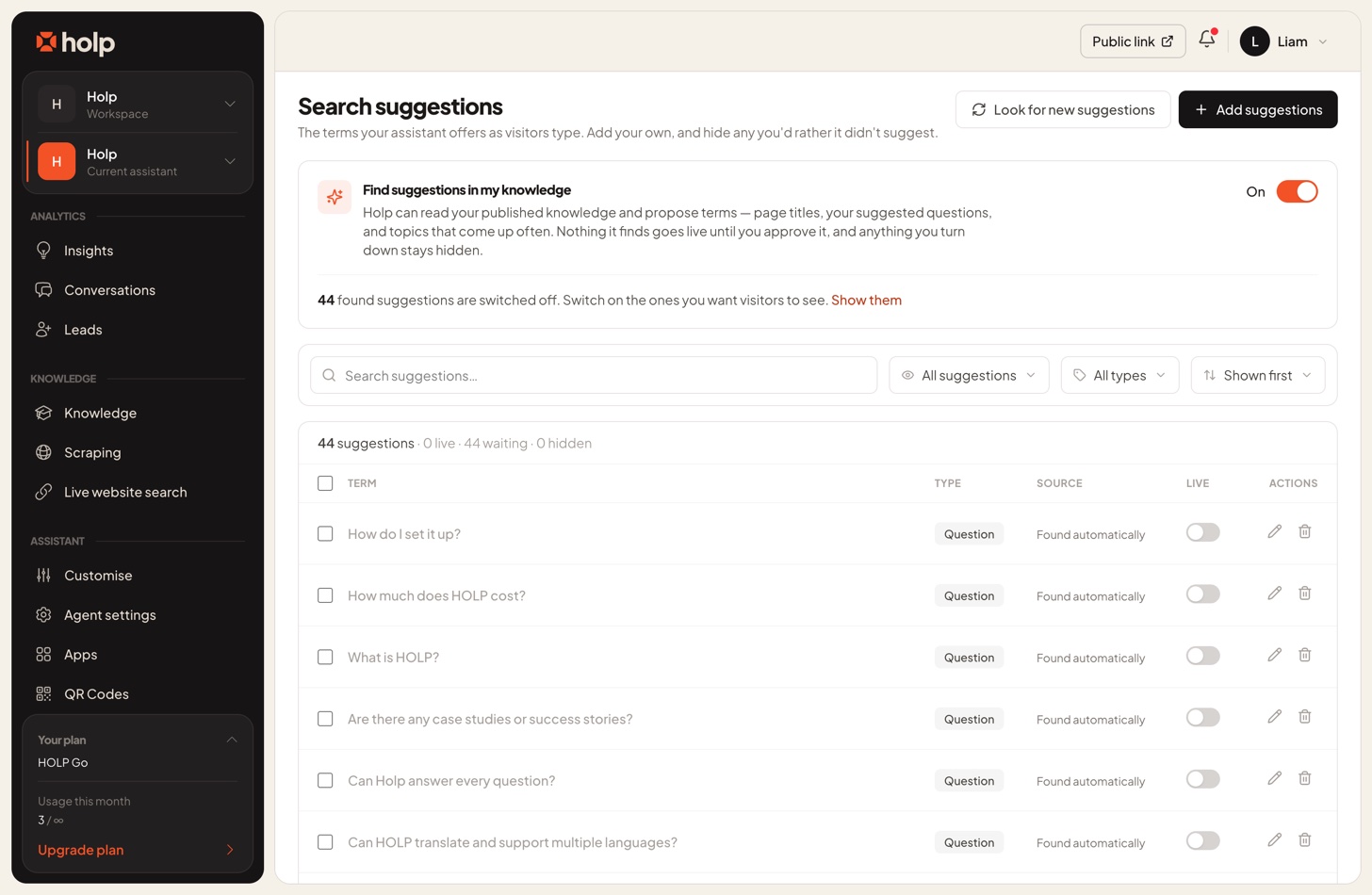
Each row tells you four things: the wording, its Type, whether the Source is Yours or Found automatically, and a switch in the Live column saying whether visitors can currently be offered it.
The filters narrow that down, and the counts sit in the filter labels so you can see the size of each pile before you open it: Live, Switched off, Added by you and Deleted.
Step 2: Let Holp find questions for you (optional)
At the top of the page is Find suggestions in my knowledge, and it starts switched off. That's deliberate. Reading a business's website and putting the results in front of its customers is not something to do on anybody's behalf without asking.
Turn it on and Holp goes through your published knowledge looking for questions: FAQ headings, page titles that ask something, and questions written into the copy. It also picks up the suggested prompts you configured on the Content tab and your published guide titles.
Nothing it finds goes live on its own. Found questions land in the list switched off, and a banner tells you how many are waiting with a Show them link straight to the queue. They sit there until you flip the switch.
Two housekeeping details are worth knowing. Look for new suggestions at the top runs the search again on demand, which is useful after a big import, and it's greyed out while automatic finding is off. And if you switch the feature back off, anything still waiting for review is cleared away, because a stale queue is only clutter when you come back to it. Questions you already approved stay live.
Holp skips the site furniture on its own: privacy policies, cookie notices, terms, baskets, logins and 404 pages never make it into the queue, since nobody opens a chat to find them.
Step 3: Switch the good ones on
The switch in the Live column is the whole mechanism. Off means the question is in your list but never offered; on means visitors see it as they type.
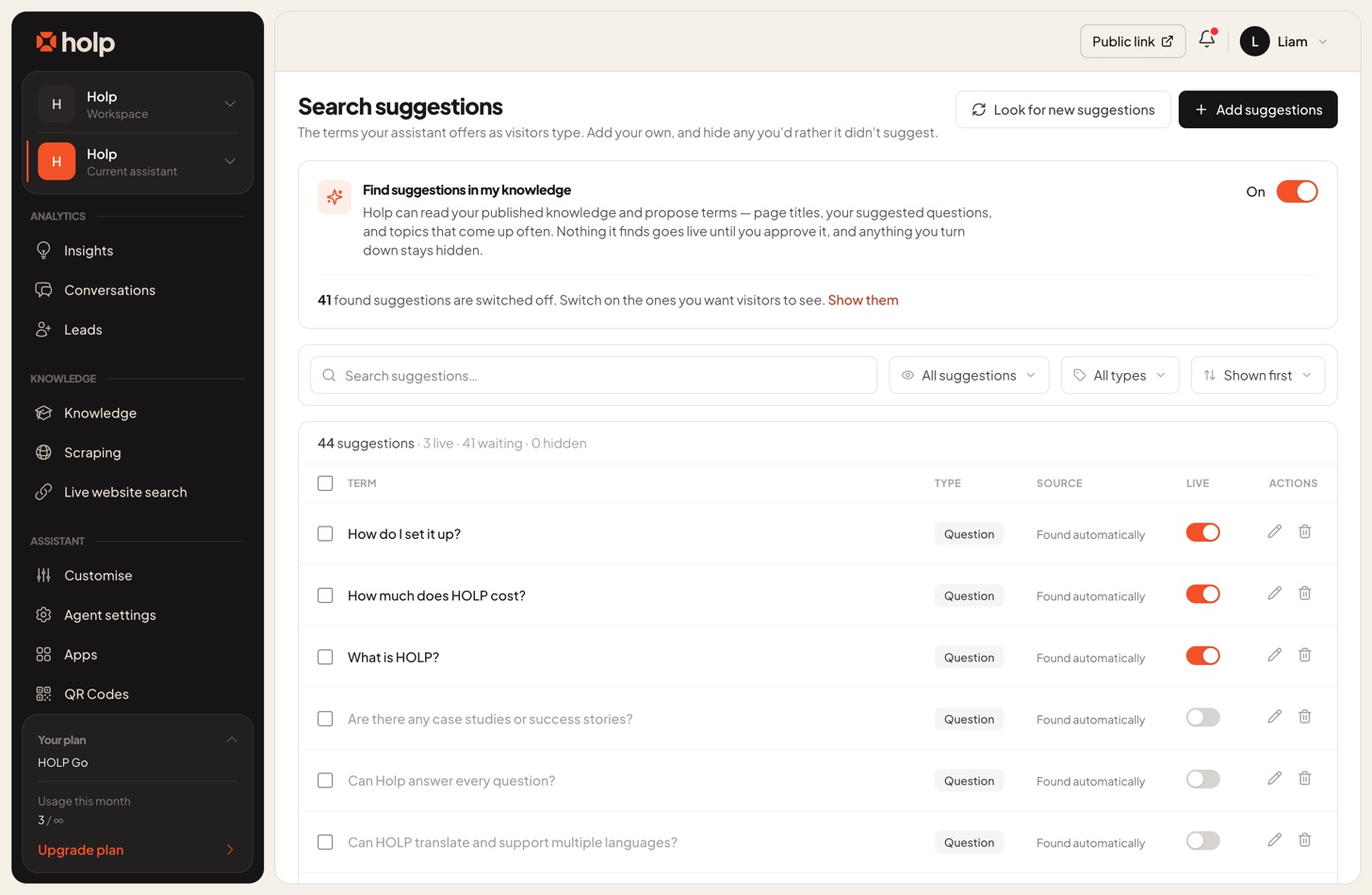
Working through a queue one row at a time gets old quickly, so tick the boxes down the left and use Switch on or Switch off on the batch. Switching a batch on skips anything you have deleted, which means a bulk action can never quietly undo a decision you made row by row.
Choose as if you were writing them yourself, because to a visitor there's no difference:
- Say yes to real questions, phrased the way a customer would ask them.
- Say no to anything internal, along with questions about a product you no longer sell and anything that reads like marketing copy with a question mark on the end.
- Keep the list tight. Visitors see at most eight suggestions at a time, so a hundred live questions is not eight times better than twenty good ones.
Step 4: Add your own
Add suggestions takes one per line, so you can paste a list rather than adding them one at a time. Each needs to be between 3 and 120 characters, and you can have up to 500 of your own.
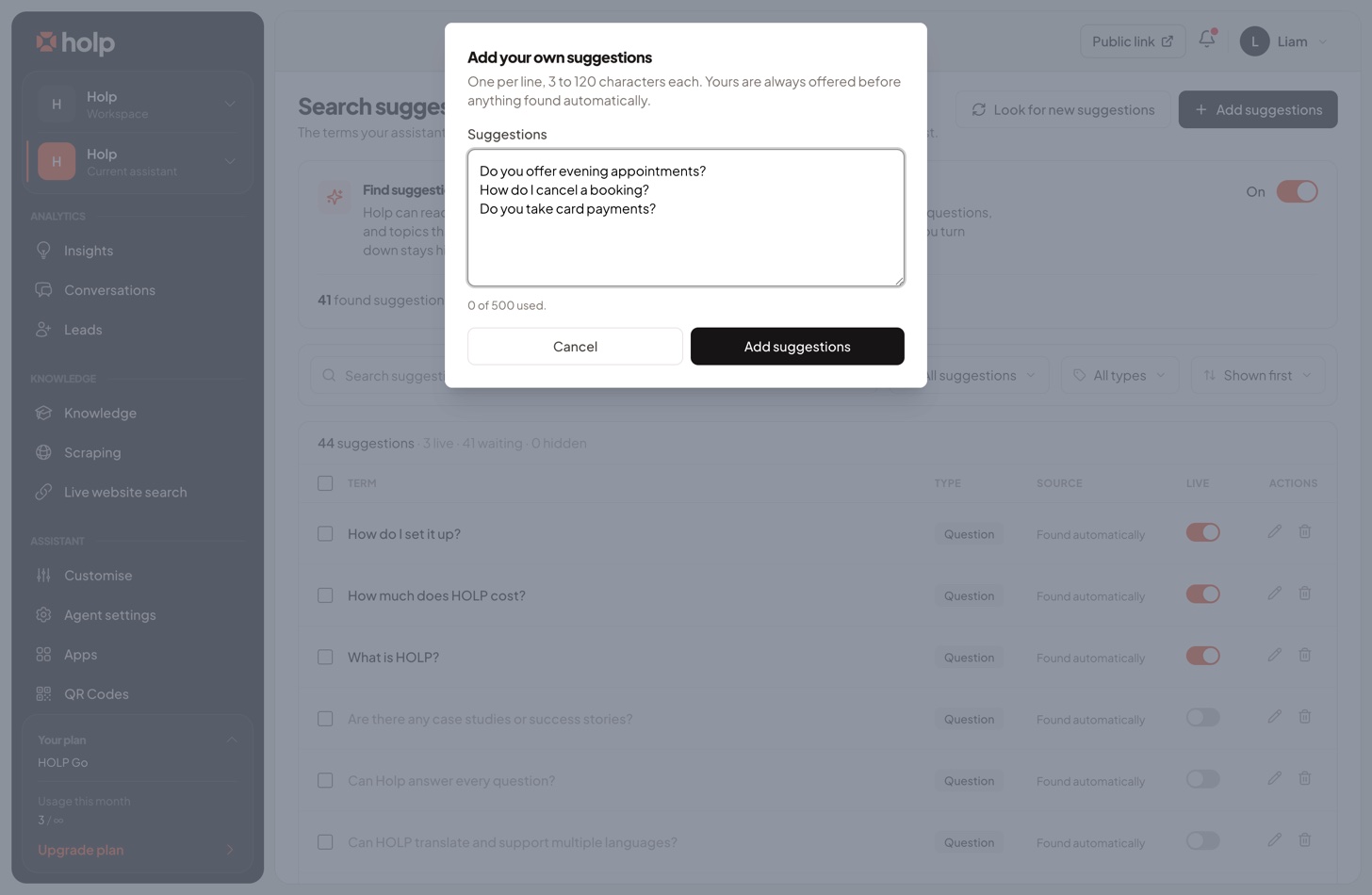
Yours arrive switched on, they rank above everything found automatically, and no later search will overwrite them.
Ending a suggestion with a question mark matters more than it looks. A question is a complete message, so picking it sends it and the answer comes straight back. Anything without a question mark is treated as a topic, which drops the words into the box and leaves the visitor to finish the sentence. Write "Do you deliver to Ireland?" for a one-tap answer, and "Delivery to Ireland" when you'd rather they added their own detail.
The best source for these is not your imagination. Use the questions in Conversations that come up week after week, the ones in knowledge gaps that your assistant could not answer, and the phrasing your customers use rather than the phrasing on your website.
Step 5: Reword or delete
The pencil on any row renames it, which is how you keep a nearly-right question that Holp found. Rewording a found question makes it yours, and the original wording is struck off so the next search does not bring it back.
The bin deletes. What that means depends on where the suggestion came from, and it's the one part of this screen worth reading twice:
- A suggestion you added is deleted outright.
- A suggestion Holp found is struck off for good, so it won't return next time Holp looks. Filter by Deleted and you can Restore it, or simply add the wording yourself.
Deleting and switching off are different tools. Switch off the ones you might want later; delete the ones you never want proposed again.
Step 6: Check it on your site
Open your site and start typing. Suggestions appear after two characters, in the ask box on the widget's start screen and above the message box once a conversation is running, matching either the start of a question or the start of any word inside it.
Because the list is worked out in advance, there's no AI involved in the dropdown: it responds instantly and costs you nothing in usage.
When suggestions don't appear
Nothing is switched on yet. Found questions arrive switched off, so a full-looking list can still show a visitor nothing. Check the Live count at the top of the table.
Your assistant is on the classic widget. Suggestions are part of the new widget. Switch under Agent settings, which takes effect on your site immediately with no code change.
The visitor has typed fewer than two characters. Nothing is offered until then.
You're looking at the search bar embed. Suggestions appear in the widget's ask box and message box, not in the search bar or inline embed.
Automatic finding is off and you've added nothing. That's an empty pool, which is the state every assistant starts in.
You've just imported a site. Searches are batched and slightly delayed, so a big import queues one pass rather than hundreds. Wait a minute, then reload.
Your plan has lapsed. The widget and its suggestions both need an active subscription or trial, so check plan, usage and billing if you're unsure.
If a suggestion is offered but the answer behind it disappoints, that's a knowledge problem rather than a suggestions one, and improving answer quality is the place to start.