Live chat lets a visitor stop talking to your assistant and start talking to you, in the same window, without leaving the page or waiting for an email. You switch it on with one toggle, and from then on anyone who asks to speak to a human is offered the choice of doing it now.
Nothing about your existing setup changes. The contact form still works, leads are still captured, and when nobody is around to answer, the visitor's details are saved so you can follow up in the usual way.
What you'll need
- An assistant already installed on your site
- The New widget switched on for that assistant, since live chat only runs there
- At least one person who can keep an eye on the dashboard during the hours you want to offer it
Step 1: Switch to the new widget
Open your assistant, go to Settings, and find Widget version under General. Choose New, which is the redesigned widget with rich cards and tables, and save.
The change takes effect on your site immediately, so there's no code to update and nothing to redeploy. If you're not ready to move, that's fine, but live chat won't appear until you do.
Step 2: Turn on live chat
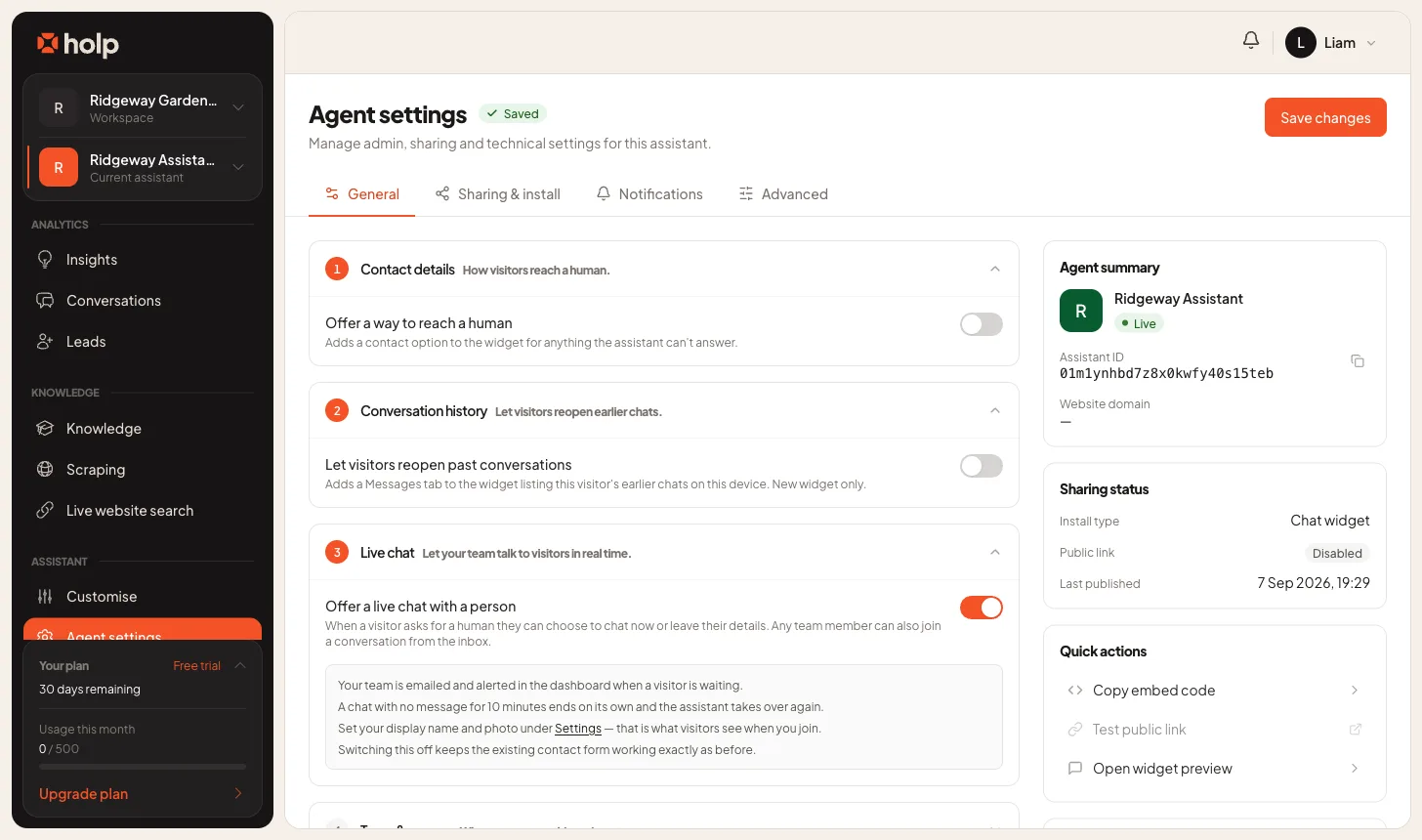
Still in Settings, open the Live chat section and turn on Offer a live chat with a person.
That single toggle does three things: it gives the assistant permission to offer a real person when someone asks for one, it lets any of your team join a conversation from the inbox, and it starts alerting the team when a visitor is waiting.
Switching it off later is equally undramatic. The escalation form carries on exactly as it did before.
Step 3: Set the name and photo visitors will see
Visitors see the person, not the account. Open Settings from your account menu, set your Display name and upload a photo, and that's what appears at the top of the chat when you join.
Ask everyone who might answer to do the same. A first name and a face is the whole difference between "Chatting with Sarah" and something that still feels like software, and it takes about twenty seconds each.
Step 4: Turn on browser notifications
The dashboard alerts you on screen whenever someone is waiting, but you'll usually be in another tab when it happens, which is what browser notifications are for.
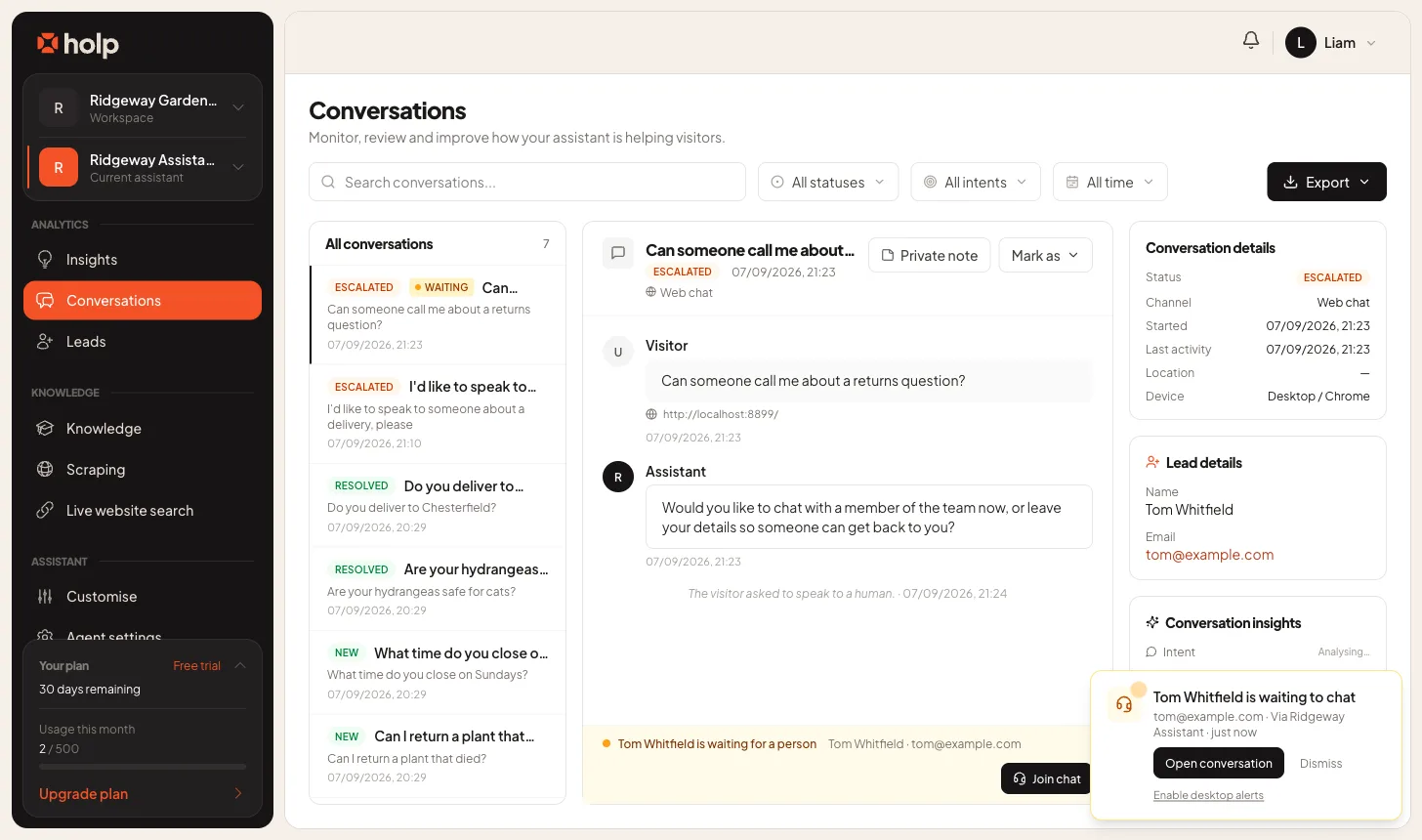
The first time a visitor is waiting, an alert card appears in the bottom right of the dashboard with Enable desktop alerts underneath it. Click that, then choose Allow in the prompt your browser shows.
A few things worth knowing about how they behave:
- The offer only appears while someone is actually waiting, so if you want to set it up in advance, open your own site in a private window, ask the assistant to speak to a human, and start a chat. You can end it from either side once you've allowed notifications.
- Notifications only fire when the Holp tab isn't the one you're looking at. If the dashboard is already in front of you, the on-screen alert is the notification.
- You get one per waiting visitor, and clicking it takes you straight into the conversation.
- If you dismiss the browser prompt or click Block, the link stops appearing and you'll need to allow notifications for Holp in your browser's site settings instead. In Chrome and Edge that's the icon at the left of the address bar, in Safari it's Settings then Websites then Notifications, and in Firefox it's the padlock in the address bar.
Even without browser notifications you're not going to miss anything: the browser tab title changes to show how many people are waiting, the bell in the dashboard gets a notification, and an email goes out to the team.
How a visitor asks for a person
Visitors don't need to know live chat exists, and there's no separate button to find. They ask the way they'd ask anyone.
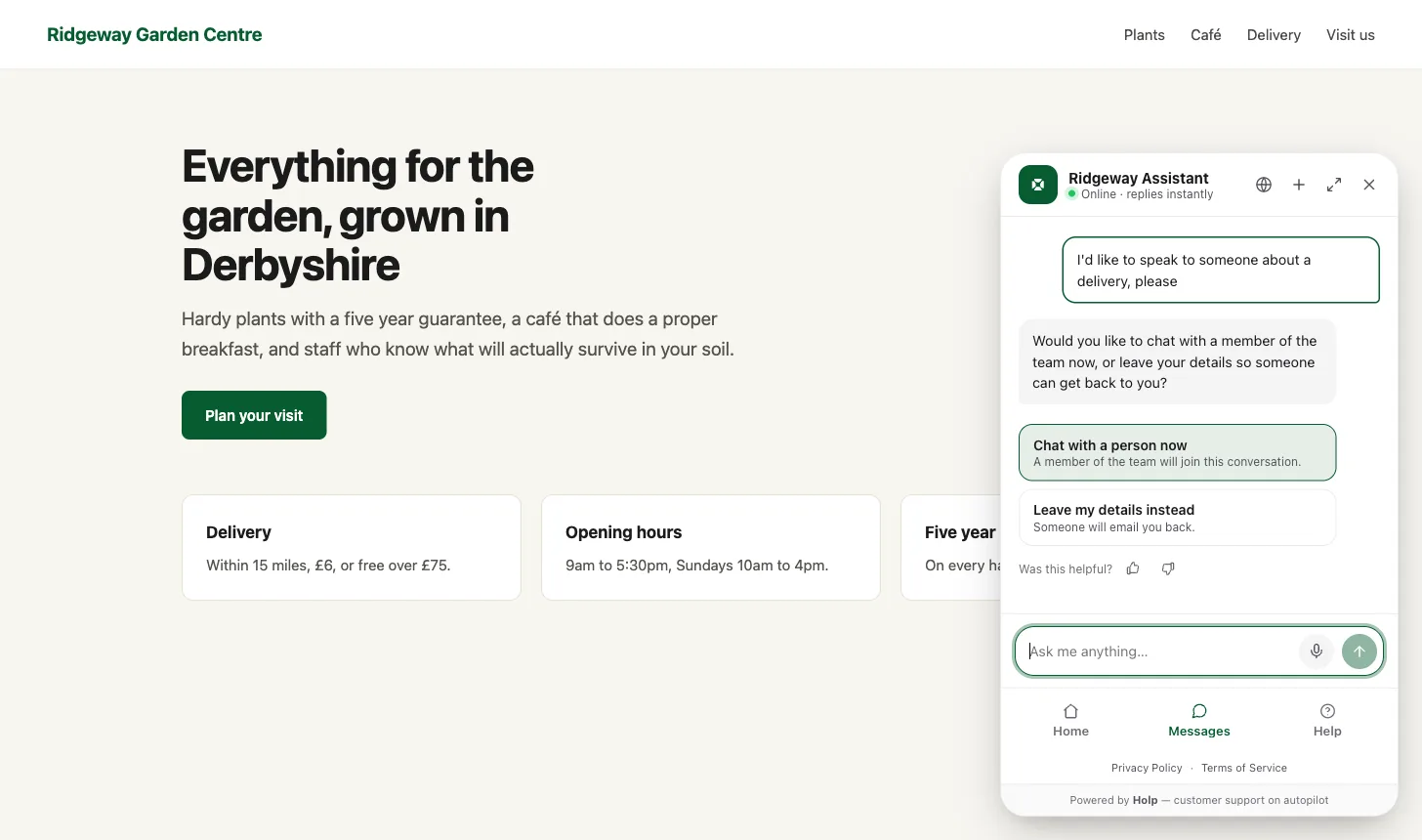
When someone says "I want to speak to a human", "can I talk to someone" or anything else along those lines, the assistant stops answering and offers two choices:
- Chat with a person now, with the note that a member of the team will join this conversation
- Leave my details instead, which is the contact form you already have, and someone emails them back
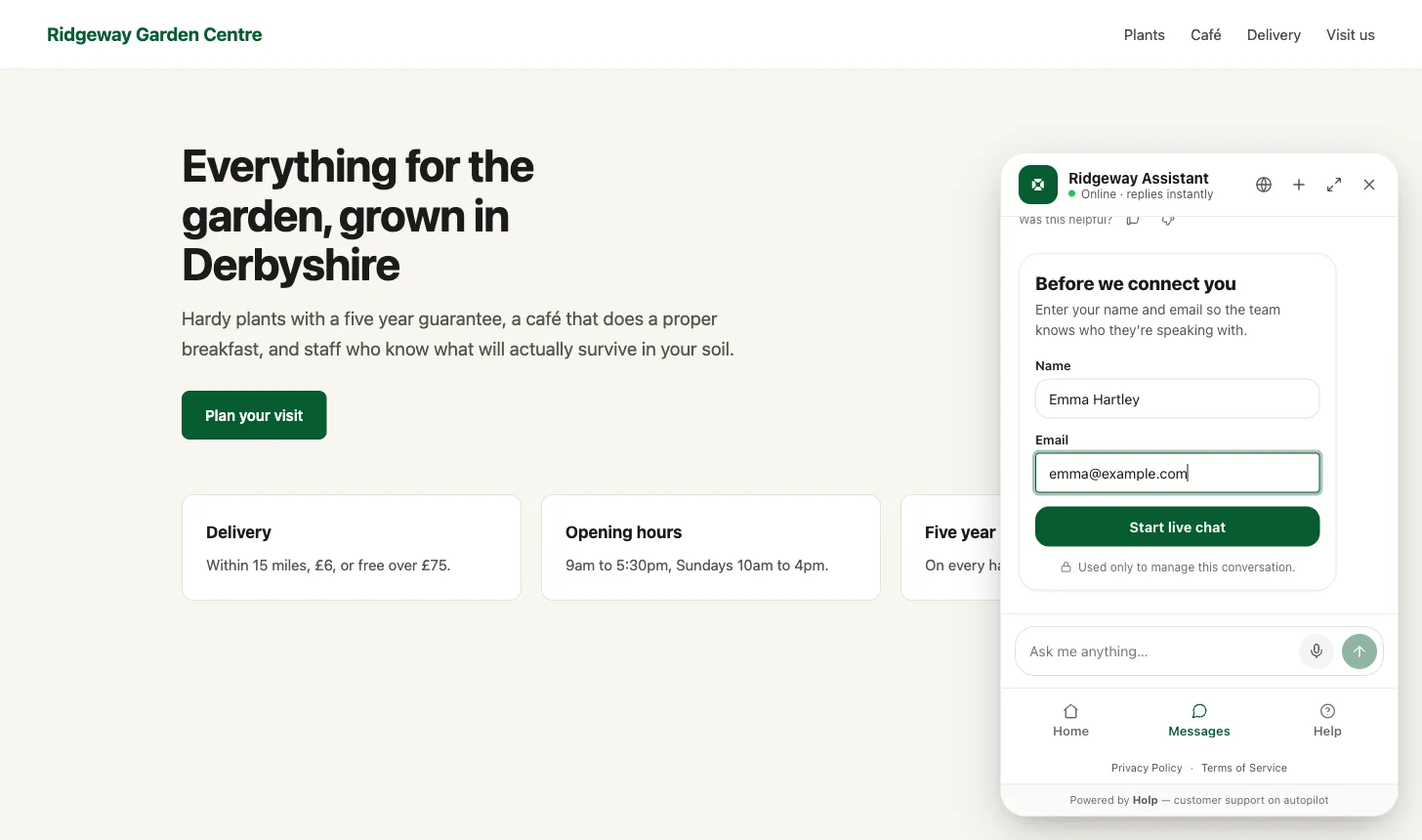
If they choose to chat now, they're asked for a name and an email address before the session opens, so whoever joins knows who they're talking to. Those details are saved as a contact, which is why a chat nobody answers is still a lead rather than a lost enquiry.
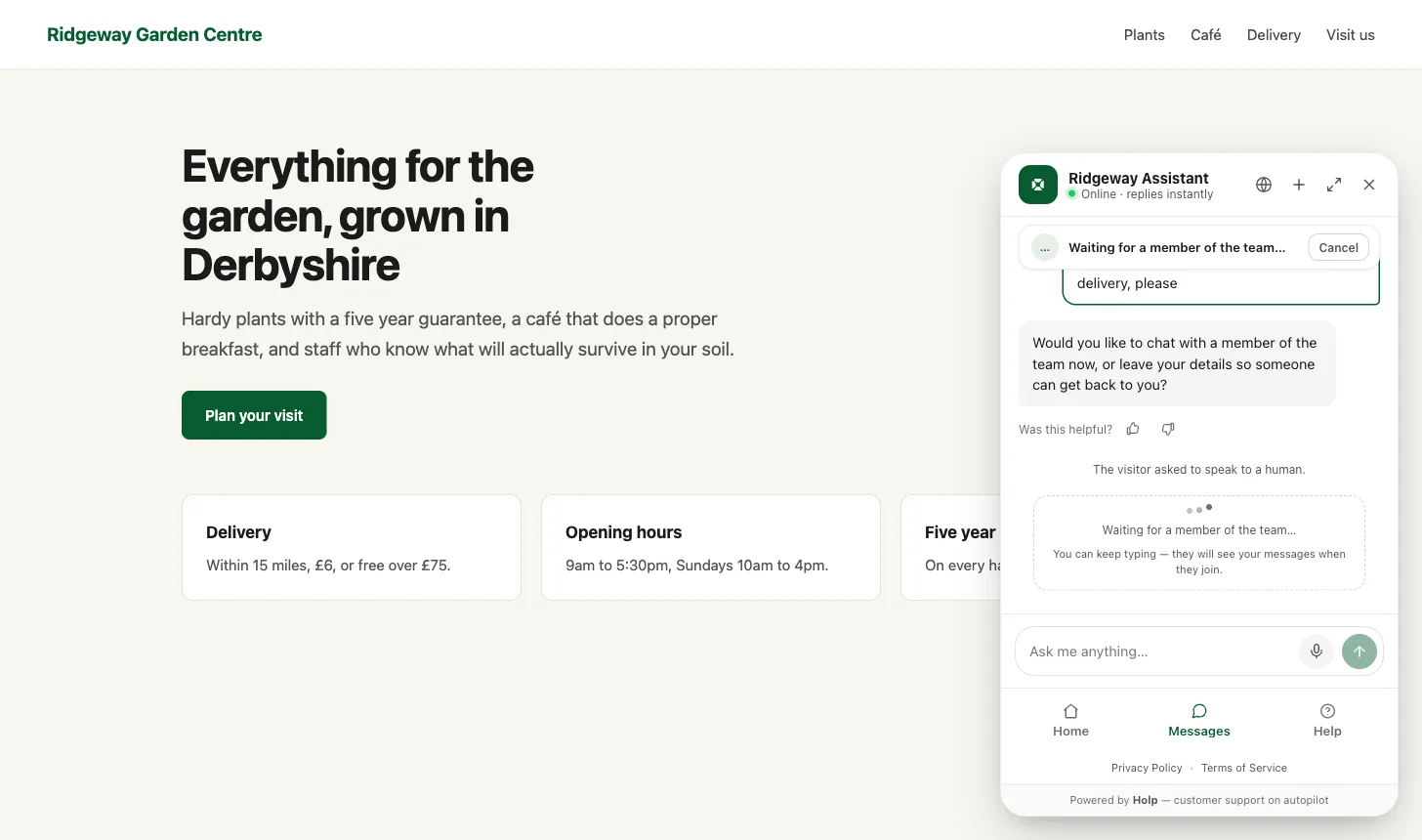
They then see Waiting for a member of the team, with a note telling them they can keep typing. Anything they write while waiting is held and shown to whoever joins, so a visitor who explains their problem straight away doesn't have to explain it twice.
How your team joins a chat
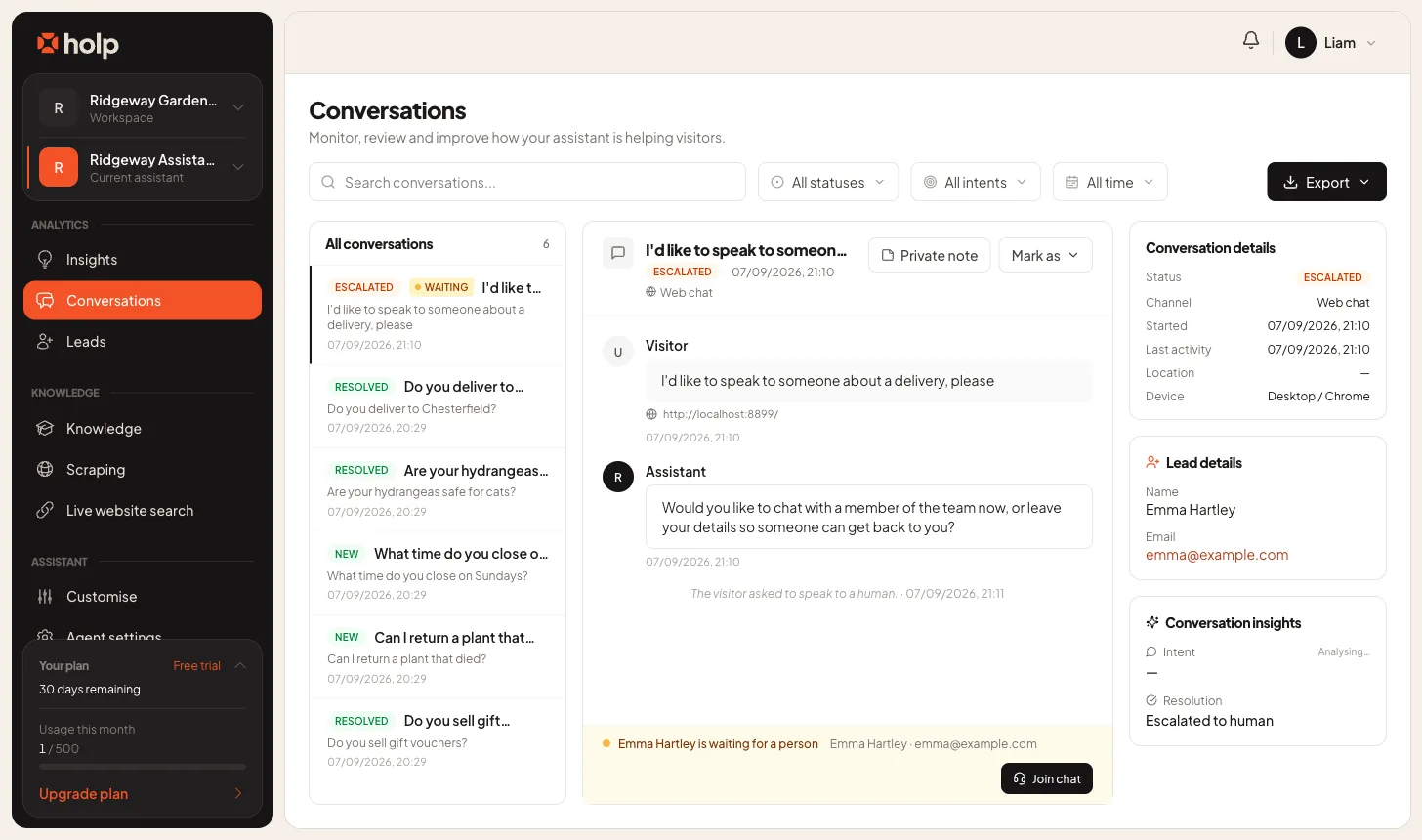
Open Conversations, click the conversation, and use the strip along the bottom of it.
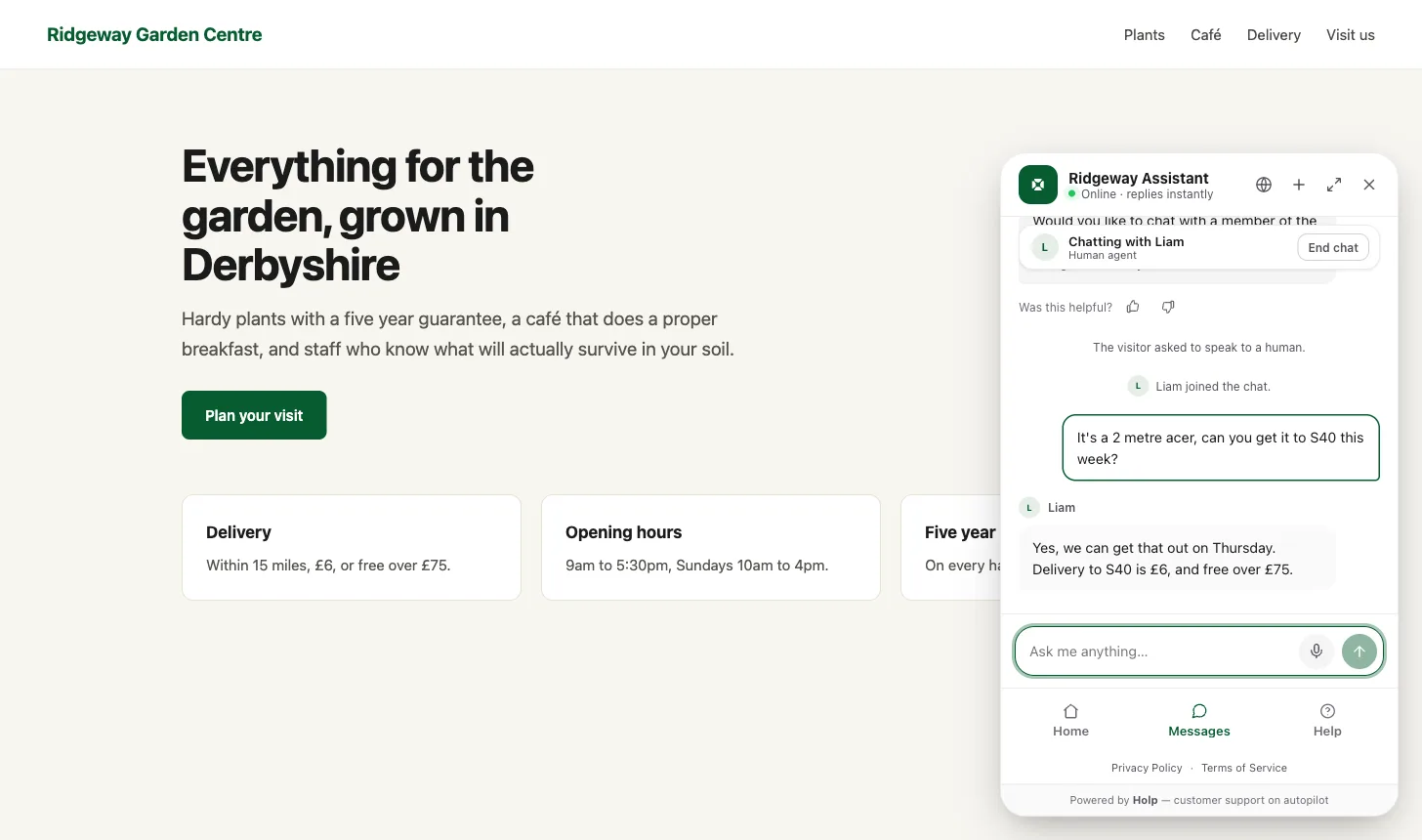
When somebody is waiting, that strip turns amber and reads "Name is waiting for a person", with a Join chat button on the right. Press it and you're in: the visitor sees your name and photo, a system line in the transcript records that you joined, and everything either of you types from that point is live.
One person at a time. If a colleague gets there first, the strip tells you who's handling it rather than letting you both talk over each other. If you try to join anyway, Holp will say so instead of quietly putting two of you in the same window.
You don't have to wait to be asked. On any conversation the assistant is handling, the same button reads Join as a human, so if you're reading along and can see it going wrong, you can step in. The visitor sees you arrive the same way they would if they'd asked.
While you're in a chat the strip shows whether the visitor is online or away, and the composer shows what they're typing as they type it, which is oddly useful for knowing whether to wait or jump in.
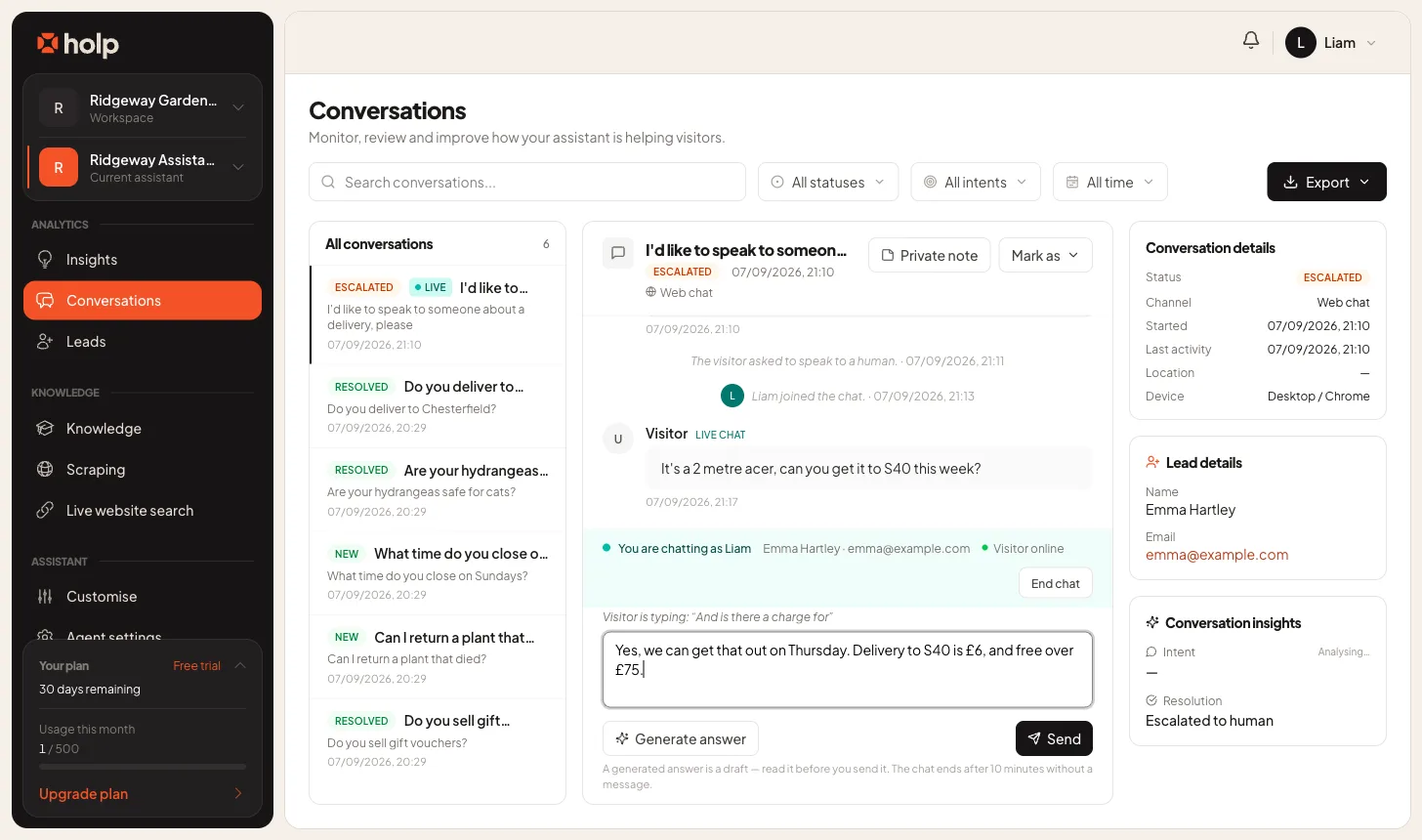
Press Enter to send and Shift and Enter together for a new line.
Letting the assistant draft your reply
Under the composer there's a Generate answer button. It drafts a reply to the visitor's last message using exactly the same knowledge, tone and instructions the assistant itself uses, written in the first person so it reads like you.
Nothing is sent and nothing is saved until you send it. Read it first, because it's a draft going out under your name, and edit it as freely as you like. It's at its best for the answers that are correct but tedious to type, such as returns policies, opening hours and delivery areas, and least useful for anything requiring judgement, which is presumably why the visitor asked for you.
Ending a chat, and what happens next
Either side can end it. You use End chat in the strip, the visitor uses End chat in the widget, and a chat where nobody says anything for ten minutes ends on its own.
However it ends, the assistant picks the conversation back up as though nothing had happened, and it can see what the two of you said, so the visitor isn't made to repeat themselves. The transcript stays with the conversation in Conversations, human messages and all, and the conversation is marked as escalated so it shows up when you filter for the ones that needed a person.
That ten minute rule is deliberate rather than a limitation. Live chats that stay open forever are how teams end up with a screen full of sessions nobody is really in.
What happens when nobody joins
If a visitor waits and no one arrives before the session times out, they're told plainly that nobody was able to join and that the team has their details and can follow up by email. They aren't asked to fill in the same form a second time.
Their name and email are already saved as a contact and the conversation is flagged as escalated, so it's waiting for you in Leads alongside every other enquiry. A missed live chat costs you a delayed reply, not the enquiry.
If it keeps happening, that's worth acting on rather than tolerating. Either fewer people should be offered live chat, by narrowing the hours you keep the dashboard open, or more of the team needs notifications turned on.
Making it work day to day
Live chat is the one part of Holp with a cost attached that isn't on the invoice: someone has to answer. A few habits keep that manageable.
Decide who's on. Rotas beat good intentions. Even "whoever is at their desk before five" is a decision, and the failure mode is everyone assuming a colleague has it.
Let the assistant do the first pass. Most visitors never ask for a person, and the ones who do have usually hit something genuinely awkward. That's the point: you're being called in for the hard ten per cent rather than the easy ninety.
Read the ones you handled. A live chat is the clearest possible signal about what your assistant couldn't answer. Every one is a candidate for a knowledge entry, and writing it means the next person never has to wait for you at all.
Turn it off when you're away. If you're closed for a fortnight, the toggle takes a second and visitors go back to the contact form, which is a much better experience than waiting ten minutes for a person who isn't there.
When it doesn't work
The option to chat with a person never appears. Check the widget version first, since live chat needs the New widget and the toggle has no effect on the classic one. After that, check the visitor is actually asking for a human rather than simply getting an answer they don't like, because the assistant only offers the choice on an explicit request.
Nobody on the team is being alerted. Alerts follow the same routing as escalation emails, so if your assistant has a single notification address set, that's where they go rather than to each team member. Check who's in the workspace under team access and what's set in notification settings.
Browser notifications aren't arriving. They're suppressed while the Holp tab is the visible one, which is usually the explanation. If it isn't, check that notifications are allowed for Holp in your browser and that your operating system isn't holding them back with a focus or do-not-disturb mode.
The Join chat button is missing. Either live chat is switched off for that assistant, or a colleague is already in the conversation.
Chats end while you're still typing. The ten minute clock runs from the last message from either side, so a long silence closes it. Send a holding line if you're going to be a while, which is good practice anyway.
Frequently asked questions
Do visitors have to give their name and email?
Yes, before a live chat opens. It's what lets the team know who they're speaking to, and it's what makes the enquiry recoverable if nobody can join.
Can two people join the same chat?
No. One team member is in a chat at a time, and anyone else opening the conversation sees who's handling it.
Can I start a live chat without the visitor asking?
Yes. Open the conversation and choose Join as a human, and the visitor sees you arrive.
What happens to the assistant while I'm chatting?
It stands aside completely. When the chat ends it starts answering again, and it can see what was said in between.
How long does a chat stay open?
Until either side ends it, or until ten minutes pass with no message from anybody.
Is the live chat saved?
Yes. It's part of the conversation in Conversations, including which team member joined and when.
Does live chat work on the classic widget?
No. It needs the New widget, which you can switch to from the assistant's settings without changing anything on your site.
Will turning live chat off break anything?
No. The contact form behaves exactly as it did before.
Where to go next
- How to review conversations in Holp
- How to capture leads with Holp
- How to invite your team to Holp
- How to set up email notifications
More from Holp
- What is customer chat support? (the full guide, including the KPIs worth tracking)
- Best AI agents for customer service in 2026 (how the options compare, honestly)
- All resources (tools, comparisons and platform guides in one place)