A floating chat button is not the only way Holp can appear on your site. It can also be a search box people type into, or sit inside a page like a help centre. Both are useful in situations where a chat bubble in the corner is the wrong shape for the job.
This guide explains what each one is for and how to add them.
The three ways Holp can appear
- Chat widget — a floating button in the corner of every page. The default, and the right choice most of the time.
- Search bar — a smart search box you place on the page. Visitors type a question and get an answer.
- Inline — Holp sits inside the page itself, taking up space like any other content. Ideal for a help or support page.
You can use more than one at the same time. A search bar on your support page and a chat widget everywhere else is a common and sensible combination.
When to use the search bar
Your site search almost certainly returns a list of pages and expects the visitor to go hunting. A Holp search bar answers the question instead.
It works well:
- On a support, help or FAQ page, replacing a list of questions
- On a busy homepage where people arrive with a specific question
- Anywhere you currently have a site search box that nobody enjoys using
When to use inline
Inline puts the assistant into the flow of a page. Instead of a button people have to notice and choose to click, the assistant is simply there.
It works well:
- As the main content of a help centre page
- On a contact page, above or beside the form, so people get an answer before they email
- On a page about a complicated product or service, where questions are guaranteed
Step 1: Choose your formats
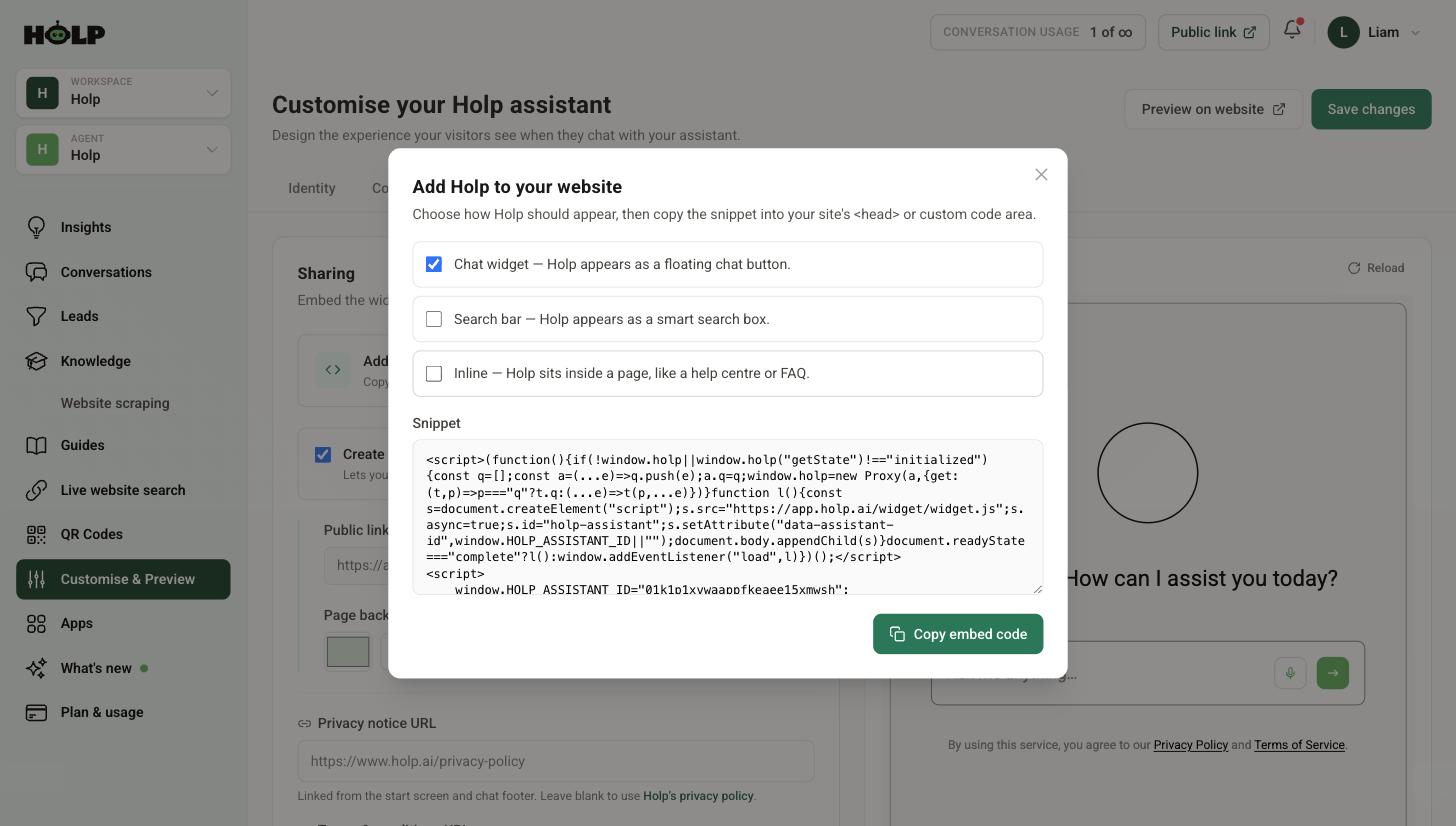
Go to Customise & Preview, open the Sharing tab and click Add Holp to your website. Tick the formats you want. The snippet updates as you tick, and extra placement instructions appear underneath for search bar and inline.
Step 2: Add the snippet
Copy the snippet with Copy embed code and paste it into the part of your site that appears on every page — the header or custom code area. Exactly as for the chat widget, described in how to add the Holp chat widget to your website.
Step 3: Place the search bar or inline assistant
This is the extra step. The snippet loads Holp, but for the search bar and inline formats you also tell it where on the page to appear, by adding a small placeholder to that page.
Holp shows you exactly what to paste. For the search bar it is a placeholder with the class holp-searchbar. For the inline assistant it is one with the class holp-inline.
Put that placeholder in the spot on the page where you want the search box or the assistant to appear, using whatever your website builder calls a custom code or embed block. If your page builder has an HTML or embed block, drop it in there and position it like any other block.
Unlike the main snippet, these placeholders go only on the specific pages where you want them.
Step 4: Check how it looks
Open the page and check three things:
- Is it in the right place, and does it have room to breathe?
- Does it look right on a phone? Inline especially needs checking at narrow widths.
- Does asking a question actually work?
Everything about the styling — brand colour, logo, greeting — comes from your Holp settings, so if it looks off-brand the fix is in the Appearance tab, not in your page.
A pattern that works well
For most sites: chat widget everywhere, plus an inline assistant on your help or contact page. The chat widget catches people who get stuck anywhere, and the inline assistant means that when someone deliberately goes looking for help, the help is right there instead of hidden behind a button.
Add suggested prompts so both formats open with useful starting questions rather than an empty box — see how to add a welcome bubble and suggested prompts.
A worked example: a housing association
A housing association gets a lot of repeat questions about repairs, rent and tenancy paperwork, and their support page was a long accordion of FAQs that residents found hard to search.
They use two formats. An inline assistant replaces the accordion on the support page entirely — residents land on the page and the assistant is simply there, no button to notice, no decision to make. And a chat widget stays on every other page for people who get stuck elsewhere.
The accordion had one obvious weakness the inline assistant does not: it could only answer the questions somebody had thought to write as headings. The assistant answers the question the resident actually has, in the words they use, from the same underlying content.
They kept a short list of the six most common questions above the assistant as plain links, because some people prefer to scan a list. The two work together rather than competing.
Where to place a search bar
Placement decides whether a search bar is used. Three positions that work:
- Directly under the page title on a help or support page, where somebody arriving has a question in mind.
- Where your existing site search sits, replacing it. People already look there.
- Above a long list of documents or FAQs, as a way in rather than a scroll.
Where it does not work: buried in a footer, or halfway down a marketing page where nobody is in a question-asking frame of mind.
Giving inline enough room
Inline is the format most likely to look wrong, because it has to live inside your page’s layout rather than floating above it.
- Full content width works better than a narrow column.
- Give it vertical space above and below — crammed between two dense sections it reads as an advert.
- Check it at narrow widths. A component that looks generous on a laptop can be cramped on a phone.
- Do not put two on one page. It is confusing and it looks like a mistake.
Suggested prompts matter more here
A floating chat button is opened by someone who has decided to ask something. A search bar or inline assistant is looked at by people who have not decided anything yet.
That makes suggested prompts the difference between a component people use and one they scroll past. Three or four visible questions turn a blank box into an obvious offer.
A short checklist
- Choose the formats you want and copy the snippet
- Paste the snippet site-wide, once
- Add the placeholder to the specific pages that need a search bar or inline assistant
- Check placement on desktop and on a real phone
- Confirm suggested prompts are set, so the component is not empty
- Ask three real questions through each format
Frequently asked questions
Can I use the chat widget and the search bar at the same time?
Yes. Tick both when you generate the snippet. Holp gives you one snippet covering both, plus a placeholder for wherever you want the search bar to appear.
Do the different formats need separate snippets?
No. One snippet covers whichever formats you have ticked. The search bar and inline formats just need an extra placeholder on the specific pages where they should appear.
Do they share the same knowledge?
Yes. All three formats are the same assistant, using the same knowledge and the same settings. Only the presentation differs.
Will conversations from the search bar show up in Holp?
Yes. Every conversation appears in Conversations regardless of which format it came from, so your Insights cover all of them together.
Can I put the inline assistant on more than one page?
Yes. Add the placeholder to each page you want it on.
What if my page builder will not let me add a placeholder?
Most builders have an HTML, embed or custom code block for exactly this. If yours does not, stick with the chat widget, which needs no placeholder at all.
Can I change the search bar wording?
The greeting, suggested prompts and description come from your Holp settings and apply across formats. See the Identity and Content tabs in Customise and Preview.
Where to go next
- How to add the Holp chat widget to your website
- How to brand the Holp widget
- How to add a welcome bubble and suggested prompts
More from Holp
- How to add live chat to a website — the install on every platform, and the decisions to make first
- AI chatbot for WordPress — plugin or snippet, and what it can actually read
- All resources — tools, comparisons and platform guides in one place