Not everyone wants to have a conversation. Some visitors would rather read the answer themselves, scan down a page, and be sure they have got the whole thing. Guides give them that option, without you maintaining a second help centre.
A guide is simply a knowledge entry you have chosen to publish. Your assistant carries on answering from it exactly as before — publishing just also shows it as a page visitors can read.
Where to find it
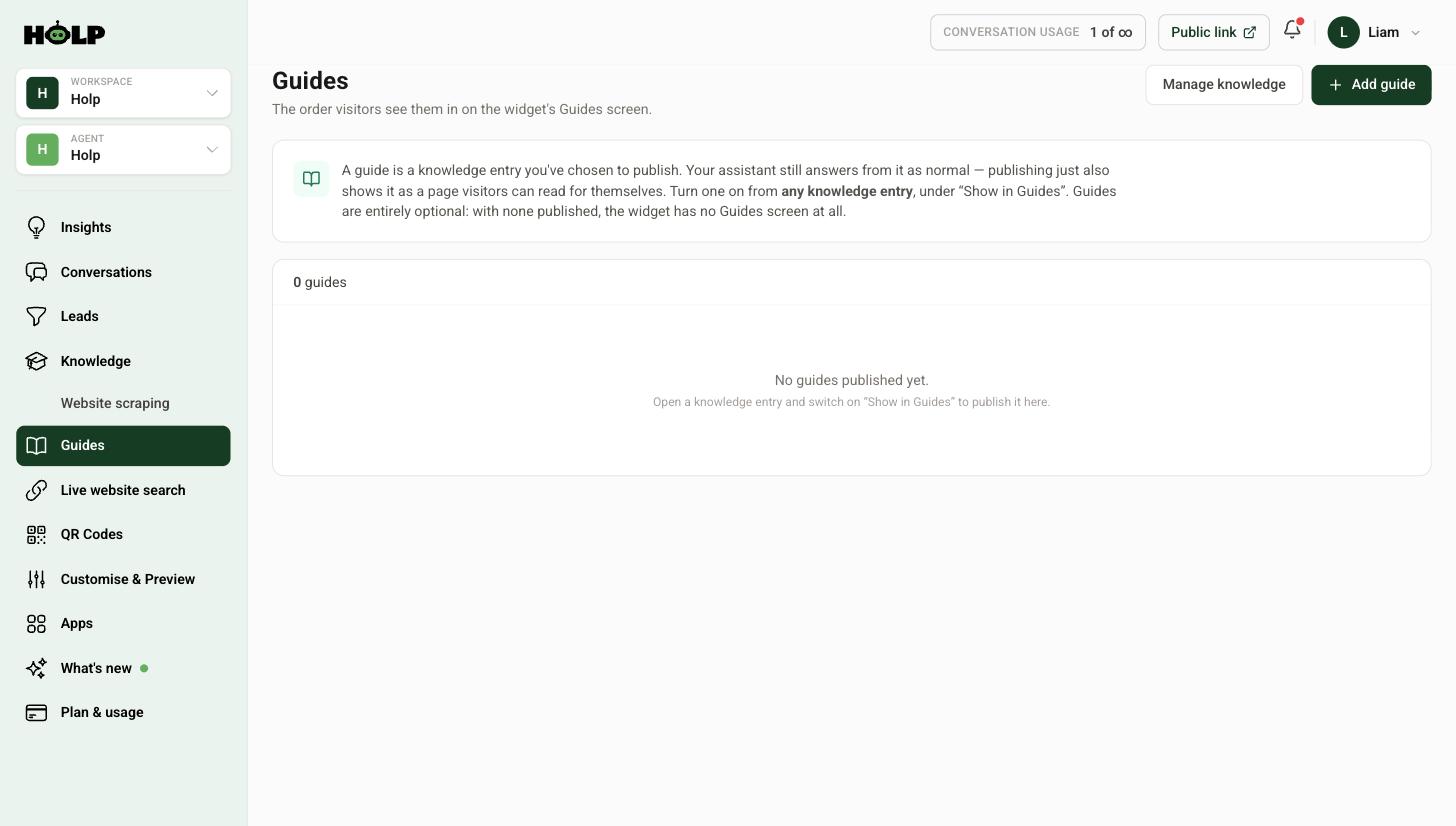
Click Guides in the left-hand menu. If you have not published anything, it will be empty, and the widget will have no Guides screen at all. Guides are entirely optional.
Step 1: Publish an entry
Guides are turned on from the knowledge entry itself, not from this screen. Open Knowledge, click the entry you want to publish, and tick Show in Guides in the right-hand panel.
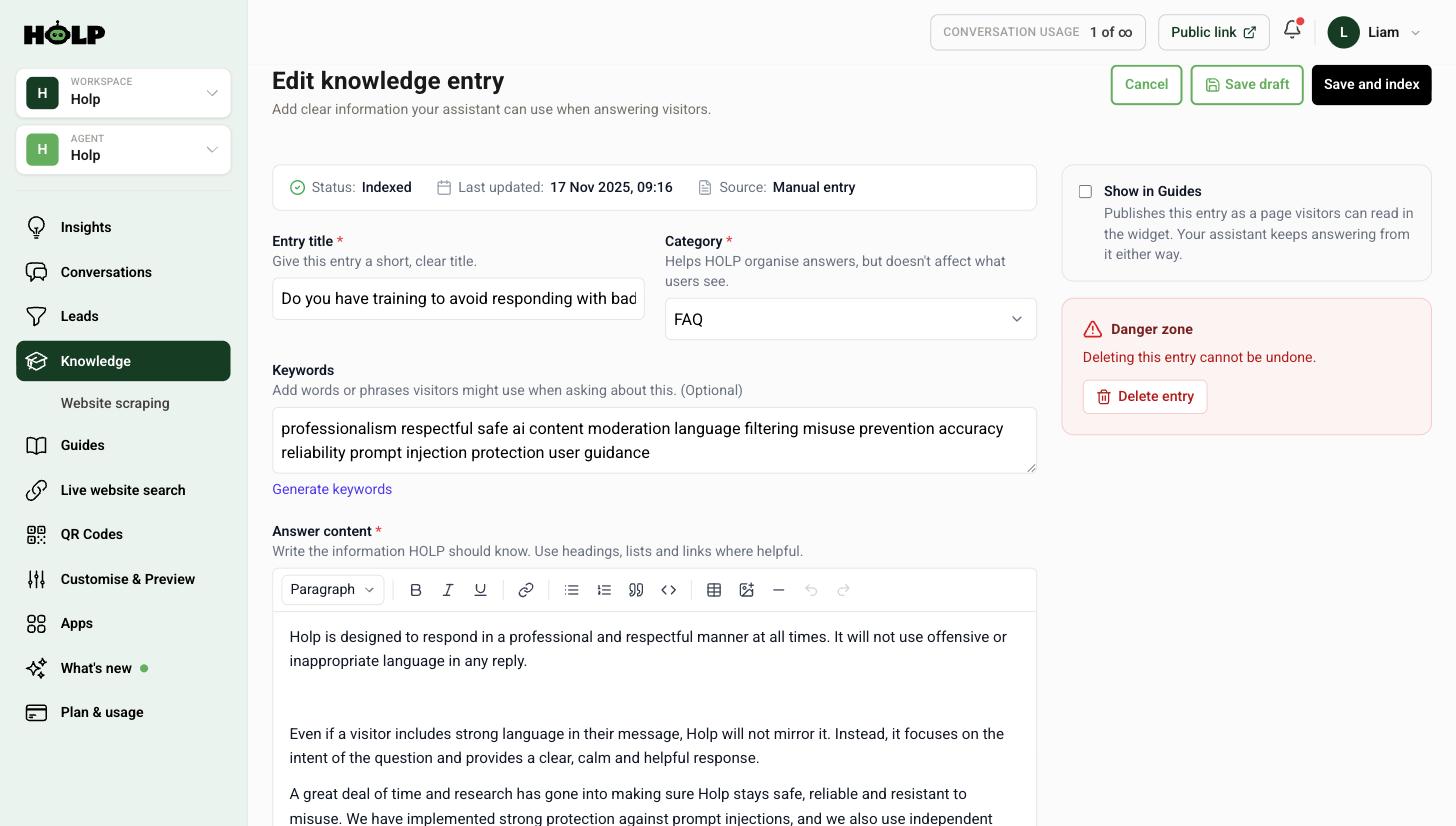
Save, and the entry appears on the Guides screen and in the widget.
Step 2: Choose the right entries
Do not publish everything. A Guides screen with forty entries is a filing cabinet, and nobody reads filing cabinets.
Good candidates:
- Step-by-step processes — how to book, how to return something, how to apply
- Answers people want to read in full rather than have summarised, such as policies
- Things people need to refer back to, like opening times or what to bring
- The five or six questions that account for most of your enquiries
Poor candidates:
- Short factual answers — a one-line answer is better delivered as an answer
- Anything highly specific to one situation
- Internal or partial notes that only make sense in combination with something else
A rule of thumb: if someone might want to screenshot it, send it to a colleague or come back to it later, publish it. Otherwise leave it as knowledge.
Step 3: Put them in a sensible order
The Guides screen controls the order visitors see them in. Order by what most people need first, not alphabetically and not by when you wrote them.
For most organisations that means: the thing everyone asks, then the thing that goes wrong most often, then the rest.
Writing an entry that works as a guide
An entry that is going to be read directly deserves a bit more structure than one that is only ever summarised:
- Use headings so people can scan to the part they need
- Number the steps if it is a process
- Use bullet points for lists of options or requirements
- Front-load the answer — do not make people read three paragraphs of context
- Say what happens next at the end
The editor supports headings, bold, links, lists, quotes, tables and images, which is more than enough. See how to add knowledge to your Holp assistant for the mechanics.
Guides and answers stay in sync
This is the real advantage over a separate help centre. There is one piece of content. Update the entry and both the published guide and the assistant’s answers change together. Nothing drifts out of date because someone forgot to update the other copy.
Unpublishing
Untick Show in Guides and the entry disappears from the Guides screen. The assistant carries on answering from it exactly as before — you have removed the readable page, not the knowledge.
Worth doing for anything seasonal once the season is over.
A sensible starting set
Publish five to eight guides covering: how to buy or book, how to get in touch, your most common process, your returns or cancellation position, and any practical information people need before they arrive. That covers most of what people go looking for, and it is short enough that they will actually scan the list.
A worked example: a small museum
A museum publishes six guides and leaves everything else as ordinary knowledge.
- Planning your visit — opening times, last entry, how long to allow
- Getting here and parking — the single most-asked question, with the awkward detail about the car park being pay-and-display
- Tickets and concessions — who pays what, and who does not
- Accessibility — step-free routes, lifts, assistance dogs, quiet times
- Visiting with children — what there is to do, buggies, baby changing
- School and group bookings — the process, in order
Notice what is not on the list. The history of the collection is not there, nor is the story behind the founding donation — interesting, but nobody arrives at a chat widget looking for it. The published guides are the six things somebody needs before they get in the car.
Everything else — forty-odd entries about individual exhibits, the café menu, the shop — stays as knowledge. The assistant answers from it happily; it just does not clutter the Guides screen.
The accessibility guide deserves special mention
If you publish only one guide, make it this one. Accessibility information is the clearest example of something people want to read in full rather than have summarised. Someone working out whether they can get a wheelchair round your building does not want a friendly paraphrase — they want the detail, including the parts that are not good news.
Write it honestly, publish it, and put it near the top of the order.
Structure that survives being read
An entry read directly is skimmed, not read start to finish. Assume the visitor is looking for one specific fact and design for that.
- Headings every few paragraphs so the eye can find its way
- The answer before the explanation — put “Yes, dogs are welcome” before the conditions
- Numbers and times as figures, not words, because they are easier to spot when scanning
- One idea per bullet
- A closing line that says what to do next, with a link if there is one
Reviewing what you have published
Published guides are the most visible content you have, so they are the worst place for something out of date. Put a reminder in the calendar every quarter and check three things: is anything seasonal now wrong, has anything changed that the guide still describes the old way, and is the order still right for what people currently ask about.
Unpublishing is not a failure. A guide about summer opening hours should come down in September.
Frequently asked questions
What is the difference between a guide and a knowledge entry?
A guide is a knowledge entry with Show in Guides switched on. The assistant answers from it either way; publishing adds a page visitors can read for themselves in the widget.
Where do I turn a guide on?
On the knowledge entry itself, under Show in Guides. The Guides screen then controls the order they appear in.
Do I have to publish guides?
No. They are entirely optional. With none published, the widget has no Guides screen at all.
How many guides should I publish?
Five to eight is a good starting point. A long list is harder to use than a short one.
Will publishing a guide change how my assistant answers?
No. The assistant already uses that entry. Publishing only adds the readable page.
Can I change the order?
Yes, from the Guides screen. Put what most people need at the top.
What happens if I unpublish one?
It disappears from the Guides screen but stays in your knowledge, so the assistant keeps answering from it.
Where to go next
- How to add knowledge to your Holp assistant
- How to add a welcome bubble and suggested prompts
- How to add Holp as a search bar or inline assistant
More from Holp
- What does a chatbot cost? — every pricing model, and the costs nobody lists
- Best AI agents for customer service in 2026 — how the options compare, honestly
- All resources — tools, comparisons and platform guides in one place