Once your assistant knows enough to be useful, the last step is putting it where your customers are. That means pasting one snippet of code into your website. You do it once, and everything you change in Holp afterwards updates on its own.
You do not need a developer for this on most websites, and you do not need to understand the code. You need to know where your site keeps its custom code, and be able to paste.
Before you start
- Access to edit your website, or someone who can paste something in for you
- Your assistant set up with some knowledge in it — there is no point putting an empty assistant live
Step 1: Get your snippet
In Holp, go to Customise & Preview and open the Sharing tab. Click Add Holp to your website.
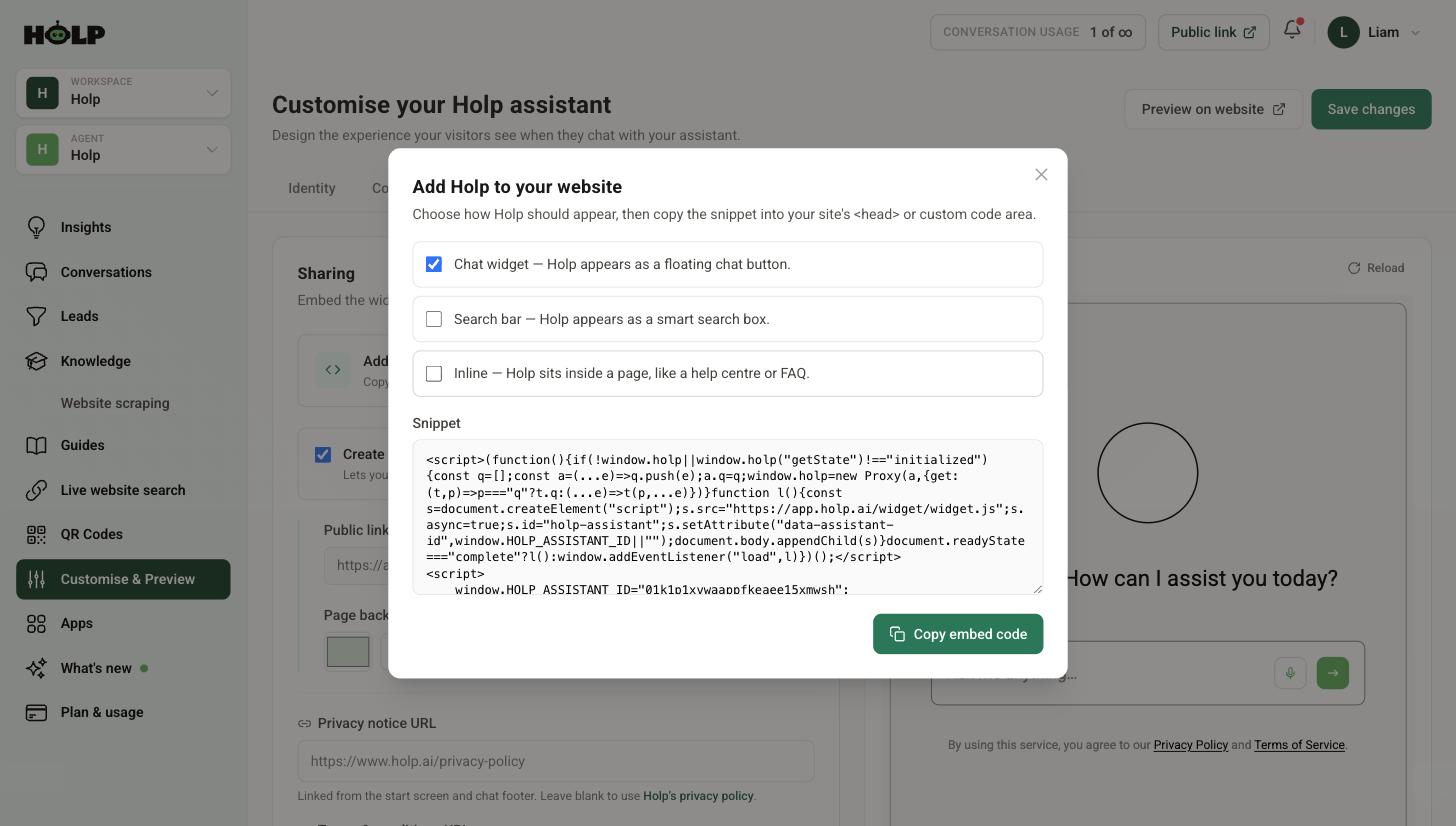
You will see three options. For a floating chat button, leave Chat widget ticked and ignore the other two. If you want a search box or an inline help centre instead, see how to add Holp as a search bar or inline assistant.
Click Copy embed code. That is your snippet, and it is unique to your assistant.
Step 2: Paste it into your website
The snippet needs to go into the part of your site that appears on every page — usually described as the header, the head, or a custom code area. Paste it once and it works everywhere.
Where to look on common platforms:
- WordPress — your theme options often have a header scripts field, or use a header and footer scripts plugin. Some themes have it under Theme Settings.
- Squarespace — Settings, then Advanced, then Code Injection, into the Header box.
- Wix — Settings, then Custom Code, add to the head, applied to all pages.
- Shopify — edit your theme code and paste before the closing head tag in your layout file.
- Webflow — Project Settings, then Custom Code, into Head Code, then publish.
- A custom-built site — ask whoever built it to add it before the closing head tag.
Save and publish. On some platforms the change goes live immediately, on others you need to press publish separately.
Step 3: Check it is there
Open your website in a normal browser window and look for the chat button in the corner. Then:
- Check a second page, to make sure the snippet is on every page and not just the homepage
- Check on a phone — the button can sit in a different place on mobile
- Ask it a real question and see that it answers
If nothing appears, work through why the Holp widget is not showing.
Step 4: Position it so it does not annoy anyone
Back in Holp, the Appearance tab controls where the launcher sits and what it looks like.
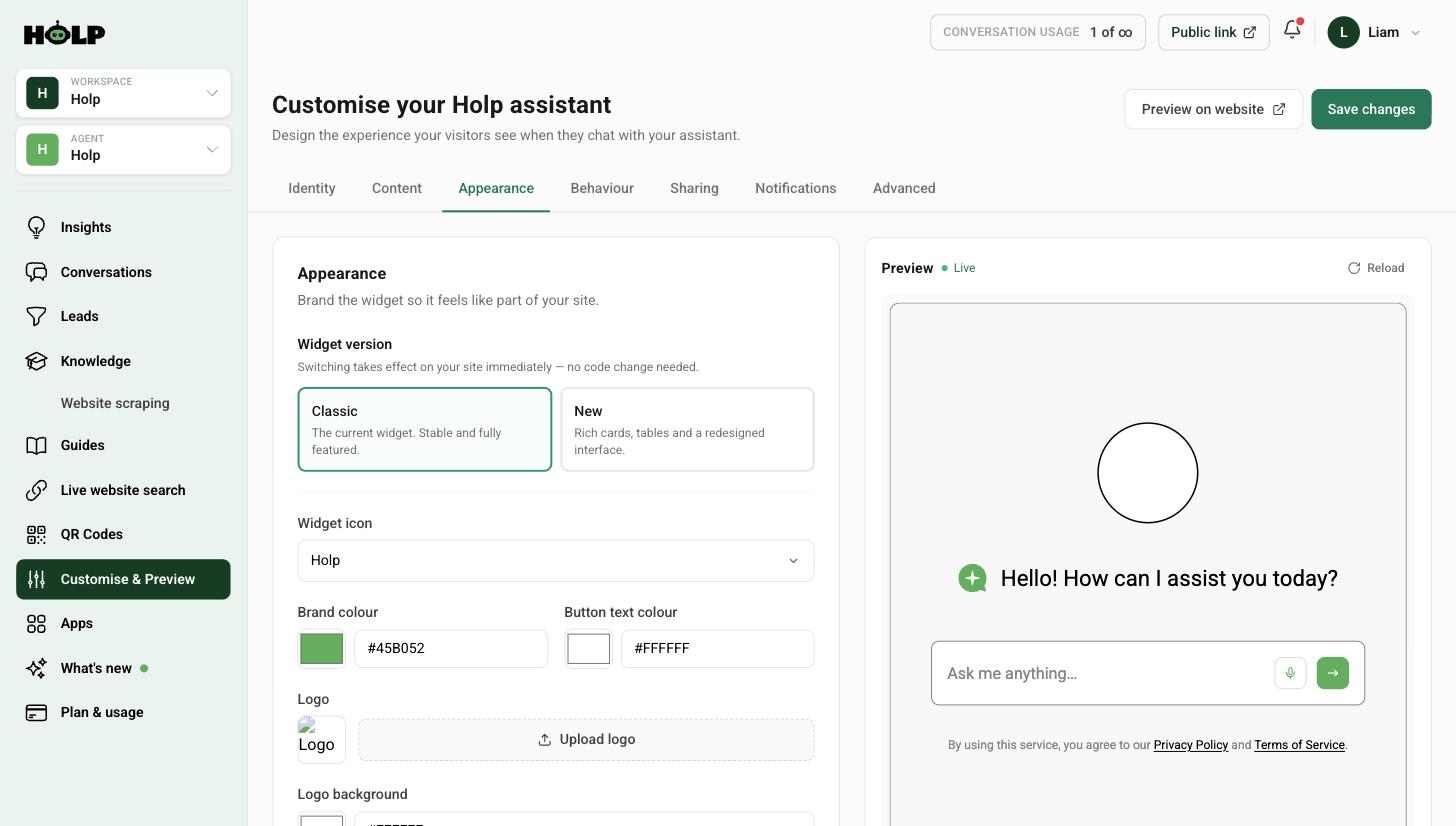
You can set the desktop position and the mobile position independently, and choose between a circle and a tray shape. Mobile is where this matters most — a chat button sitting on top of a sticky basket button or a cookie banner is a real problem, and it is worth checking on an actual phone.
More on this in how to brand the Holp widget.
What happens after you have pasted it
This is the part worth knowing: the snippet is a pointer, not a copy. Everything about how your assistant looks and behaves is controlled from Holp. Change your colour, your greeting, your knowledge, even switch the widget version — it all updates on your site without anyone touching the code again.
You only need to revisit the snippet if you set up a completely new assistant.
If you cannot edit your website
You do not have to embed anything. Turn on a public Holp link and you get a hosted page you can share in an email signature, on social media, or on a printed card. You can also generate a QR code that opens it.
Plenty of organisations start this way while they wait for website access, and it works perfectly well.
Common problems
- It works on the homepage but nowhere else. The snippet has gone into a page-level field rather than a site-wide one. Move it to the header or global custom code area.
- It appeared, then disappeared. Usually a theme update overwrote the code. Use a plugin or a settings field rather than editing theme files directly where you can.
- It looks wrong on mobile. Change the mobile launcher position in the Appearance tab.
- Your platform strips code. Some website builders on lower plans block custom code. Use the public link instead.
A worked example: a Squarespace site, ten minutes
A wedding venue on Squarespace does the whole thing in one sitting.
They open Sharing, click Add Holp to your website, leave Chat widget ticked, and copy the snippet. In Squarespace they go to Settings, Advanced, Code Injection, and paste it into the Header box. Save.
They open the site in a private window. The button is there on the homepage. They check a gallery page and the contact page — still there, because Code Injection applies site-wide.
Then they open it on a phone and find the problem: the launcher sits directly on top of the sticky Enquire button in the bottom-right corner. Back in Holp, they change the mobile launcher position in the Appearance tab, save, refresh the phone, and it moves.
Ten minutes, one snippet, one setting. The mobile check is the step people skip and it is the one that found the only real issue.
Where the snippet goes, in plain terms
Website builders describe the same field in different ways, which is where most confusion comes from. You are looking for whichever of these your platform offers:
- Header code, head code or code injection
- Custom code, custom scripts or third-party scripts
- A header and footer scripts plugin, on WordPress
- Theme settings with a scripts or tracking code field
What you are avoiding is pasting into a page content area, a text block or a rich text editor. Those either strip the code or show it to visitors as text.
If your platform offers both a site-wide and a page-level version of the same field, use the site-wide one.
Checking it properly
Three checks, in this order:
- View page source and search for holp. This confirms the snippet arrived, which separates installation problems from display problems.
- Open the site in a private window. This sidesteps your own browser cache, which hides more successful installations than anything else.
- Open it on a real phone. Not a narrow browser window. This is where collisions with sticky buttons and cookie banners show up.
If someone else has to paste it for you
Send three things and you will get it done first time: the snippet itself, the instruction that it goes site-wide in the header rather than on one page, and a note that it needs to be in a code field rather than a content block. Add that it does not need to be added again when settings change — that reassurance is often what turns a scheduled job into a five-minute one.
A short checklist
- Assistant has knowledge in it before you go live
- Chat widget ticked when generating the snippet
- Snippet pasted once, site-wide, in a code field
- Change published, not just saved
- Verified in page source
- Checked in a private window and on a real phone
- Launcher position adjusted if it collides with anything
- One real question asked and answered
Frequently asked questions
How much code do I need to add?
One snippet, pasted once, into the part of your site that shows on every page. You do not need to add anything to individual pages.
Will it slow my website down?
The widget loads separately from your page content, so your pages appear as normal and the chat button arrives once the page is ready.
Do I need to change the code when I update my assistant?
No. The snippet points at your assistant. Colours, greeting, knowledge, behaviour and even the widget version are all controlled from Holp and update automatically.
Can I put it on more than one website?
The same snippet can go on more than one site, and both will show the same assistant. If the two sites need different answers or different branding, you would want a separate assistant instead.
Can I show it on some pages but not others?
Yes, by adding the snippet only to the templates you want it on, rather than site-wide. You can also use operating hours to hide it outside business hours.
What if my website builder does not allow custom code?
Use a public Holp link instead. It gives you a hosted page you can link to from anywhere, including a QR code.
Is it safe to paste code from Holp into my site?
The snippet loads the Holp widget from Holp’s own address. It does not change your site content or have access to your admin.
Where to go next
- How to brand the Holp widget
- How to add Holp as a search bar or inline assistant
- Why the Holp widget is not showing
- How to share Holp with a public link
More from Holp
- How to add live chat to a website — the install on every platform, and the decisions to make first
- AI chatbot for WordPress — plugin or snippet, and what it can actually read
- All resources — tools, comparisons and platform guides in one place