You do not need a website to use Holp. A public link gives your assistant its own hosted page at a web address you choose, which you can share anywhere you can share a link — an email signature, a social media bio, a printed card, a text message.
It takes about two minutes to set up and it is the fastest way to get an assistant in front of people.
Where to find it
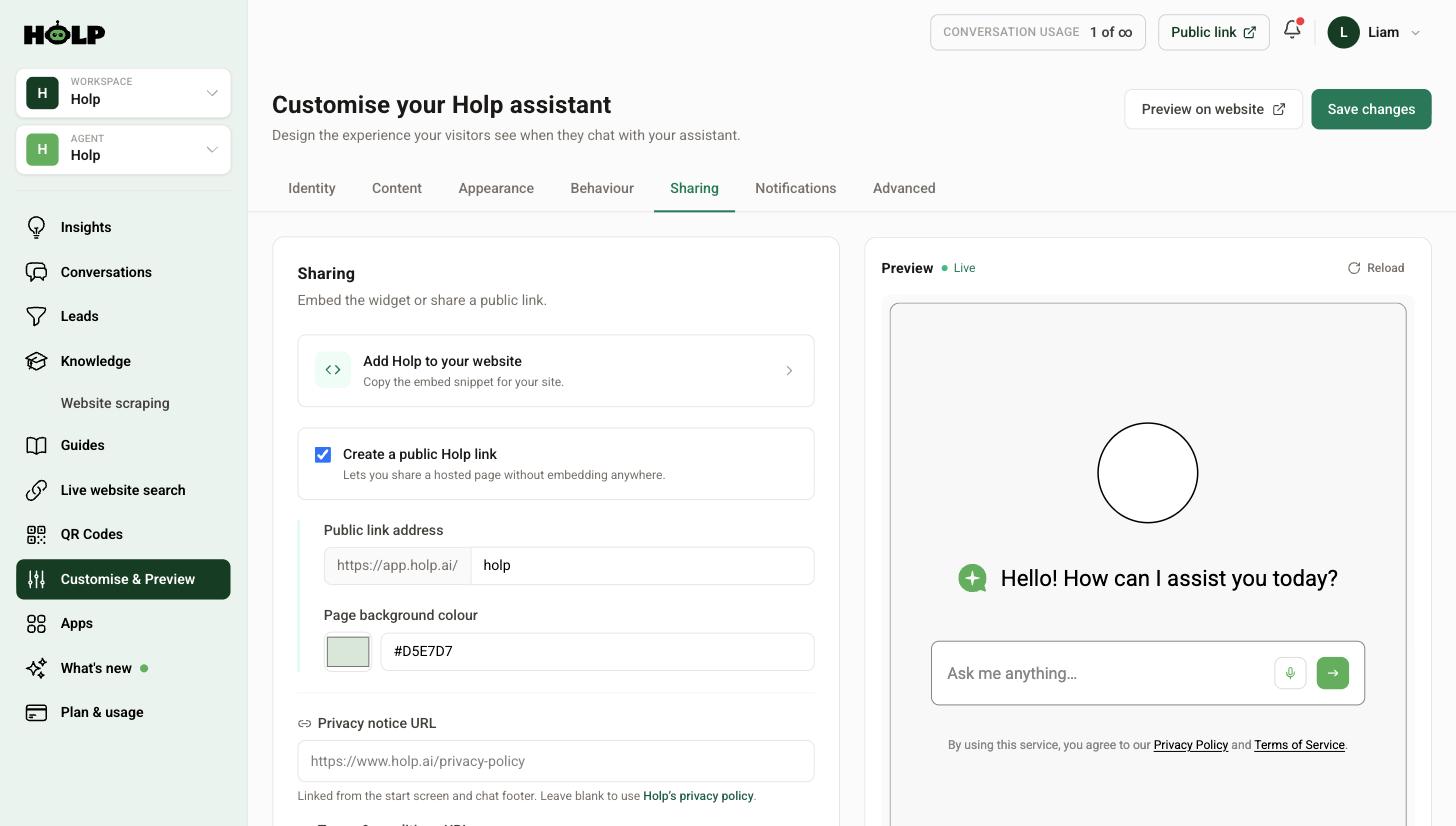
Go to Customise & Preview and open the Sharing tab.
Step 1: Turn it on and choose your address
Tick Create a public Holp link. You then choose the last part of the address, which sits after the Holp domain.
Keep it short, obvious and easy to say out loud — your organisation name is usually the right answer. You will end up reading this to people over the phone, so avoid hyphens, numbers and anything that needs spelling out.
Step 2: Set the page background colour
The public page has its own background colour, separate from your widget branding. Pick something that suits your brand and leaves the assistant readable — a soft, light tint usually works better than a saturated colour.
Step 3: Add your privacy and terms links
Two fields sit below: Privacy notice URL and Terms & conditions URL. These are linked from the start screen and the chat footer.
Leave them blank and Holp’s own policies are used. Fill them in with your own and visitors see yours instead. If you have a privacy policy, use it — visitors are more likely to trust a page that points at your organisation than one that points at a supplier they have never heard of.
Step 4: Check the result
The Public link button at the top of Holp opens your page. Have a proper look at it as a visitor would.
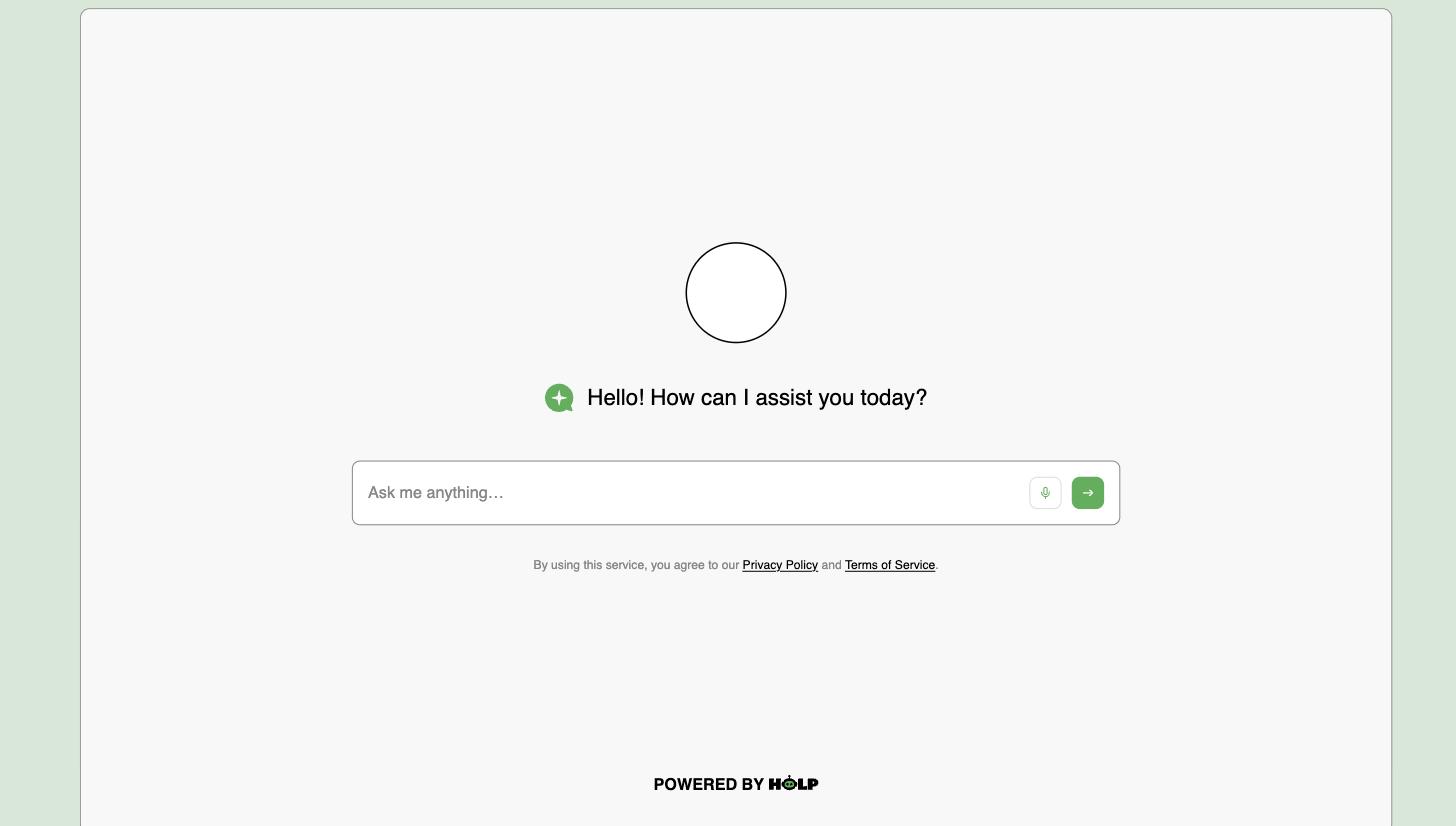
Everything on it comes from your existing settings, so your greeting, suggested prompts, logo and colours all carry across. If it looks bare, the fix is in the Content tab — add suggested prompts so the page opens with something to click.
Where public links earn their keep
- Email signatures. “Questions? Ask our assistant” with the link, on every email your team sends.
- Social media bios. One link that answers questions instead of a contact form.
- Printed material. Business cards, leaflets, letters — usually alongside a QR code.
- While you wait for website access. Plenty of organisations start here and embed later.
- Out-of-hours signage. A link on a closed door is more useful than a phone number nobody is answering.
- Internally. A public link is a quick way to give your own team an answers desk.
Public link or embedded widget?
They are not alternatives — most organisations end up using both.
- Embedded widget catches people who are already on your site and get stuck. See how to add the Holp chat widget.
- Public link reaches people who are not on your site at all.
Both use the same assistant, the same knowledge and the same settings, and every conversation from either lands in the same Conversations screen.
Things worth knowing
- It is public. Anyone with the address can use it. Do not put anything in your knowledge you would not tell a stranger.
- It counts towards your conversation allowance, the same as any other conversation.
- Changing the address breaks anything already printed. Decide on it before it goes on a leaflet.
Turning it off
Untick Create a public Holp link and the page stops working. Your assistant and any embedded widget are unaffected. Worth remembering if you set one up for a campaign and no longer want it live.
A worked example: a village hall
A village hall committee has no website worth the name — a single page with a phone number that goes to whoever has the phone that week. They get the same questions constantly: is the hall free on the 14th, how much is it, does it have a kitchen, is there parking.
They set up a Holp assistant, write eight knowledge entries covering hire rates, capacity, facilities, parking, keys and cancellation, and turn on a public link.
The link goes on the noticeboard outside, on the parish magazine advert, and in the committee’s email signature. A QR code version goes on the door.
No website, no developer, no embedding. Within a month most of the routine questions are being answered without anyone picking up a phone, and the committee can see in Conversations exactly what people were asking.
This is the pattern for a lot of small organisations: the public link is not a stepping stone to a proper website, it is the answer.
Making the page worth landing on
A public link is a destination in its own right, so it deserves a little more thought than a widget that sits in the corner of a page people are already reading. Two settings do most of the work.
Your greeting is doing the job your homepage would otherwise do. It should say who you are and what can be asked — not just hello. Something like “Ask us about hiring the hall, rates, parking and availability” tells a visitor everything they need in one line.
Your suggested prompts matter more here than anywhere else, because the visitor has arrived at a blank page with nothing else to click. Three or four good prompts turn an empty box into a menu. See how to add suggested prompts.
Sharing it well
- Say what it is when you share it. A bare link gets ignored; “Ask us anything, any time” gets clicked.
- Use it where a phone number would be frustrating — out of hours signage, printed material, social profiles.
- Pair it with a QR code for anything printed, so people do not have to type it.
- Put it in email signatures across the team. It costs nothing and it compounds.
Checking it before you share it
- Open the public link on a phone, not just a laptop
- Check the greeting reads well to someone who has never heard of you
- Tap each suggested prompt and read the answer critically
- Ask something you know it cannot answer, and check the fallback is graceful
- Confirm the privacy and terms links go where you expect
Frequently asked questions
Do I need a website to use Holp?
No. A public Holp link gives your assistant its own hosted page you can share anywhere.
Can I choose my own web address?
You choose the last part of the address, which sits after the Holp domain. Keep it short and easy to say aloud.
Is the public page private?
No. Anyone with the address can use it, so treat everything in your knowledge as public.
Can I use my own privacy policy?
Yes. Add your privacy and terms addresses in the Sharing tab. Leave them blank and Holp’s own policies are used.
Do public link conversations show up with the rest?
Yes. Every conversation appears in Conversations and counts towards your Insights, whatever route the visitor came in by.
Can I use a public link and an embedded widget together?
Yes, and most organisations do. Same assistant, same knowledge, different places to meet people.
What happens if I change the address later?
The old address stops working, so anything already printed or linked will break. Settle on it before it goes anywhere permanent.
Where to go next
- How to create and use QR codes
- How to add the Holp chat widget to your website
- How to brand the Holp widget
More from Holp
- What does a chatbot cost? — every pricing model, and the costs nobody lists
- Best AI agents for customer service in 2026 — how the options compare, honestly
- All resources — tools, comparisons and platform guides in one place