Your assistant’s name, tone and opening line are the first thing every visitor meets. They take five minutes to set and they change how the whole thing feels — whether people trust it, whether they bother asking a second question, whether it sounds like your organisation or like a generic robot.
This guide covers the Identity tab: name, brand tone, interface language, greeting and description.
Where to find it
Go to Customise & Preview in the left-hand menu and open the Identity tab. A live preview sits on the right and updates as you type, so you can see exactly what visitors will see.
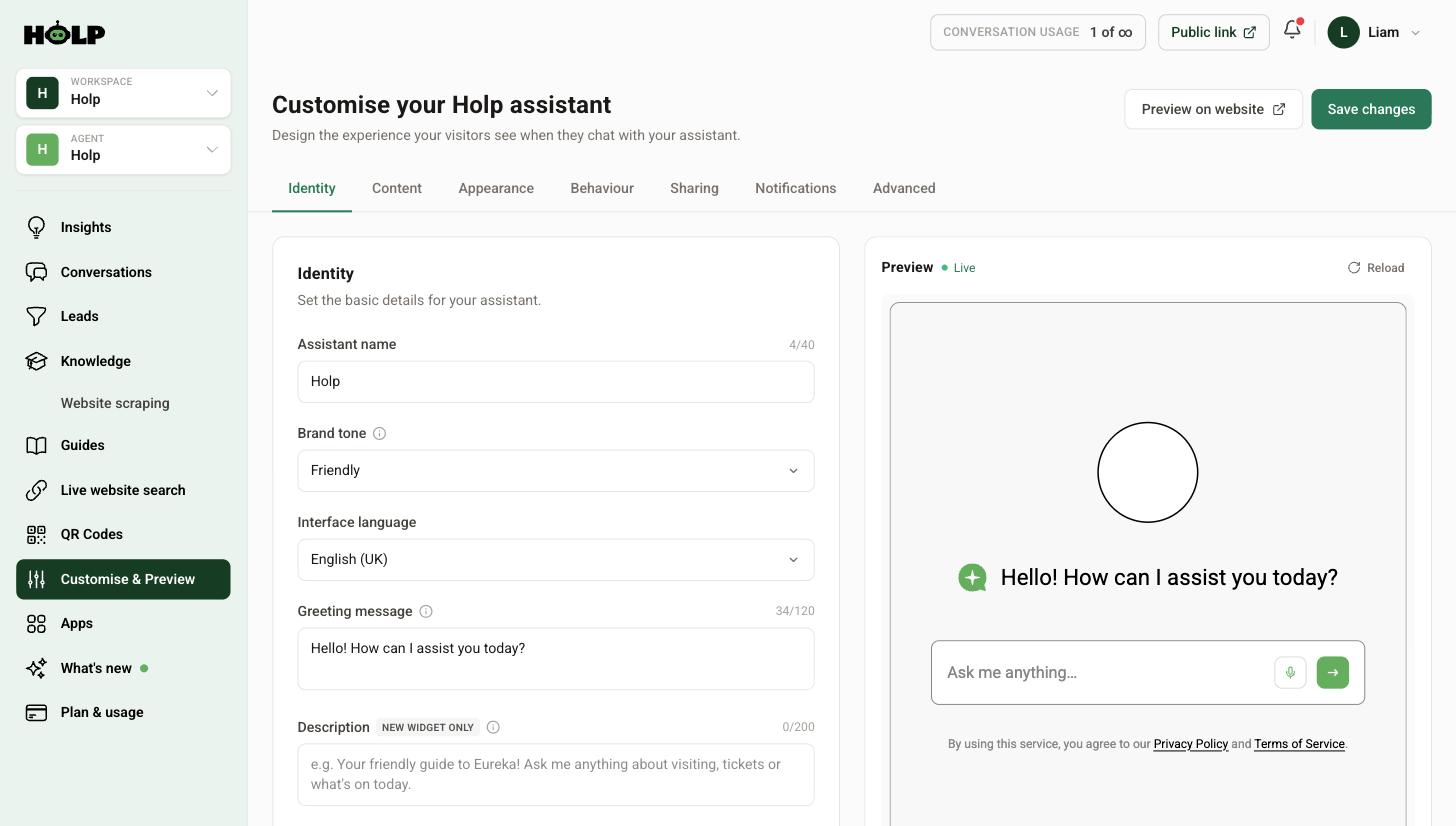
Nothing goes live until you press Save changes, so experiment freely.
Assistant name
Up to 40 characters. Three approaches that work:
- Your brand name. Clear, honest, and it reinforces who people are talking to. Hard to get wrong.
- Your brand plus a role. Something like Riverside Help. Sets expectations neatly.
- A human name. Warm and memorable, but only if you are comfortable with people occasionally thinking they are talking to a person.
What to avoid: anything cute that does not explain what it does, and anything that implies it is a member of staff if you would rather people knew it was an assistant.
Brand tone
This shapes how your assistant writes. You can choose Friendly, Casual, Formal, Professional, Playful, or write your own.
- Friendly — warm but efficient. A safe default for most organisations.
- Casual — relaxed and conversational. Good for consumer brands and younger audiences.
- Formal — precise and correct. Suits legal, financial and public-sector settings.
- Professional — businesslike without being stiff. A good fit for B2B.
- Playful — light and a bit cheeky. Use with care; it can grate when someone has a problem.
Writing your own tone
Choosing Custom lets you describe the voice yourself, which is worth doing if you have a brand voice you care about. Be concrete rather than abstract. “Warm and direct. Short sentences. No jargon. Never oversell” gives a far better result than “on brand and engaging”.
Whatever you choose, test it. Ask your assistant an awkward question and see whether the tone still feels right when the news is not good.
Interface language
This sets the language of the buttons and labels around the conversation — English (UK), English (US), French, German, Spanish, Italian, Dutch and Portuguese.
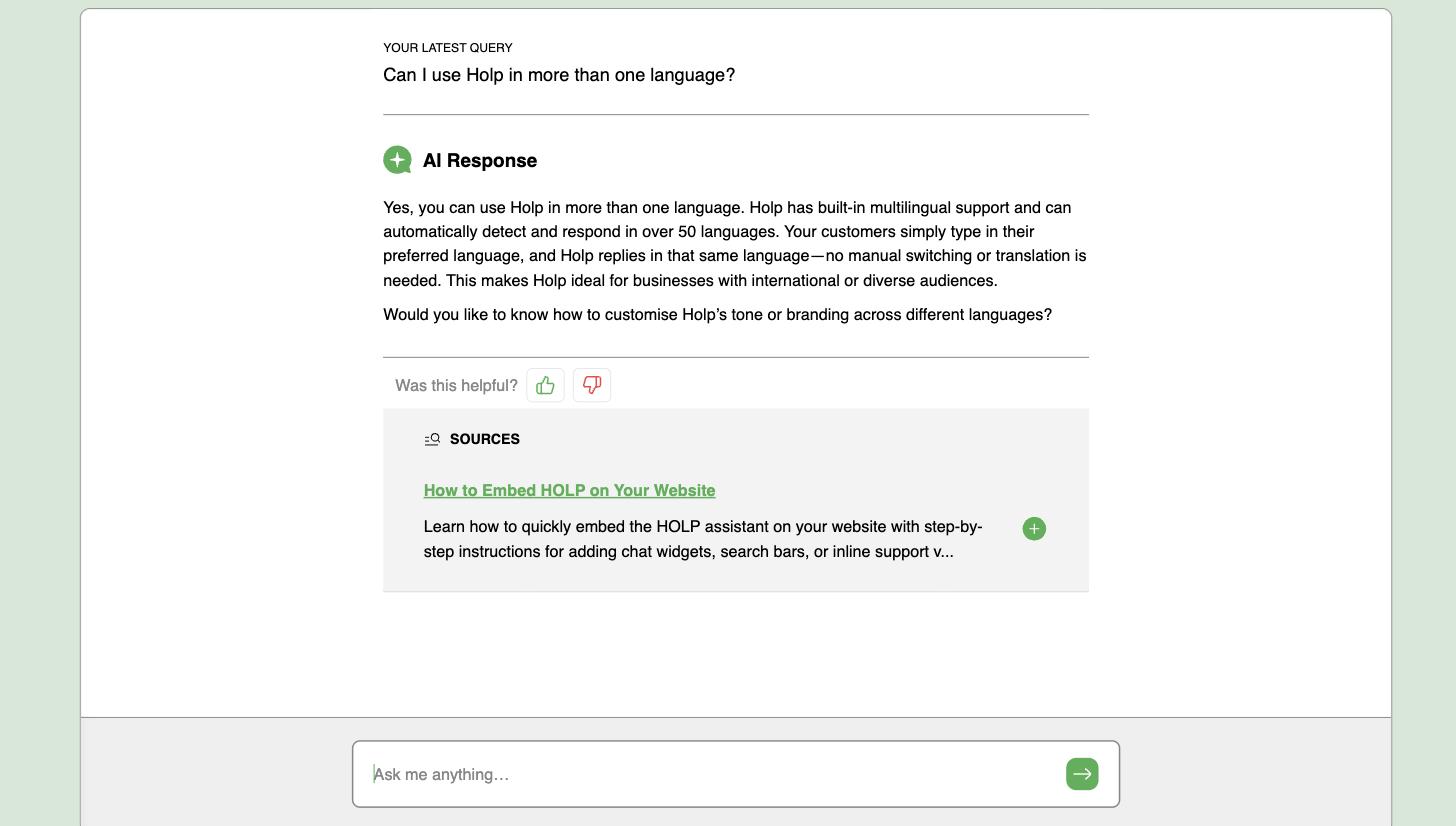
It is not the same as what language your assistant replies in. Your assistant replies in whatever language the visitor writes in, regardless of this setting. See how to use Holp in more than one language.
Greeting message
Up to 120 characters, and the first thing every visitor reads. A generic greeting gets a generic response; a specific one gets people asking useful questions.
Weak: “Hello! How can I assist you today?” It says nothing and could belong to anyone.
Better: name what you can actually help with. “Hi — ask me about opening times, tickets or getting here.” Now the visitor knows this thing knows things, and knows where to start.
A few rules of thumb: mention two or three concrete topics, keep it to one sentence, and use the words your customers use rather than your internal terms.
Description
Up to 200 characters, and used by the newer widget. It sits under the greeting as a short line explaining what the assistant is for — the example in Holp is along the lines of a friendly guide you can ask about visiting, tickets or what is on today.
Treat it as the subtitle to your greeting: greeting says hello and invites a question, description says what this thing actually knows about.
Test before you settle
Use the live preview and ask three questions: an easy one, a difficult one, and one your assistant cannot answer. The tone matters most in that third case. If it sounds glib when it has to say no, soften the tone.
Common mistakes
- Leaving the default greeting. It is the single easiest improvement available and most people never make it.
- Choosing Playful for serious subjects. Fine for a gift shop, wrong for a bereavement service.
- A vague custom tone. Marketing adjectives produce marketing waffle. Give concrete instructions.
- Assuming interface language controls replies. It does not. Replies follow the visitor.
- Forgetting to save. The preview updates live; the site does not, until you press Save changes.
A worked example: three greetings
The same organisation, a community theatre, tried three greetings over three months.
“Hello! How can I assist you today?” The default. Conversations were short and often started with people asking whether it was a real person.
“Hi there, welcome to the Playhouse. Ask me anything!” Warmer, and no better. “Anything” is not a prompt; it is a blank page with an exclamation mark.
“Hi — ask me about what is on, tickets, access or getting here.” Conversations rose noticeably, and more of them were about tickets. The greeting told people the assistant knew things, and named the things.
The change took thirty seconds. It is the highest-value thirty seconds available on the Identity tab, and most organisations never spend it.
Writing a custom tone that actually works
If none of the presets fit, the Custom option is where your brand voice goes. The difference between a useful custom tone and a useless one is concreteness.
Useless: “Professional yet approachable, reflecting our values of excellence and community.” Nothing in that sentence tells the assistant what to do differently.
Useful: “Warm and direct. Short sentences. Say the answer first, then the detail. Never use exclamation marks. Never say we are excited or delighted. If we cannot do something, say so plainly and suggest the nearest alternative.”
Every line of the second version is a decision the assistant can act on. Write yours as instructions, not as adjectives.
Testing tone where it matters
Tone is easy on a good day. The test is a bad one. Ask your assistant three uncomfortable questions:
- Something you have to say no to
- Something a frustrated customer would ask, in the words a frustrated customer would use
- Something it genuinely cannot answer
If the tone still reads well in all three, it is right. Playful in particular tends to survive the first question and fall apart on the second — a cheerful reply to someone who has had a bad experience reads as not listening.
How name, tone and greeting work together
These three settings are one decision, not three. A formal tone with a first-name assistant and a chatty greeting is confusing, and visitors notice inconsistency even when they cannot name it.
Pick the register first — how would your best member of staff talk to this customer? — and then set all three to match. If in doubt, err towards the way you write to customers by email; that is usually the voice people already associate with you.
A short checklist
- Name that makes clear who the visitor is talking to
- Tone matching how your team actually speaks, tested on a difficult question
- Interface language set to what most visitors read
- Greeting that names two or three specific things you can help with
- Description written as a subtitle, if you are on the newer widget
- Saved — the preview updates before you save, the live widget does not
Frequently asked questions
Does the assistant name change the answers?
Not directly, but the assistant knows what it is called, so visitors can refer to it by name and it will respond naturally.
What does brand tone actually change?
The wording and rhythm of answers — how formal, how warm, how long. The facts come from your knowledge either way.
Can I write my own tone instructions?
Yes. Choose Custom and describe the voice you want. Concrete instructions work far better than abstract ones.
Is interface language the same as the language of replies?
No. Interface language sets the buttons and labels. Replies follow the language the visitor writes in.
How long should my greeting be?
One sentence, within the 120-character limit. Mention two or three things you can help with rather than asking an open question.
Where does the description show up?
On the newer widget, beneath the greeting on the start screen. It is a short line explaining what the assistant covers.
Can I change these later?
Yes, any time. Changes go live as soon as you save, with no need to touch your website code.
Where to go next
- How to brand the Holp widget
- How to add a welcome bubble and suggested prompts
- How to change the AI model and add custom instructions
More from Holp
- How to add live chat to a website — the install on every platform, and the decisions to make first
- AI chatbot for WordPress — plugin or snippet, and what it can actually read
- All resources — tools, comparisons and platform guides in one place