Not every customer is on your website. Some are standing in your reception, looking at a poster, holding a leaflet or sitting in front of an exhibit. A QR code puts your assistant in front of those people too — they point a phone at it and they are talking to you.
Holp generates the codes for you, tracks how often each is scanned, and can even scope a code to a specific part of your knowledge.
Where to find it
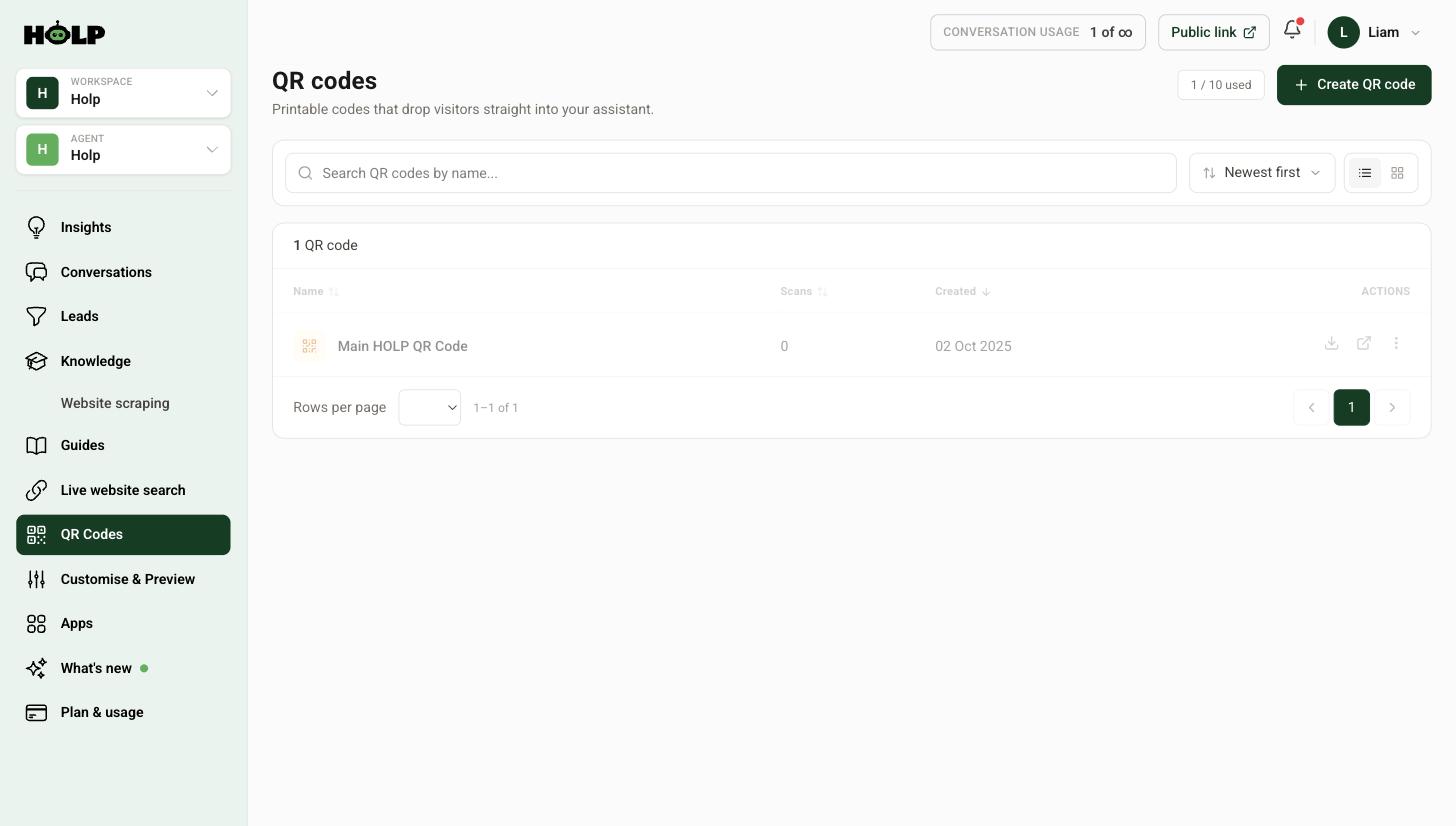
Click QR Codes in the left-hand menu. Existing codes are listed with their scan counts, and your allowance is shown in the top right.
Step 1: Create a code
Click Create QR code.
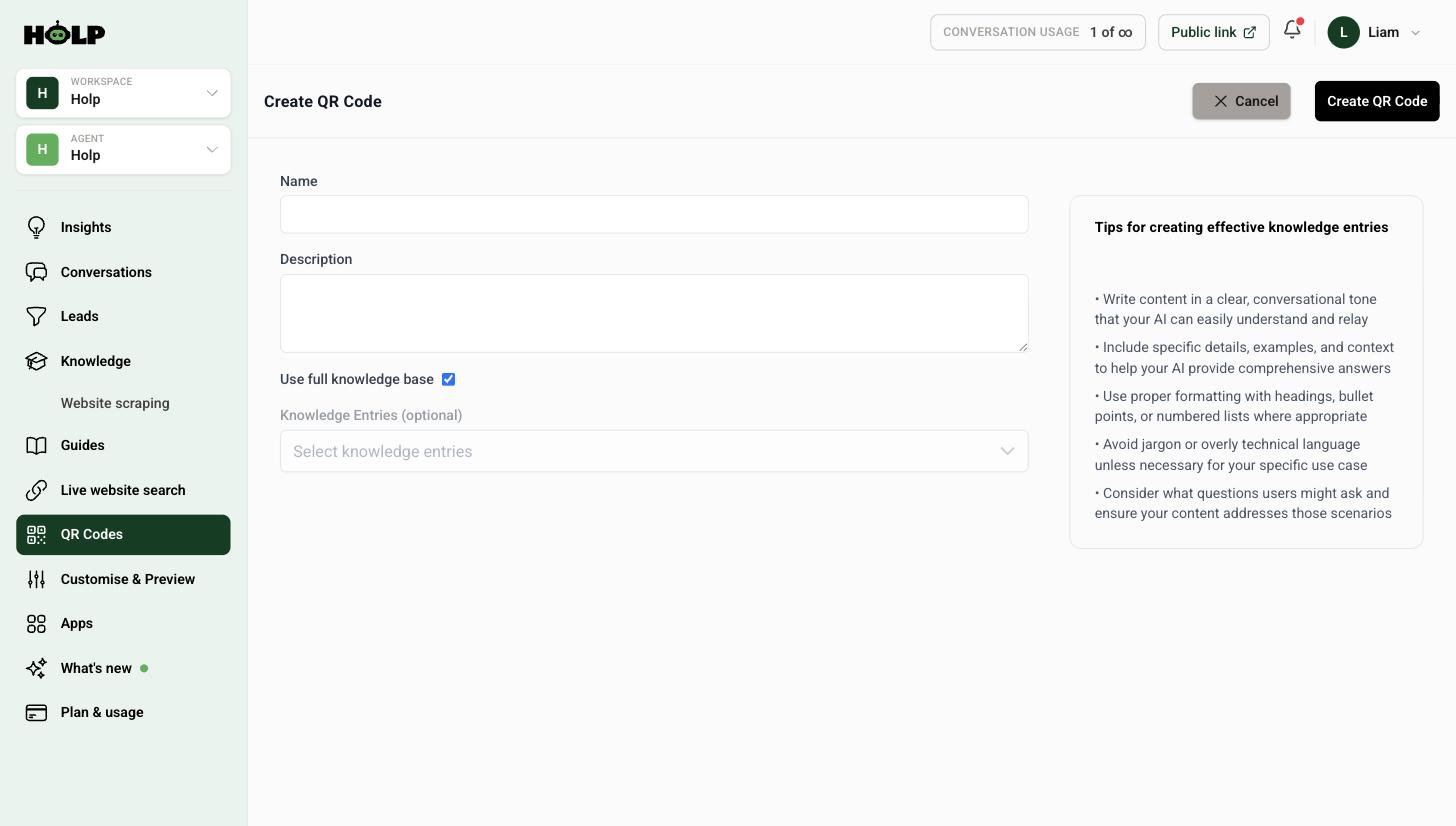
Name
Name it after the physical place it will be used: “Reception desk”, “Summer leaflet 2026”, “Gallery 2 entrance”. When you look at scan counts in six months, you want to know which poster worked, not which code was called QR Code 3.
Description
A note for your own team. Where it is, when it went up, who is responsible for it.
Use full knowledge base, or pick entries
This is the interesting setting. Leave Use full knowledge base ticked and the code opens your normal assistant, which knows everything. That is right most of the time.
Untick it and you can select specific knowledge entries, so the assistant behind that code focuses on those. Useful when the code is attached to one thing:
- A code beside a single exhibit, scoped to that exhibit
- A code on a product’s packaging, scoped to that product
- A code on an event flyer, scoped to that event
- A code in a hotel room, scoped to guest information
The advantage is focus. Someone scanning a code next to a painting is asking about that painting, and a narrower assistant gives sharper answers.
Click Create QR Code when you are done.
Step 2: Download and use it
Each code in the list has a download action and an option to open the destination so you can check it. Download the image and put it wherever it needs to go.
Places QR codes earn their keep:
- Reception and waiting areas — people with a question and time to ask it
- Printed leaflets and posters — a way to make paper interactive
- Product packaging — instructions and support without a manual
- Exhibits and displays — far more information than fits on a label
- Business cards and email signatures
- Table talkers and menus — ingredients, allergens, opening times
- Vehicles and signage
Printing them properly
Most QR code failures are printing failures, not code failures.
- Big enough. A code smaller than about 2cm square is unreliable, and needs to be considerably bigger if people will scan from a distance.
- Enough quiet space. Leave clear margin around the code. Crowding it with other design elements breaks scanning.
- Good contrast. Dark code on a light background. Not on a photograph, not in a pale brand tint.
- Flat and unobstructed. Avoid curved surfaces and glossy laminates that reflect under lights.
- Tell people what it does. A bare code gets ignored. “Scan to ask us anything” gets scanned.
Always test the printed version, not just the file. Scan it with an ordinary phone, from the distance someone will actually stand at, under the lighting it will live in.
Step 3: Watch the scan counts
The list shows scans per code, which is genuinely useful. It tells you which poster position works, whether the leaflet was worth the print run, and which exhibits people care about.
A code with zero scans after a month is usually too small, badly placed, or unexplained. Move it, enlarge it, or add a line of text telling people why they should bother.
QR codes and public links
A QR code opens a hosted Holp page, the same idea as your public Holp link. The difference is tracking and scoping: a QR code counts its own scans and can be limited to particular knowledge, which a plain link cannot.
For anything printed, use a QR code. For anything you send digitally, the public link is easier to click.
A worked example: a heritage railway
A heritage railway creates five QR codes rather than one, and scopes three of them.
Ticket office window — full knowledge base. People here ask about anything: times, fares, dogs, toilets, the café.
Platform 1 signage — full knowledge base. Same reasoning.
Inside the locomotive shed — scoped to the entries about the engines. Someone standing in front of a locomotive is asking about that locomotive, and a narrower assistant gives sharper answers without wandering off into ticket prices.
Summer timetable leaflet — scoped to timetable and fares entries. The leaflet exists to get people to travel; the code should not drift.
Volunteer recruitment poster — scoped to the volunteering entries, because a potential volunteer has a completely different set of questions from a visitor.
After a season the scan counts tell them something useful: the shed code is scanned three times as often as the platform one. People with time on their hands and something in front of them scan; people waiting for a train mostly do not. That shapes where the next codes go.
Where codes fail, and why
Almost every disappointing QR code is one of five things:
- Too small. Under about 2cm and phones struggle, especially in poor light.
- Wrong height. A code at ankle level or above head height is never scanned. Chest height, roughly, is the answer.
- Behind glass or laminate. Reflections defeat the camera. Matt finishes work far better than gloss.
- No reason to scan. A bare code is furniture. A code with “Scan to ask about this engine” beside it is an invitation.
- Nowhere to stand. If scanning means blocking a doorway or a queue, people will not.
Walk the space with your phone before you commit to a print run. It takes ten minutes and it catches all five.
What to write beside the code
The line of text next to the code does most of the work. Be specific about what it will do:
- Weak: “Scan for more information”
- Better: “Scan to ask about opening times, tickets and access”
- Best, in a scoped context: “Scan to ask about this locomotive”
The more specific the promise, the higher the scan rate — and the more likely the visitor asks something the scoped assistant is set up to answer well.
A pre-print checklist
- Named after its location, not its number
- Scoped correctly if it belongs to one topic
- Tested by opening the destination and asking three likely questions
- At least 2cm square, larger if read from a distance
- Clear space around it, high contrast, matt finish
- A specific line of text beside it
- Scanned on a real phone, in the real place, in the real lighting
Frequently asked questions
How many QR codes can I create?
Your allowance is shown at the top of the QR Codes screen. Plans include a set number, and you can see how many you have used.
Can I limit a QR code to certain information?
Yes. Untick Use full knowledge base and choose specific knowledge entries, so the assistant behind that code focuses on them.
Do visitors need an app to scan it?
No. The camera app on any modern phone reads QR codes without extra software.
How do I know if my QR codes are being used?
Each code shows its own scan count in the list, so you can compare placements.
What size should I print it?
At least 2cm square for close-up scanning, and larger for anything read from a distance. Leave clear space around it and keep contrast high.
Can I change where a code points after printing it?
The code opens your assistant, and your assistant is edited in Holp. So you can change the knowledge, branding and behaviour behind an already-printed code at any time.
What is the difference between a QR code and a public link?
Both open a hosted page. QR codes add scan tracking and the option to scope the assistant to particular knowledge, which makes them better for print.
Where to go next
- How to share Holp with a public link
- How to add knowledge to your Holp assistant
- How to use the Insights dashboard
More from Holp
- What does a chatbot cost? — every pricing model, and the costs nobody lists
- Best AI agents for customer service in 2026 — how the options compare, honestly
- All resources — tools, comparisons and platform guides in one place