An assistant that only one person can update is a risk. That person goes on holiday, the prices change, and nobody else can fix it. Inviting colleagues takes a minute and removes the problem.
It also spreads the work. The person who knows the answers is often not the person who set up the account.
Where to find it
Open the account menu in the top right and choose Team.
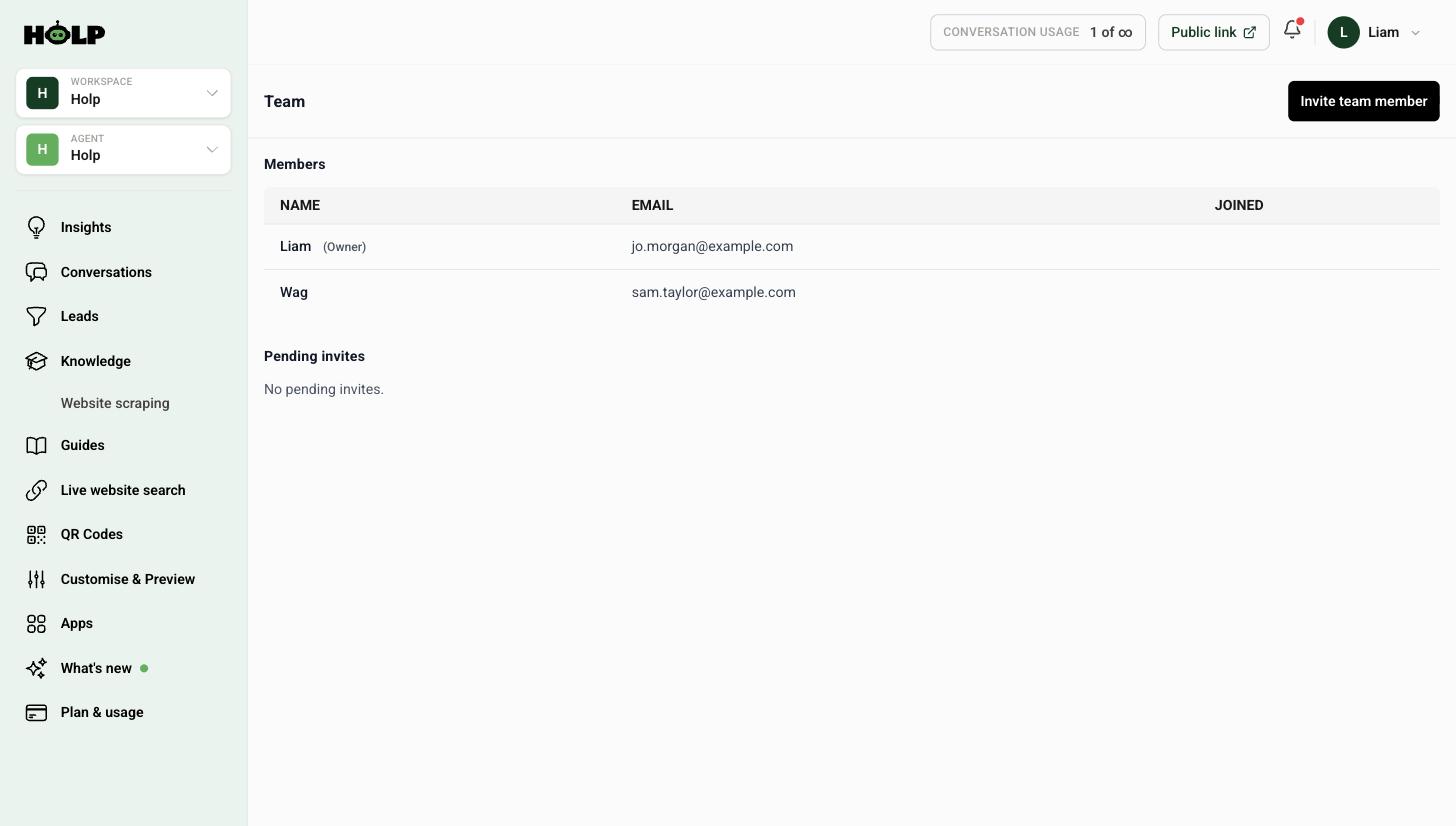
You will see everyone currently in the workspace, who the owner is, and a Pending invites section for anyone who has not accepted yet.
Step 1: Send an invitation
Click Invite team member and enter their email address. They receive an invitation and appear under pending invites until they accept.
If someone has not accepted after a day or two, check their spam folder before assuming they have ignored you — invitation emails are a classic casualty of email filtering.
Step 2: Decide who actually needs access
More people is not automatically better. A sensible set for most organisations:
- An owner — responsible for the account and the subscription
- One or two knowledge editors — the people who know the answers and can write them clearly
- Whoever handles enquiries — so they can read conversations and follow up leads
The person who should definitely have access is the one who currently answers the same question on the phone ten times a week. They know exactly what to write.
Step 3: Agree who does what
Access without ownership tends to mean nothing gets done. Worth agreeing, even informally:
- Who checks the shared inbox for lead notifications, and how often
- Who reads conversations each week
- Who does the monthly knowledge gap review
- Who is allowed to change branding and behaviour settings
That last one matters more than it sounds. Settings in Customise & Preview change your live site the moment they are saved.
Workspaces and assistants
Two levels sit above all of this, and it helps to understand them.
- A workspace is your organisation. Team members belong to a workspace.
- An agent, or assistant, sits inside a workspace. Each has its own knowledge, branding and conversations.
Both are switched using the selectors at the top of the left-hand menu. If a colleague says they cannot find something, the usual cause is that they are looking at a different workspace or a different assistant.
Adding another assistant is a billing matter — see how to manage your plan, usage and billing.
Helping a new colleague get started
Rather than handing over a login and hoping, point them at three things:
- Conversations, to see what customers actually ask
- Knowledge, to see what the assistant currently knows
- One small task — write a single knowledge entry for a question they answer all the time
That last step is the one that makes it click. Writing one entry, testing it, and seeing the assistant answer correctly teaches more than any amount of documentation.
When someone leaves
Remove their access, and check two things while you are there: that the notification email is a shared inbox rather than theirs, and that anything they alone were responsible for has an owner. This is where a personal notification address quietly becomes a problem.
A worked example: a three-person charity
It is easier to see how this works with a real shape. Take a small charity with a fundraiser, an operations manager and a volunteer coordinator.
The operations manager is the owner. She set the account up, she holds the billing, and she is the one who changes anything on the Customise & Preview screens.
The volunteer coordinator answers the same six questions every week — what the shifts are, whether you need a DBS check, what to wear, where to park. He is the most valuable person in the workspace, because those six questions are most of the assistant’s traffic and only he knows the real answers. His job is knowledge: writing entries and keeping them current.
The fundraiser does not write anything. She watches Leads, because a visitor asking about corporate partnerships is worth a phone call the same day. She has escalation emails switched on in her own account settings; the other two do not.
That is a complete, workable setup: one owner, one knowledge editor, one person who follows up. Nobody is duplicating effort and nothing depends on a single person being at their desk.
What to hand over on day one
When you add someone, send them three things rather than a login and good luck:
- What the assistant is for. One sentence. “It answers visitor questions on the website so we spend less time on the phone.”
- What you would like them to do. Specific and small. “Write entries for the questions you get asked most.”
- What not to change without asking. Usually anything under Customise & Preview, because it goes live immediately.
Working in more than one workspace
Agencies, multi-site charities and groups with several brands often end up with more than one workspace. Two things are worth knowing.
First, team membership is per workspace, so someone added to one is not automatically in another. Second, the workspace and agent selectors sit one above the other at the top of the menu, and it is genuinely easy to edit the right entry in the wrong place. If a colleague swears they added something and you cannot see it, check both selectors before you check anything else.
A handover checklist
When the person who owns the assistant changes, work through this:
- Invite the new owner and confirm they have accepted
- Check the notification email points at a shared inbox, not the outgoing person
- Confirm someone is named for the weekly conversation read and the monthly knowledge review
- Check the billing contact and payment method are still valid
- Remove the outgoing person’s access
Step two is the one that gets missed, and it is the one that quietly stops enquiries reaching anybody.
Frequently asked questions
How do I invite someone to Holp?
Open the account menu in the top right, choose Team, and click Invite team member. They get an email invitation and appear under pending invites until they accept.
Someone has not received their invitation. What now?
Check their spam or quarantine folder first. Automated invitation emails are commonly filtered.
What is the difference between a workspace and an agent?
A workspace is your organisation and holds your team. An agent is a single assistant inside it, with its own knowledge, branding and conversations.
My colleague cannot see our knowledge. Why?
Almost always because they are looking at a different workspace or a different assistant. Check the two selectors at the top of the left-hand menu.
Who should have access?
The owner, one or two people who can write knowledge, and whoever handles enquiries. The person who answers the same question on the phone every day is usually the most valuable addition.
Can I add another assistant?
Yes, from the Plan and usage screen. Additional agents are charged separately.
What should I do when someone leaves?
Remove their access, make sure the notification email is a shared inbox rather than theirs, and check nothing was solely their responsibility.
Where to go next
- How to set up email notifications
- How to manage your plan, usage and billing
- How to review conversations
More from Holp
- What does a chatbot cost? — every pricing model, and the costs nobody lists
- Best AI agents for customer service in 2026 — how the options compare, honestly
- All resources — tools, comparisons and platform guides in one place