If your website already explains what you do, your opening hours, your prices and your policies, you do not need to type it all out again. Holp can read your site and turn those pages into knowledge your assistant answers from.
This is the fastest way to get a useful assistant. It takes a few minutes to start and runs in the background while you get on with something else.
What importing actually does
Holp reads the pages on your website and adds their content to your assistant’s knowledge. Each page becomes a knowledge entry you can open, read and edit — so you always know exactly what your assistant has been told.
Pages are re-checked automatically, so when you update your website your assistant keeps up.
Step 1: Open Website scraping
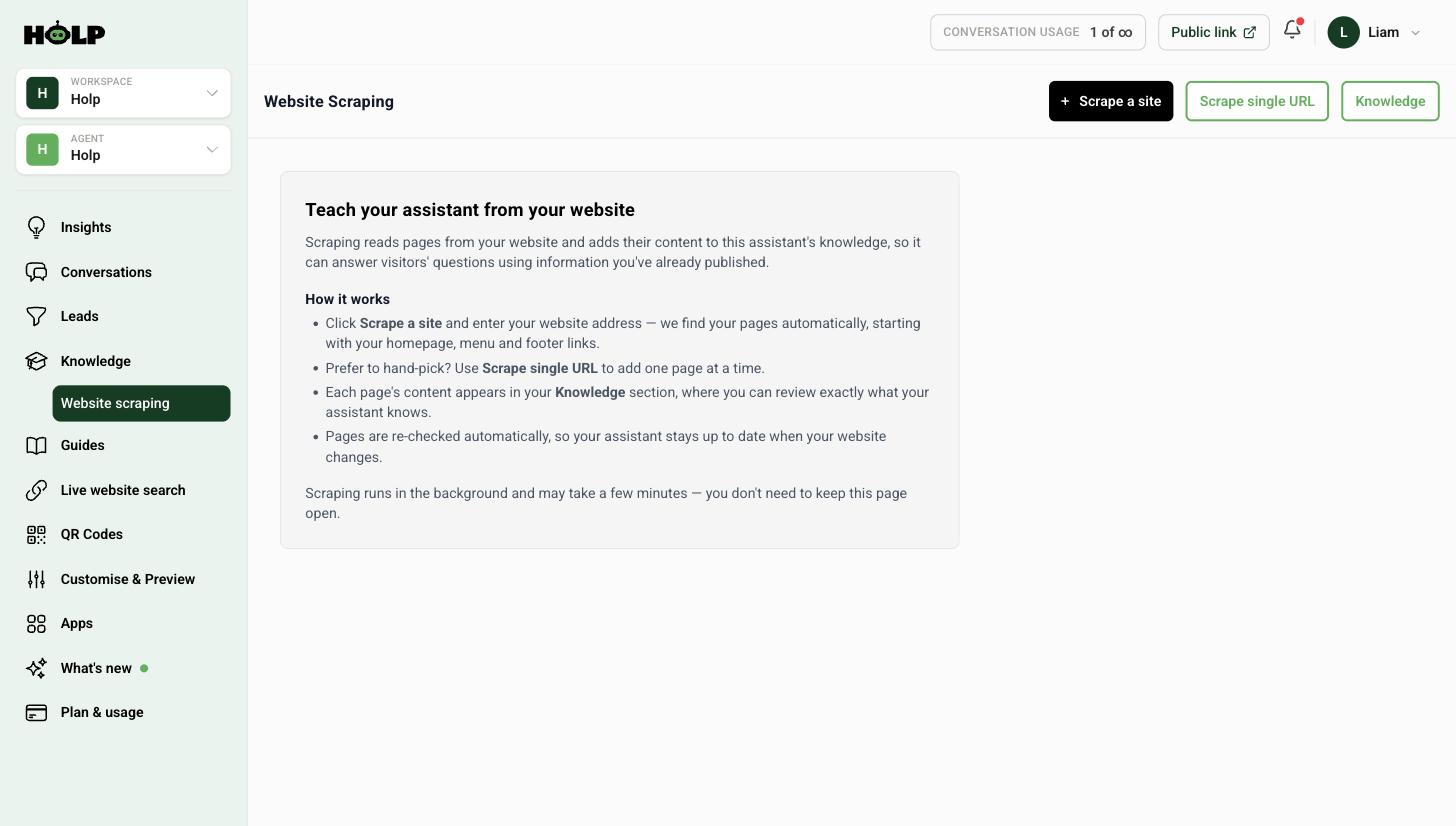
In the left-hand menu, under Knowledge, click Website scraping.
You have two choices from here. Scrape a site reads your whole website automatically. Scrape single URL adds one page at a time. Most people start with the whole site and then hand-pick a few extras.
Step 2: Import your whole site
Click Scrape a site. Holp reads your site’s sitemap and works through the pages, starting with your homepage, menu and footer links.
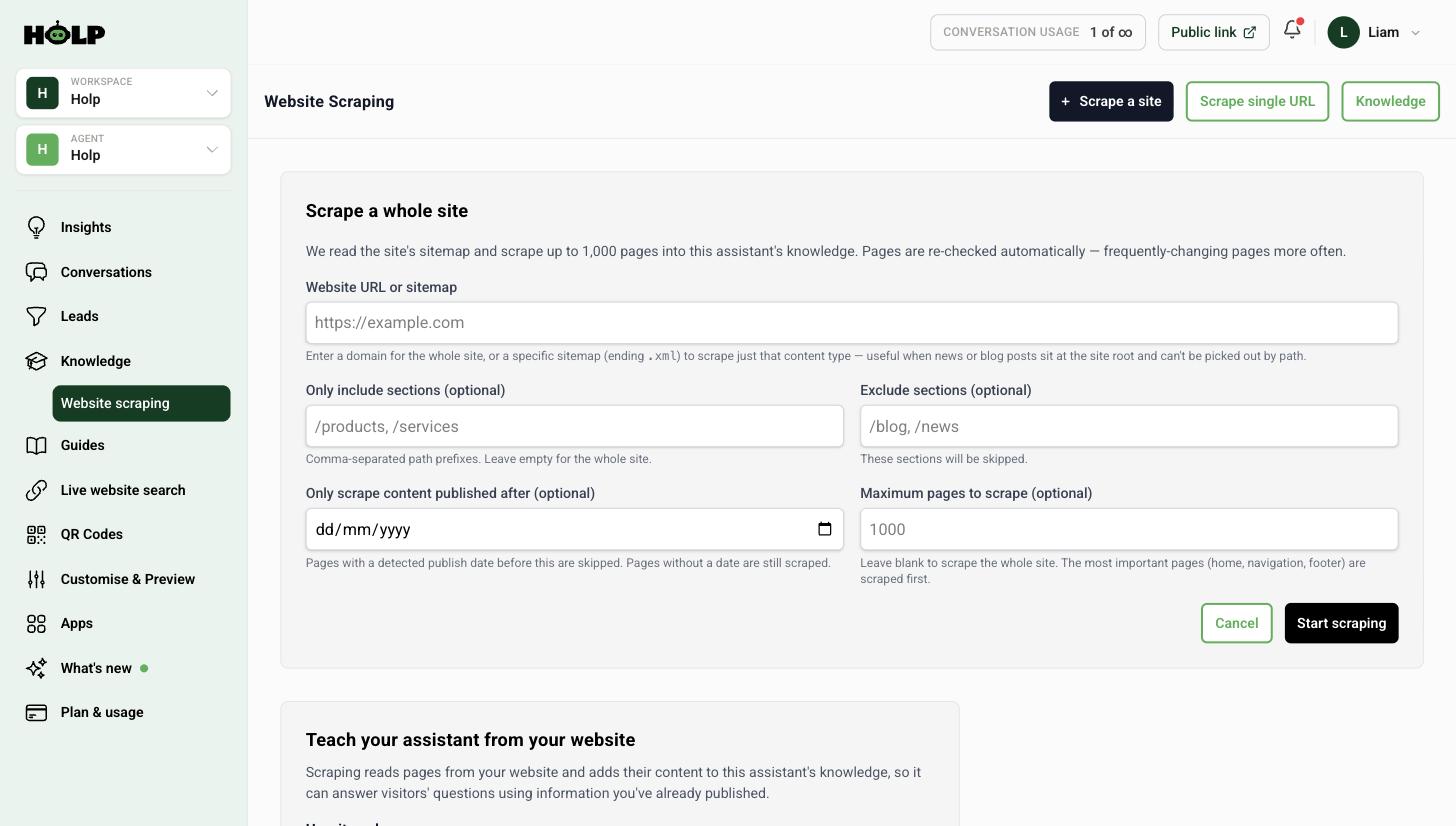
Website URL or sitemap
Enter your domain to read the whole site. If you only want one type of content — news, say, or events — and it sits at the root of your site where it cannot be picked out by path, enter that specific sitemap address instead.
Only include sections
Optional. Comma-separated path prefixes such as /products, /services. Leave it empty to read everything.
Exclude sections
Optional, and often more useful than including. Common candidates are /blog and /news if your archive runs to hundreds of old posts, and anything seasonal or out of date. Every page you exclude is one your assistant cannot get confused by later.
Only scrape content published after
Optional. Pages with a detected publish date earlier than this are skipped. Excellent for sites with a long, stale blog archive. Pages without a date are still read.
Maximum pages
Optional, and up to 1,000 pages. Leave it blank for the whole site. If you set a limit, the most important pages — home, navigation and footer — are read first.
When you are happy, click Start scraping. It runs in the background, so you can close the page and come back.
Step 3: Add individual pages
For one-off pages, click Scrape single URL and paste the address.
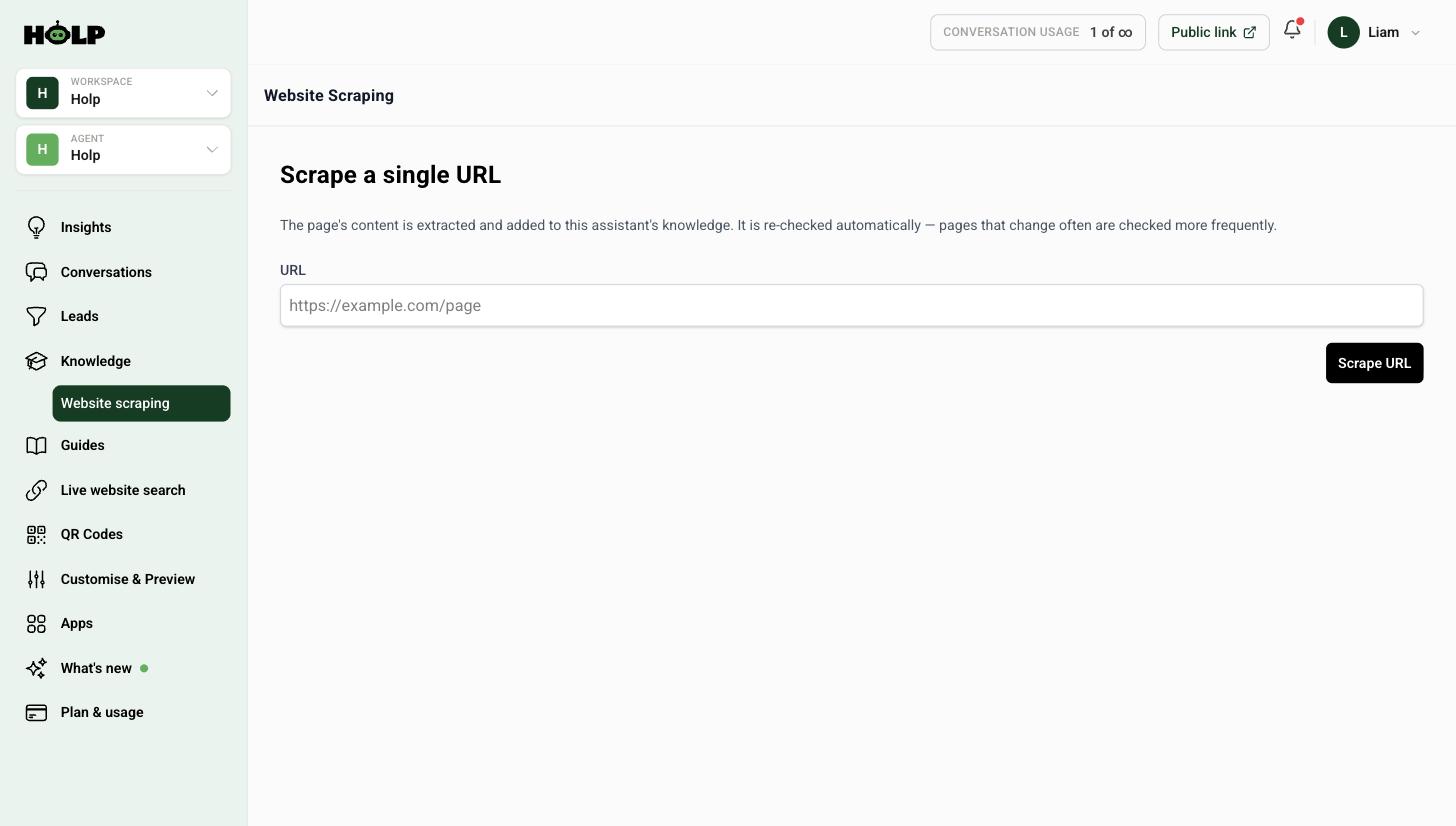
Like the full import, single pages are re-checked automatically, and pages that change often are checked more frequently.
Step 4: Review what came in
This is the step that separates a good assistant from an unreliable one. Open Knowledge and use the All sources filter to see the entries that came from your website.
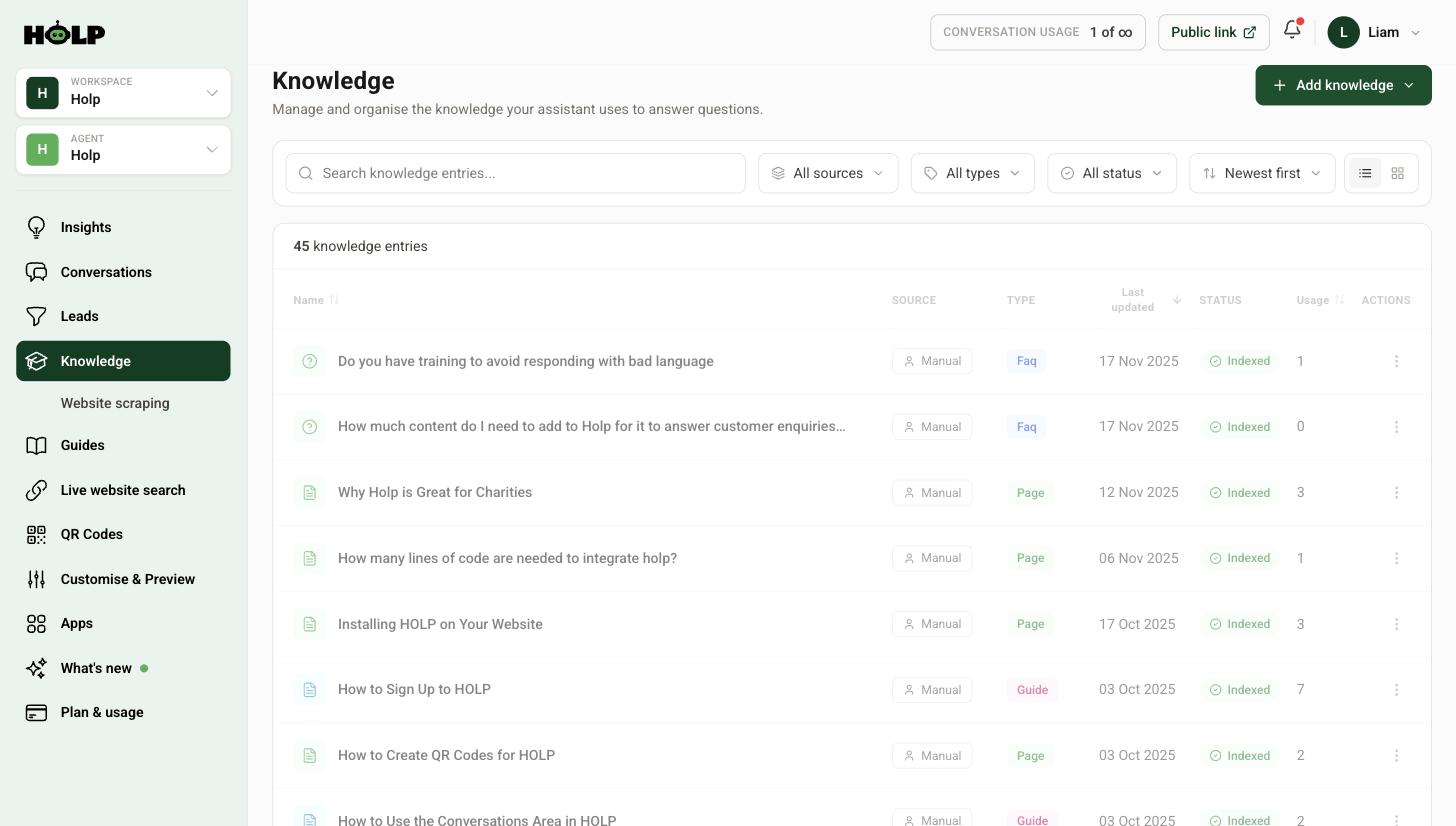
Read through them and ask three questions:
- Is anything out of date? Old prices and last year’s events will be answered confidently unless you remove them.
- Did navigation and boilerplate come through as content? If an entry is mostly menu text, it is not much use — delete it.
- Is the important stuff actually in there? If a key answer only exists as a graphic, a PDF or behind a form, importing will not have caught it. Write it out by hand.
Step 5: Fill the gaps by hand
Almost every business has answers that are not written down anywhere: the question staff get asked at the door, the thing people always misunderstand, the polite way you say no. Those need hand-written knowledge entries, and they are usually the most-used entries you will have.
Importing, live search or both?
Holp has a second way of using your website. Live website search reads pages at the moment a visitor asks, rather than copying them into knowledge.
- Importing gives faster, more consistent answers, and you can edit what the assistant knows.
- Live website search is always current, which suits pages that change weekly — what is on, availability, opening times over a bank holiday.
Most sites benefit from both: import the stable content, and point live search at the pages that move.
If the import does not go to plan
- Very few pages came in. Your site may not have a sitemap the import can follow. Try entering the sitemap address directly, or add key pages one at a time.
- Pages came back empty. Pages that only build themselves once a browser runs them can come back with nothing. Add those answers by hand.
- Too many old blog posts. Delete the entries you do not want, then re-import with /blog excluded or a publish date set.
- Nothing behind a login came in. That is expected — the import can only read pages the public can see.
A worked example: a 200-page charity site
A charity with about 200 pages runs the import in two passes rather than one.
First pass: their domain, with /news and /blog excluded. That brings in around 60 pages — services, about, contact, how to get help, fundraising, volunteering. All the content that is still true.
Then they read it. This takes an hour and it is the part that matters. They find three problems: an old services page describing a project that closed in 2023, several entries that are mostly navigation text with almost no content, and a page of contact details listing a phone number that changed last year.
They delete the closed project and the navigation fragments, and correct the phone number in place.
Second pass: a handful of individual pages added with Scrape single URL — a couple of recent news items that are genuinely still relevant, and a campaign page that sits outside the main site structure.
Finally they write eight entries by hand for things that were never on the website at all: what happens at a first appointment, whether you need a referral, what to bring, and the questions the helpline gets every day.
Total: an afternoon. What they end up with is a curated knowledge base rather than a copy of a website, and the difference in answer quality is obvious.
Deciding what to exclude before you start
Five minutes of thought here saves an hour of deleting later. Walk your own site and ask which sections are more likely to mislead than help:
- News and blog archives. Old posts date badly and are answered with complete confidence.
- Past events. Anything with a date that has been and gone.
- Old campaigns. Pages you never took down.
- Legal boilerplate you would rather summarise than have quoted at people.
- Duplicate landing pages from advertising, which say the same thing three slightly different ways.
If your blog is genuinely current and useful, use the published-after date instead of excluding it entirely.
How to review efficiently
Reading 60 entries sounds worse than it is. Sort by newest, open each, and give it five seconds against three questions: is it true, is it content rather than navigation, and would a customer ever ask about it. Delete on any no.
Be ruthless. A smaller, accurate knowledge base beats a large one every time — every irrelevant entry is another thing the assistant might reach for instead of the right one.
What importing will never catch
Every organisation has answers that exist only in people’s heads or in an inbox:
- The thing customers always misunderstand
- The polite way you say no
- What actually happens on a first visit, as opposed to what the website says
- The exceptions to your own policy
- The question staff get asked at the door every single day
These are almost always your highest-usage entries once written. Importing gets you to a working assistant; these get you to a good one.
Frequently asked questions
How long does importing take?
It depends on the size of your site. Small sites are usually done in a few minutes, larger ones take longer. It runs in the background, so you do not need to keep the page open.
How many pages can Holp import?
Up to 1,000 pages from a single site import. If you want fewer, set a maximum — the most important pages are read first.
Will my assistant stay up to date when I change my website?
Yes. Imported pages are re-checked automatically, and pages that change often are checked more frequently. For content that must always be exactly current, use live website search instead.
Can I edit what was imported?
Yes, and you should. Every imported page becomes a normal knowledge entry you can open, rewrite, or delete.
Can Holp read pages behind a login or a form?
No. Only publicly accessible pages can be read. Anything behind a login, a form or a cookie wall needs to be added by hand.
Should I import my whole blog?
Usually not. Old posts date badly and can produce confidently wrong answers. Exclude /blog, or set a publish date so only recent posts are read.
Does importing use up my conversation allowance?
No. Your allowance covers conversations with visitors. Adding knowledge does not count against it.
Where to go next
- How to add knowledge by hand
- How to use live website search
- How to upload PDFs and documents
- Getting started with Holp
More from Holp
- Sitemap extractor — check a crawler can find the pages Holp needs to read
- Answerability check — see which customer questions your site cannot answer yet
- All resources — tools, comparisons and platform guides in one place