Plenty of the answers your customers need are already written down — they are just sitting in a PDF. A price list, a terms document, a membership pack, a menu, an information sheet you send out by email. Holp can read those documents and answer from them.
This guide shows you how to upload one, what to expect afterwards, and when a PDF is the wrong tool for the job.
Step 1: Upload the document
Open Knowledge from the left-hand menu, click Add knowledge in the top right, and choose Upload PDF. Holp extracts the content from the file and turns it into a knowledge entry.
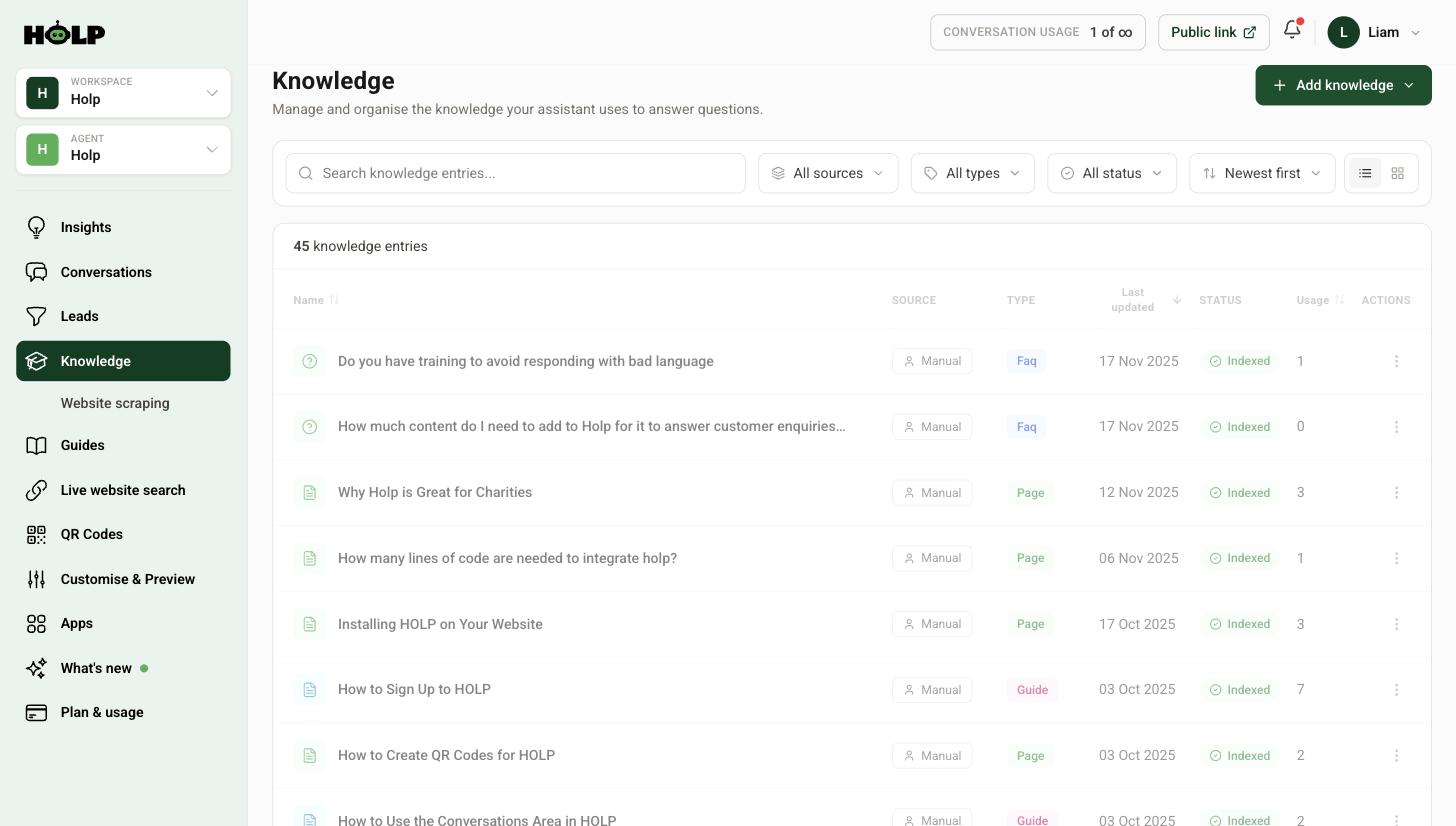
Once it has finished, the document appears in your Knowledge list like any other entry, with its source shown as a PDF upload. Your assistant can start answering from it straight away.
Step 2: Read what actually came out
This is the step worth doing properly. PDFs are designed for humans looking at a page, not for software reading text, so what comes out is not always what you see on screen.
Open the entry and read it through. Things to watch for:
- Tables that have collapsed. A neat pricing table can come out as a run of numbers with no obvious structure. If that has happened, rewrite that part as a bulleted list.
- Columns read in the wrong order. Two-column layouts sometimes interleave.
- Text that lives inside an image. A scanned document or a designed graphic contains no readable text at all — it will come through empty.
- Headers and footers repeating. Page numbers and legal footers can pepper the content. Tidy them out.
You can edit an uploaded document’s entry exactly like a hand-written one, so fixing any of this is straightforward.
Step 3: Give it a title people would ask
Documents usually arrive with a filename as their title, and filenames are rarely what customers ask about. “Membership_Pack_v3_FINAL.pdf” means nothing to anyone. Rename it to something like “What is included in membership”.
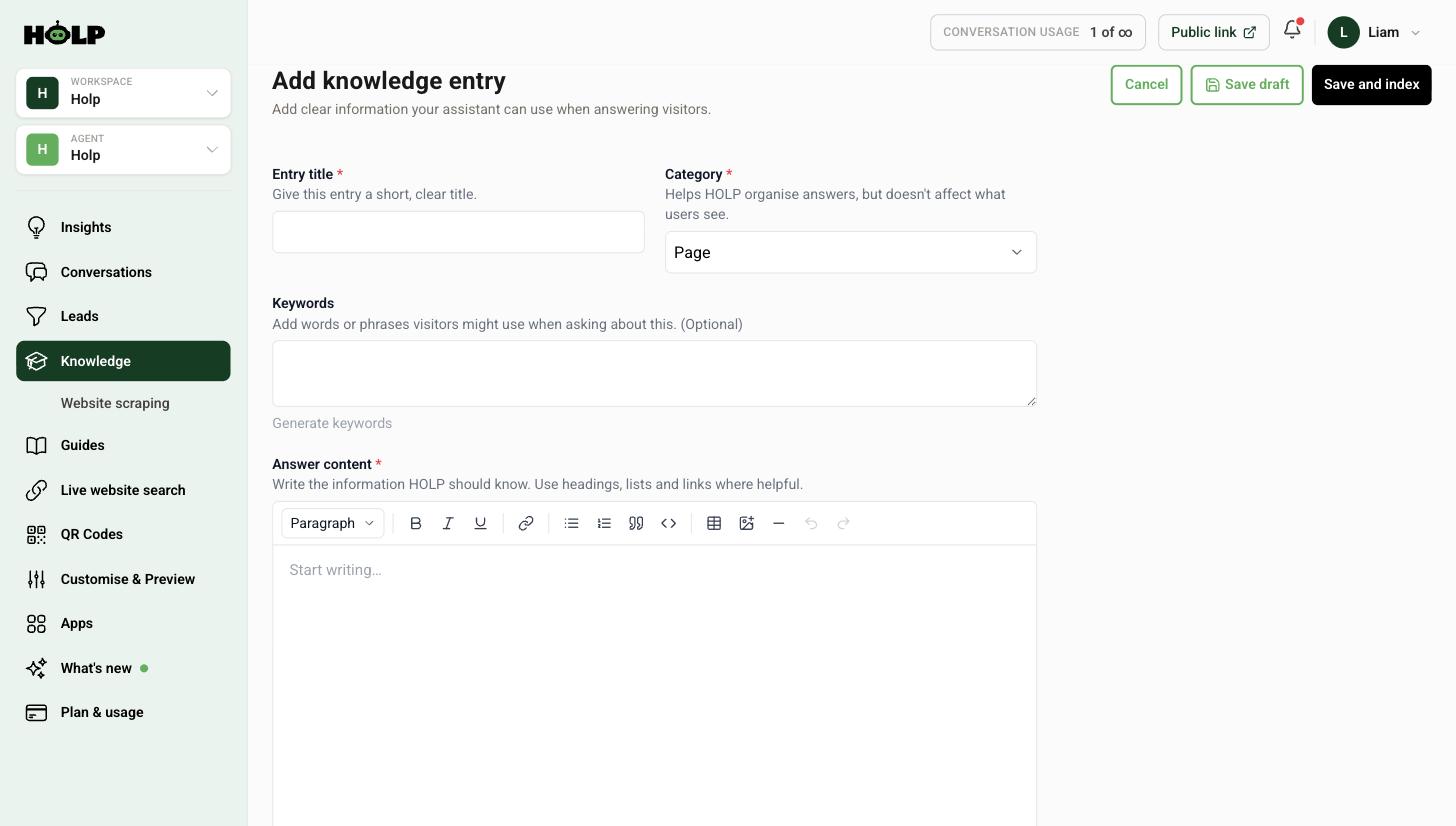
While you are there, add keywords — the words people use when they ask about this document. That single change often makes the difference between a document being used and being ignored.
When a PDF is the wrong answer
Uploading is quick, but it is not always the best choice:
- Long documents covering many topics. A forty-page handbook becomes one enormous entry. Split the important sections into separate hand-written entries instead — the assistant will find the right answer much more reliably.
- Documents that change often. A price list you revise monthly means re-uploading monthly. If the same information is on a web page, live website search keeps itself current.
- Scanned paper. If a document is a photograph of a page, there is no text to extract. Type the key facts out instead.
- Documents full of legal boilerplate. The assistant will happily quote clauses at people. Write a short plain-English entry and link to the PDF for the full text.
A good pattern for long documents
Rather than uploading a large document whole, take the five or six things people actually ring up about, write each as its own knowledge entry in plain English, and use the Reference link field to point at the original document. Visitors get a clear answer and a route to the detail, and your assistant is not wading through forty pages to find one sentence.
Step 4: Test it
Ask your assistant three or four questions the document should answer. If it hedges or misses, the content almost certainly did not extract cleanly — go back and read the entry.
A worked example: a forty-page membership handbook
A professional body has a membership handbook running to forty pages. The obvious move is to upload it. The better move is to look at what people actually ring up about.
Six things account for nearly all the calls: how much membership costs, what the different grades are, how to upgrade, what happens if you miss a payment, what CPD you have to do, and how to cancel.
So they write six short knowledge entries in plain English, each titled as the question, each with the handbook’s address in the Reference link field. The handbook itself stays where it is, linked from every one of those answers.
The result is better on both sides. Visitors get a direct answer plus a route to the formal wording. The assistant is choosing between six focused entries rather than hunting through forty pages of headings, appendices and page furniture.
It took an afternoon rather than five minutes, and it is the difference between a document that is technically in the system and information that actually gets used.
What to check in an extracted document
Open the entry and read it properly. Specifically:
- Numbers in tables. Prices, sizes and dates are the most likely thing to arrive scrambled and the most damaging when they do.
- Anything that was a diagram. Flow charts and process diagrams contain no readable text and simply vanish. If your document explains a process visually, write that process out.
- Footnotes and small print. These often end up jammed mid-sentence.
- Section ordering. Two-column and sidebar layouts sometimes interleave, producing text that reads plausibly and means nothing.
Fix what you find by editing the entry directly. It is a normal knowledge entry once it has been extracted.
Keeping uploaded documents current
An uploaded PDF is a snapshot taken on the day you uploaded it. Nothing about it updates on its own.
Two habits make that manageable. First, whenever you publish a new version of a document elsewhere, add updating Holp to the same checklist — upload the new one, delete the old entry. Second, sort your Knowledge list by last updated once a quarter and look at the oldest uploads. If a document has not been touched in a year, either it genuinely has not changed or nobody has noticed that it has.
Where a document changes often, the better answer is usually not a document at all. Put the information on a web page and use live website search, so the assistant reads the current version at the moment it is asked.
A short checklist
- Upload the document
- Read the extracted entry end to end
- Fix tables, ordering and anything that came from a diagram
- Retitle it as the question people ask
- Add keywords in visitors’ words
- Add a reference link to the original
- Ask three test questions the document should answer
Frequently asked questions
What file types can I upload?
PDF. If you have a Word document, a spreadsheet or a presentation, export it as a PDF first, or copy the relevant content into a hand-written knowledge entry.
Can I upload a scanned document?
You can upload it, but if the pages are images of text rather than real text there will be nothing to extract. Type the key information into a knowledge entry instead.
Does the visitor see the PDF?
Not the file itself. The assistant answers in its own words from the content. If you want visitors to be able to open the original, add its address in the Reference link field.
What happens when I update the document?
Nothing automatically — an uploaded PDF is a snapshot. Upload the new version and remove the old entry, or keep the information on a web page and use live website search so it stays current on its own.
Can I edit the content after uploading?
Yes. An uploaded document becomes a normal knowledge entry, so you can rewrite it, tidy it, retitle it and add keywords.
Should I upload everything I have?
No. Upload the documents that answer questions people actually ask. Extra content that nobody asks about adds noise and makes it harder for the assistant to find the right answer.
Is there a size limit?
Very large documents are better split up regardless of any limit — a single huge entry is harder for the assistant to use well than several focused ones.
Where to go next
- How to add knowledge by hand
- How to import your website into Holp
- How to improve your assistant’s answers
More from Holp
- Sitemap extractor — check a crawler can find the pages Holp needs to read
- Answerability check — see which customer questions your site cannot answer yet
- All resources — tools, comparisons and platform guides in one place